What Are Contracts?
Some suppliers - such as Iberostar - work with multiple contract versions (A/B/C/D...) that each carry distinct pricing. Throughout the season, the supplier may ask you to switch to a different contract version. This switch can be scheduled based on fixed dates or requested on an ad-hoc basis.
In Tide, you can set up multiple contracts for a single product in advance, allowing you to switch quickly between versions without modifying the entire product configuration.
Key Concepts
-
Contracts represent different pricing schemes from a supplier.
-
You can configure several contracts for a single product.
-
Each contract version is independently manageable, particularly concerning the purchase prices.
Adding a Contract
-
In your product, go to the first tab Data
- On the right, below Seasons and Price cards, you will see Contracts
Standard, a default contract is selected.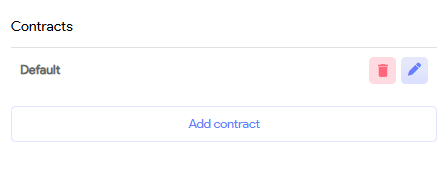
-
To add a new contract, click the Add contract button.
-
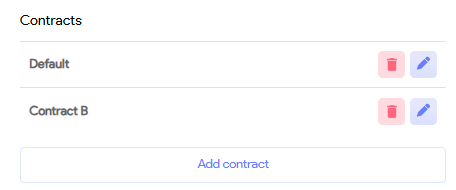
Enter the contract name.
For setups with multiple contract versions, it is advisable to use straightforward codes such as A, B, C, and so on for naming the contracts.
Viewing and Editing Contracts
Once you add a second contract:
-
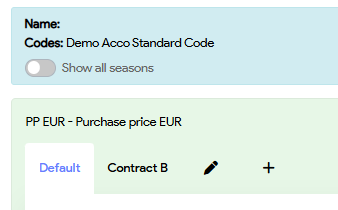
A new tab will appear under the Pricing > Purchase Prices section.
-
Each tab corresponds to a separate contract.
-
You can independently add, edit, and remove price lines for each contract.
Activating or Scheduling a Contract
To schedule or activate a specific contract:
-
Click the pencil icon beside the price tabs.
-
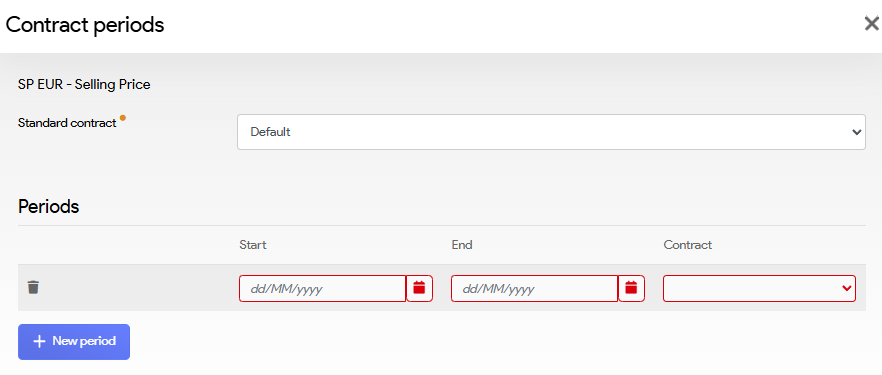
A pop-up titled "Contract Periods" will appear.
-
Use the dropdown to select the contract version.
-
Set a Start Date and End Date for the contract's validity.
To activate a contract immediately, set the start date to today.