
This article will provide you with a comprehensive overview of the various elements on the booking screen, ensuring that you feel confident as you make your first booking.
File management
In this section, you will have the ability to manage all aspects related to your bookings. This includes creating and organizing files, adjusting views, overseeing booked services, processing payments, and viewing invoices and credit notes.
To begin managing your files, please follow these steps:
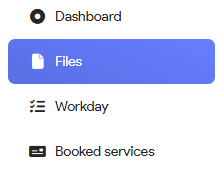
- Navigate to the File Management, located in the Tide main menu
- In the File management menu, click on Files
- The Files interface will now be displayed

Files interface
The interface is organized into three distinct sections:
- the left side showcases the available views (highlighted in green),
- while the right side is further divided into two parts.
- The upper portion displays the results and totals corresponding to the selected view (marked in red),
- and the lower portion features the Files bar (shown in grey).
Views
Views play a crucial role in organizing your files effectively. You have the flexibility to create multiple views based on various criteria, allowing you to tailor the overview to suit your specific business management needs.
For additional information on how to create and manage views, please click here.
Files bar

On the left side you will find the popover items, while on the right side you will find the call to action buttons.
Use pop over items
Initially, these buttons are disabled. To activate them, you need to select the files, for which you wish to view information.
- Tick the selection box of the desired bookings in the view results section.
- You will now see that certain buttons will have become enabled

- You now have two ways to access the information you need (e.g. viewing payments for the selected files)
- by hovering over the button, you will see a popover that displays the relevant information.
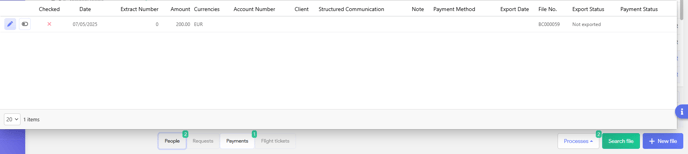
- or by clicking the button, a new tab will open with the selected filter applied:

- by hovering over the button, you will see a popover that displays the relevant information.
Action buttons
On the right side you will see the following buttons:
- Processes: Initiate a process for the files you have selected. This option will only become available once you have chosen one or more files.
- Search file: A new panel will appear, allowing you to search for specific files efficiently.
For further details on how to efficiently search for files, please click here. - + New file: This will open the file interface, where you can create a new booking.