
What are notifications
Notifications are used to control product availability and communicate important messages. These entries are especially useful for avoiding bookings when availability was closed by the hotel, hotel informational messages e.g. pool closed, limited-time promotions or added values,...
You can also flag a notification for manual confirmation, to make sure the user or customer has been informed properly.
Key Concepts
-
Temporarily or permanently make products unavailable for booking (stop sales)
- Communicate important messages
-
Require manual confirmation
-
Be internal only or visible to external users (via print or frontend)
-
Configured for specific accommodations or regimes
Basic introduction
Manage notifications
Go to your product and select the Notifications tab.
Here you will see the list of notifications that have been configured for this product.

You can perform the following actions for each notification listed:
 |
View/edit notification details |
 |
Delete a notification |
Notification in detail
General & specify
Applicable
Stay from/to and Valid From/to
Manage date ranges
General & specify
Description and applicable accommodations and/or boards
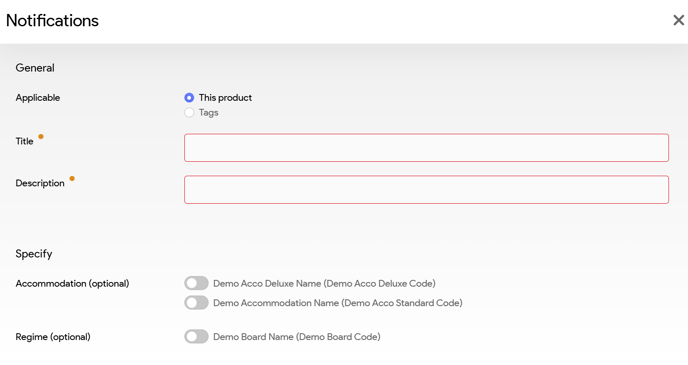
| Field | Description |
|---|---|
| Applicable | Defines whether the notification is applicable on the given product or a specific tag. |
| Title | Clear, short name for internal/external reference (e.g. "Stop Sales Deluxe Room"). |
| Description | Detailed explanation of the notification. |
| Accommodation (optional) | Specific the applicable accommodations |
| Regime (optional) | Specific the applicable boards |
Applicable
Configure the notification settings.
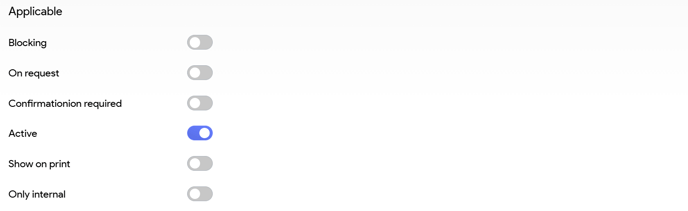
| Fields | Description |
| Blocking | Set the product as unavailable for the given criteria. |
| On Request | Marks product as bookable only upon manual request. |
| Confirmation Required | Marks notification as needing manual confirmation |
| Active | Status of the notification |
| Show on Print | Indicates whether the message appears on customer documents. |
| Only Internal | Restricts visibility to internal staff only. |
Stay from/to and Valid From/to
Configure the applicable date ranges.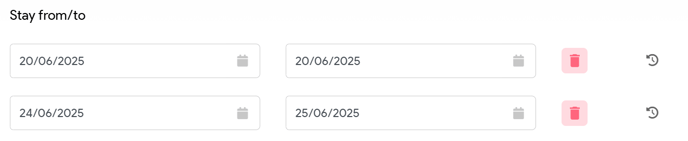
| Fields | Description |
| Stay From/To | The stay dates impacted by the notification. |
| Valid From/To | Active date range for the notification itself. Active window when the notification should be displayed. |
Manage date ranges
|
Delete a date range by clicking the garbage bin icon. |
 |
When hovering over this icon, you can see who and when the notification was last updated. |