
In Tide, each file moves through one of seven predefined main statuses, which capture the essential stages of a travel booking process. These statuses are standard and cannot be changed, but you can customize the process within each of these file statuses by using Custom File Statuses to reflect your internal workflow and trigger actions automatically.
Overview
Manage custom file status
Create custom file status
File status
Overview
The system includes the following predefined file statuses:
-
New
-
Opportunity
-
Quotation
-
Option
-
Booking
-
Cancellation by customer
-
Cancellation by you
It is important to note that a file can bypass certain status steps and may be initiated directly at various points in the process, such as creating a booking directly.
The File Status menu is where you define and update the main status of a file. This is also required the first time you save a new file - the status selection determines how the system registers the dossier.
Definitions
| Status | Description and behavior |
|---|---|
| Quotation | At this stage, no booking has been made with the supplier, meaning it will not affect your allotment. You have the option to request availability or pricing according to your business requirements. In the event of blocking notifications, you will still receive alerts, however you still have the option to save the Quotation regardless. |
| Option | Booking and/or price availability is requested from the supplier. Supplier confirmation may or may not be sent depending on business preference. |
| Booking | When a file is set to the Booking status, the system will validate prices and availability by checking either the internal product settings or through real-time API connections, an thus allotment will be booked. If there are any blocking notifications, the system will prevent you from proceeding with the booking by default. You have the option to send confirmations either manually or automatically, utilizing methods such as file-based, bulk, or scheduled sending before the travel date. |
| Cancellation by customer | Usually involves cancellation fees. Cancellation may be real-time. Tide shows a pop-up to calculate cancellation charges. You may notify suppliers manually or automatically. |
| Cancellation by you | Typically without cancellation fees. Cancellations may be real-time. All prices are reset to zero, and a pop-up confirms this. Notifications to suppliers can be automated. |
Custom file status
Overview
Utilizing Custom File Statuses allows you to enhance your internal workflow. You have the ability to create custom file statuses that are linked to the predefined main statuses, providing greater flexibility and control over your processes.
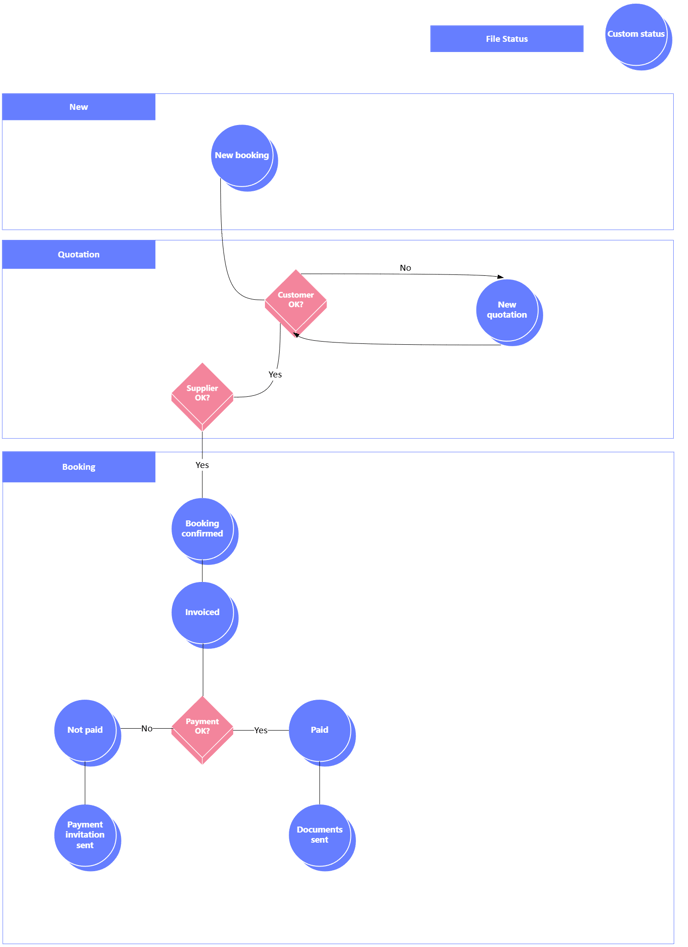
Designing your workflow visually first helps streamline setup and process automation.
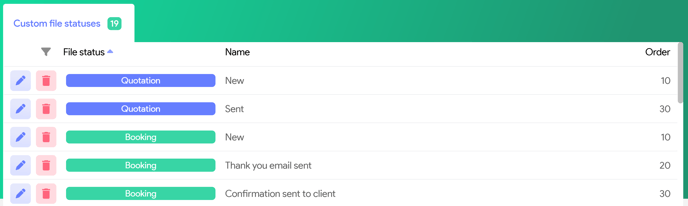
Manage custom status
- Navigate to Administration
- Scroll down and click on Custom file statuses

- Here, you will find a overview of the existing custom statuses.
Create a new custom status
- In the Custom file statuses section, click on the New status button, which is located at the lower right corner.
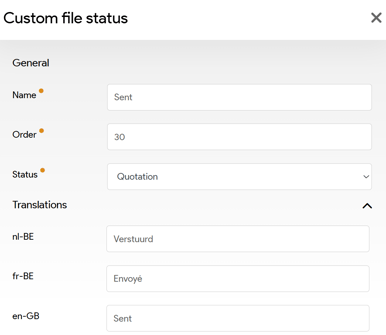
- The Custom file status panel will be shown
| Field | Description |
|---|---|
| Name | Short label for the custom status (e.g. Booking confirmed, Invoice Sent, Paid, ...) |
| Order | Defines the display order in the file window |
| Main Status | One of the fixed statuses listed above to which this custom status applies |
Booking workflow example
A custom workflow allows you to establish intermediate steps within a defined status, providing a structured approach to manage the booking process effectively.
Benefits
-
Clear tracking of each file’s real status in your sales and operations pipeline
-
Trigger emails, documents, invoices, or other tasks based on custom statuses
-
Fine-tune per business unit or process complexity