
What is a users?
A User in Tide represents an individual internal employee within your organization. Every employee must have a personal user account, which is used to define their access rights and responsibilities in the system. This setup ensures secure, traceable, and accountable operations across your organization.
Key concepts
This article will help you:
-
Understand Tide user concepts
- Set up different users in Tide
Basic user concepts
User
Each employee must have it's own personal user account. For a user you can configure language preferences, default business unit and role, where you specify the permissions.
Roles
Roles in Tide define a set of permissions that determine what users can or cannot do within the platform. A role is a reusable rights template that can be assigned to one or more employees to control access across the system. It also allows you to define a scope the manage the brands a specific user
Permissions
Permissions determine what features of the Tide Application a user can interact with. These can include access to modules like:
-
Dossier management
-
PIM (Product Information Management)
-
CMS (Content Management System)
-
CRM (Customer Relationship Management)
-
Admin tools
By default, a user has no permissions. Access must be explicitly granted via assigned roles.
Scope (Catalogue access in PIM)
If your team uses the PIM module, you can limit which catalogues a user can view or edit by defining scope within the role.
This is especially useful for:
-
Large teams managing multiple brands
-
Agencies that work with segmented content portfolios
-
Avoiding cross-team data contamination
Teams and Views
While roles control module access, teams are used to manage visibility and interaction with views (e.g., specific lists of files, products, bookings).
Teams will represent various departments or groups within your organizational structure, offering several key advantages:
-
Custom Data Views: Create custom views (e.g., filtered lists of files, products, or bookings) and assign access rights to specific teams.
-
Calendars: Assign a separate calendar for each team to manage internal planning, shifts, or team-specific events. See also the [Calendar Management Module].
-
Task Assignment: Tasks can be assigned directly to individuals or to entire teams, streamlining workflow management.
Business Relevance
Ensuring that every employee has a unique user profile supports:
-
Audit logging
-
Permission control
-
Process accountability
Basic introduction
Manage teams
- Navigate to Administration
- Select Teams
- In the bottom right corner, click the + New button and the Team-panel will be shown.
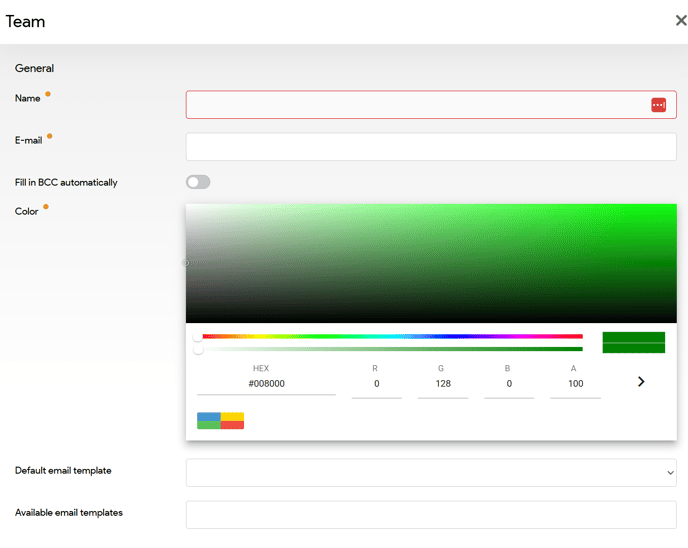
| Field | Description |
|---|---|
| Name | The team’s name. Used across modules for selection and visibility. |
| The “from” email address used when someone from this team sends an email from within Tide. | |
| Auto-fill BCC | When enabled, this automatically sends a BCC copy of every user assigned to this team. |
| Color | The calendar color assigned to the team. Used when calendar items are created, allowing easy visual identification. |
| Default Email Template | Select the default email template to be used when sending emails on behalf of this team. |
| Available Email Templates | Choose which email templates are available for team members to use when sending communications. After selecting the template, it will be added to a list below the selection field e.g. 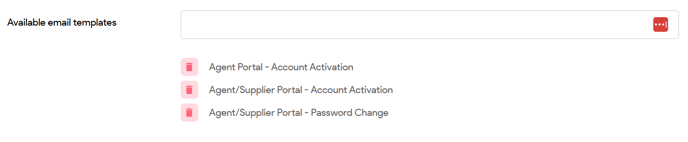 |
Manage rolls
- Navigate to Administration
- Select Rolls
- In the bottom right corner, click the New role button and the Role-panel will be shown.
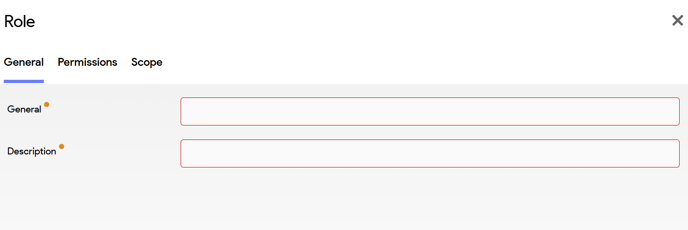
General tab
| Field | Description |
|---|---|
| Name | Name of the role (e.g., “PIM Editor”, “CRM Viewer”) |
| Description | Brief description of the role’s purpose or scope |
Permissions tab
| Field | Description |
|---|---|
| Accountancy management | Set the security settings for the Accountancy module to determine whether users have full access to the module, limited access to specific sections/functionalities or no access at all. e.g. view coda entries, create or edit journal entries, view ledgers, create or edit ledgers,... |
| Administration |
Set the security settings for the Administration module to determine whether users have full access to the module, limited access to specific sections/functionalities or no access at all. e.g. Create or edit an accommodation, Create or edit airlines, View the list of configurations and its details, Delete a price chart code, Create or edit processes, ... |
| BI Management |
Whether users have access to the BI module by enabling View BI pages. |
| Calendar management |
Set the security settings for the Calendar management module to determine whether users have full access to the module, limited access to specific sections/functionalities or no access at all. E.g. Create or edit team calendar items, View calendar management navigation,... |
| Content management |
Set the security settings for the Content management (CMS) module to determine whether users have full access to the module, limited access to specific sections/functionalities or no access at all. E.g. View the list of content items and its details, Delete a media folder or media item, Create or edit templates, View translation dictionaries, ... |
| Customer relationship management |
Set the security settings for the CRM module to determine whether users have full access to the module, limited access to specific sections/functionalities or no access at all. E.g. Create or edit addresses, Export data from address views,Edit a person, Manage column width of person views, ... |
| Dossier management |
Set the security settings for the File management module to determine whether users have full access to the module, limited access to specific sections/functionalities or no access at all. E.g. Create or edit dossiers, Edit commission of a dossier, View the list of dossiers and its details, View dossier profit, Edit flight tickets, View the list of payments and its details, ... |
| Hub management |
Set the security settings for the Hub management module to determine whether users have full access to the module, limited access to specific sections/functionalities or no access at all. This access is typically managed by a designated Tide employee. |
| Product management |
Set the security settings for the Product management module to determine whether users have full access to the module, limited access to specific sections/functionalities or no access at all. E.g. Create or edit an allotment, Export data from allotment views, Create or edit a product, View purchase prices of products, Create or edit a route, Edit the cache setting for the flight configurations,... |
Implicitly Not Permitted vs. Explicitly Not Permitted
-
Implicitly Not Permitted: If a permission is not added, the user simply doesn’t have access to that function.
-
Explicitly Not Permitted: Overrides all other permissions. If one of the user’s roles marks a function as explicitly not permitted, access is denied—even if other roles allow it.
Scope tab
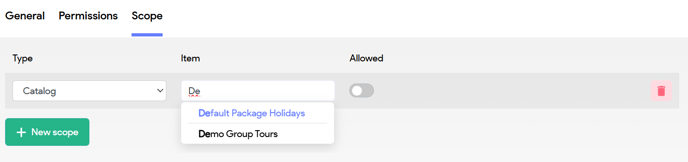
On this tab, you can allow or not allow specific catalogues.
- Click on the green + New Scope button.
- The scope configuration fields will be shown
| Field | Description |
|---|---|
| Type | Select the type of scope you wish to configure. |
| Item | Choose the specific item you want to permit or restrict access to. |
| Allow | Determine if the user is granted access to the item or restricted from it. |
Manage users
Larger organizations can choose from the following methods:
-
Import users via API
-
Send a user list in Excel format to the Tide team for bulk import
Small organisations, can create users manually.
To create a user manually, please follow the next steps:
- Navigate to Administration.
- Select Users

- In the bottom right corner, click on the Add User button.
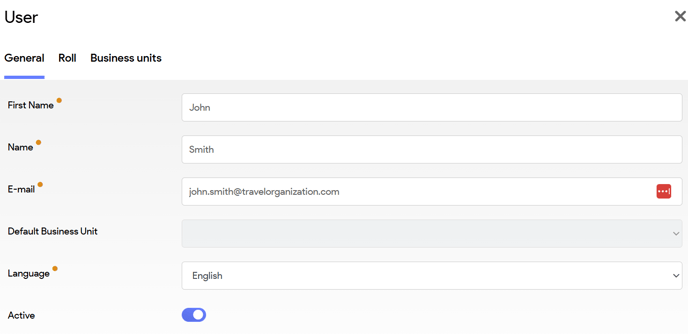
General tab
| Field | Description |
|---|---|
| First Name | Employee's first name |
| Name | Employee's last name |
| Must be a personal email address (e.g., john.doe@yourcompany.com) | |
| Business Unit | Default unit assigned to the user. New files they create will default to this BU (but can be changed). This list is managed on the 3rd tab. |
| Language | Sets the default interface language. Can be changed later in personal settings. |
| Active | Toggle off to deactivate the user (e.g. when they leave). Users cannot be deleted, only deactivated. |
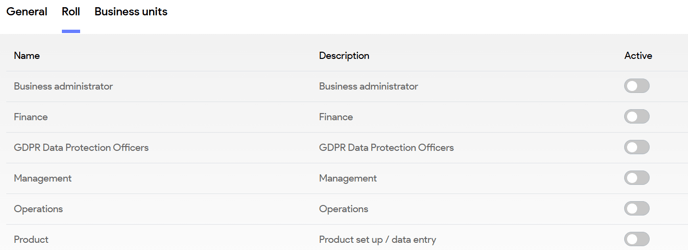
Business units tab
Here you can specify the allowed business units. In case nothing is selected, the system will assume access to all Business units is allowed.
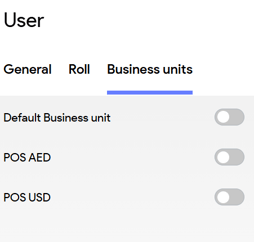
Deleting a User
Tide does not allow user deletion. To remove a user's access:
-
Go to the user's profile
-
Uncheck the Active field

This will disable their login and hide them from operational views.
Best practices
-
Deactivate accounts when employees leave
-
Tide User accounts are strictly personal.
They must not be shared with colleagues, interns, temporary staff, or part-time employees-even temporarily. Violations may lead to contractual penalties. See Tide’s Terms and Conditions for details. - Users email must be personal. e.g. john.smith@travelorganisation.com
And thus not:- interim@travelorganisation.com
- marketing@travelorganisation.com