
Go into Product Management
Select Products and hit 'New product'
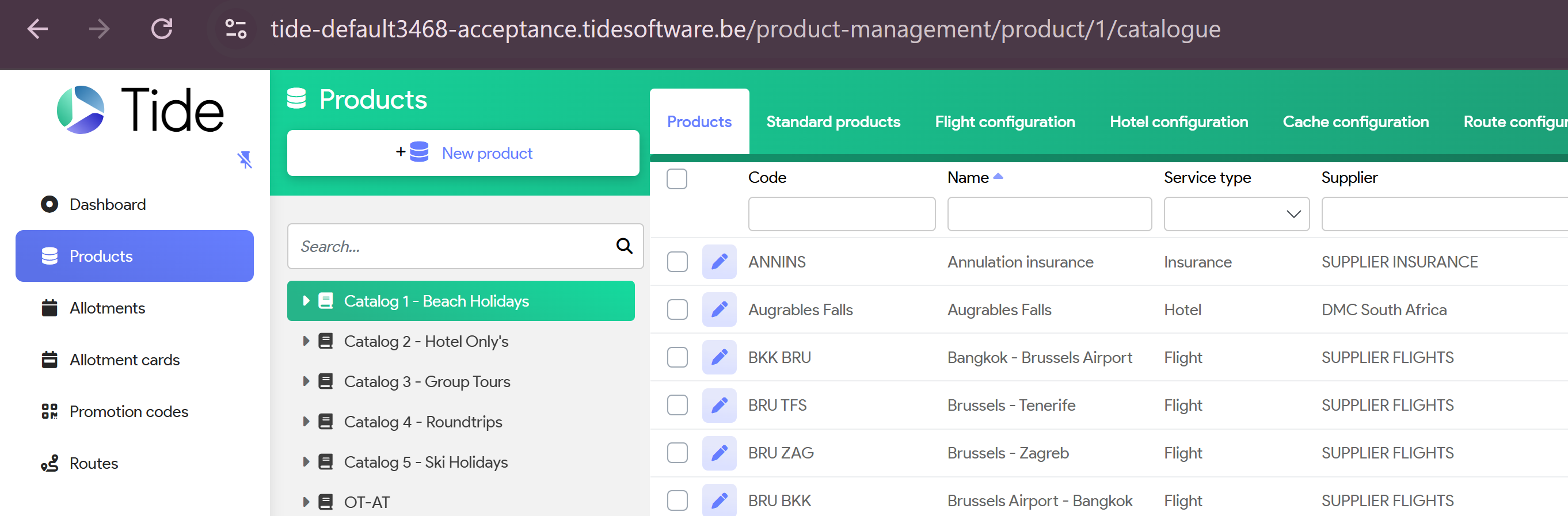
System will populate
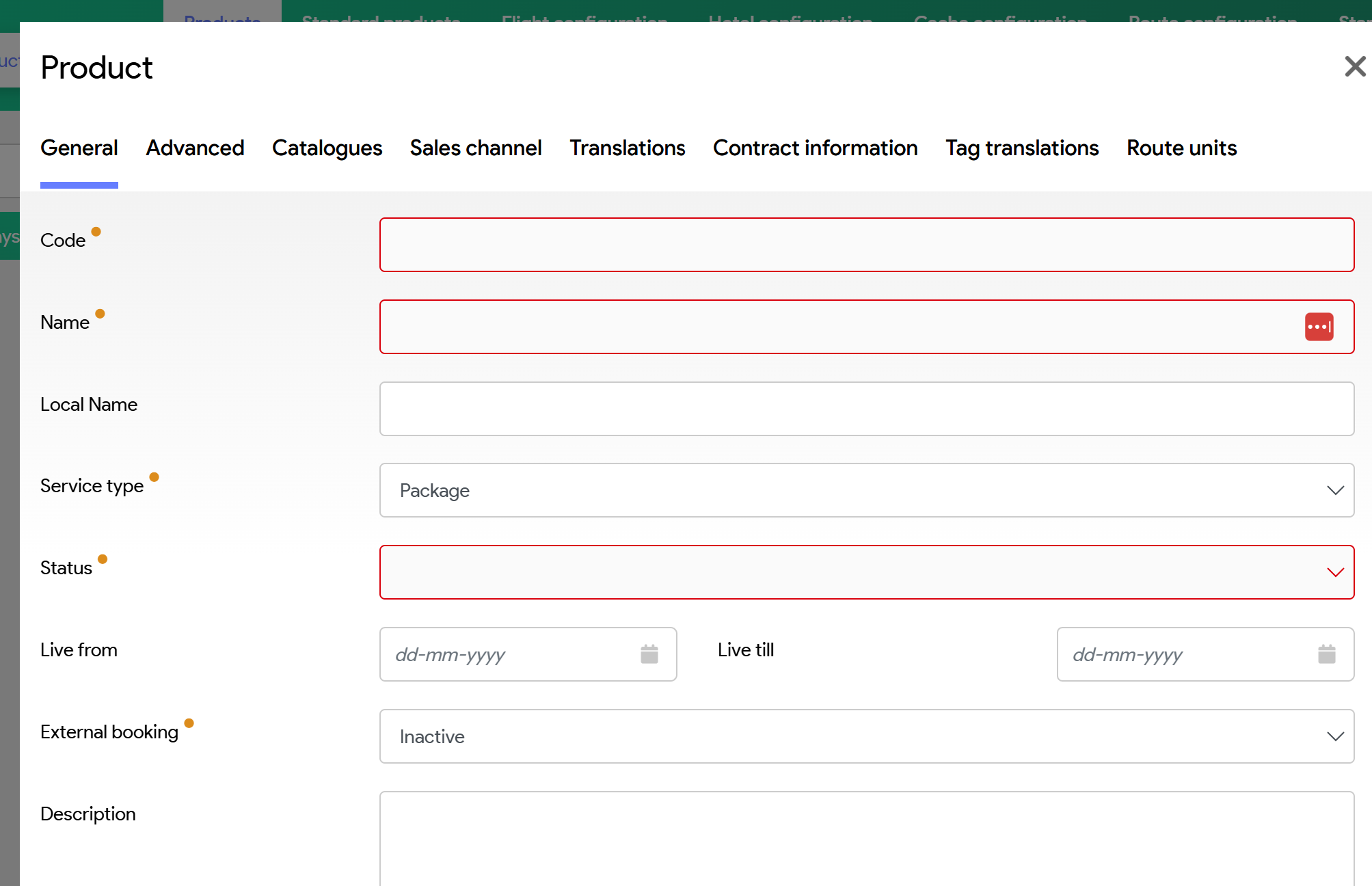
Code: Recommendation:
- Start with the first letter of the product type, ie H for Hotel, T for transfer...
- Then the IATA of your destination, ie TFS for Tenerife, MLE for Male, Maldives...
- Then Name or abbreviation of your hotel name.
Name: Name of your product
Service Type
Status: If you're contract set up is not finalised, Status should not be live.
External booking: Should be Inactive.
In case you have an active API and your product is mapped, then you can select this, system will book automatically thru when service is booked.
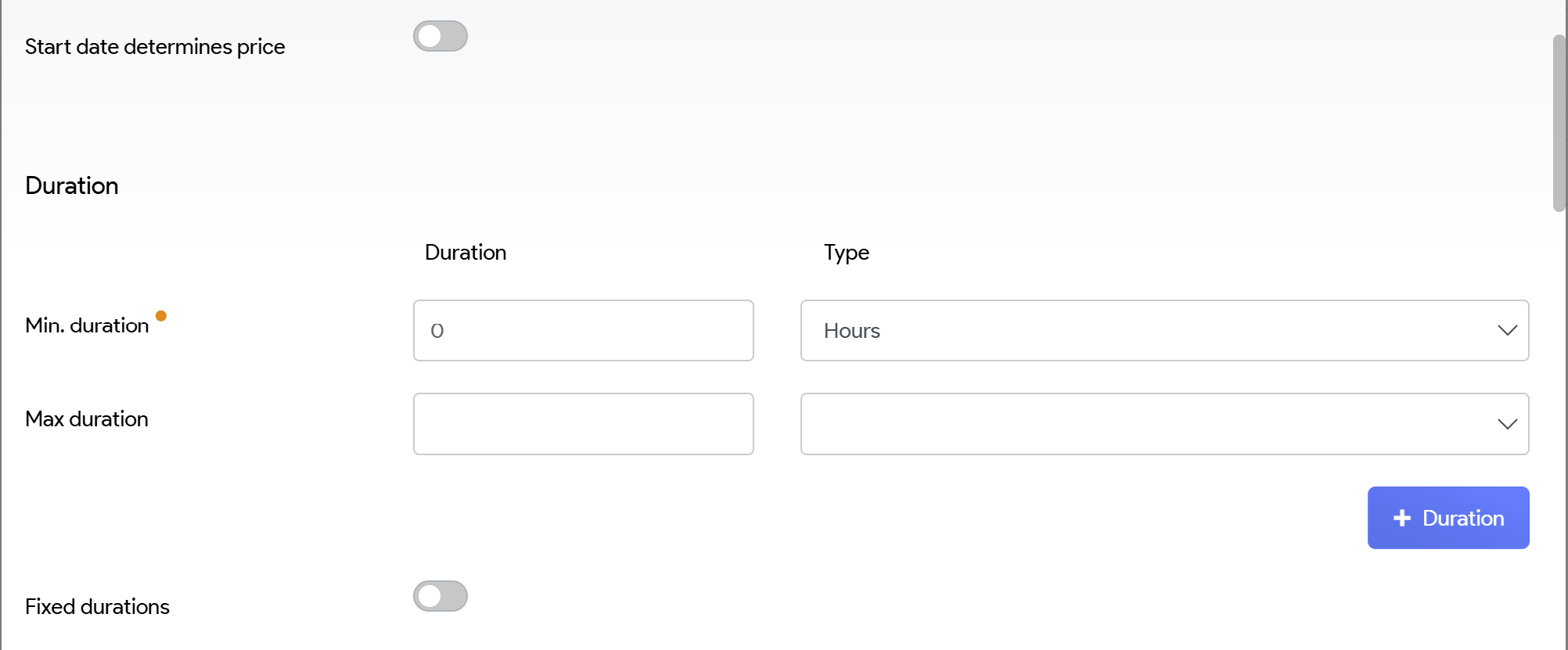
Start date determines price: Should only be activated, if your supplier agrees to take the price of the starting date for all nights.
Majority of the cases, if travel dates are within 2 seasons, hotel will charge the price as per season, ie 2 nights in season 1 and 3 nights in season 2
Min Durationn: As per contract stipulations
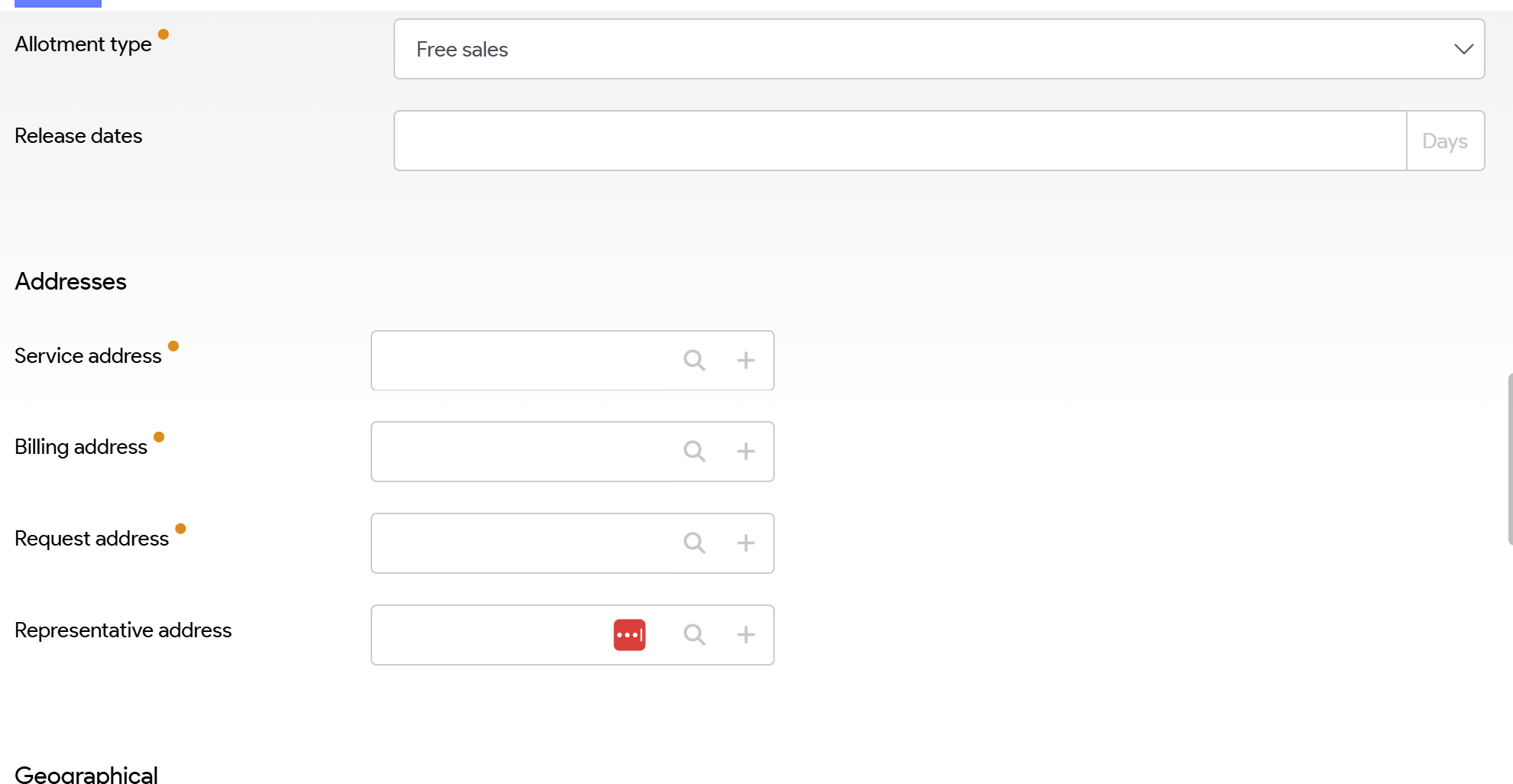
Allotment Type:
- Allotment, if you've received specific allotments within your contract.
- If you are booking thru API set up, then Allotment = Free sales. API will only return products with availability and prices
If you've selected the box: Service type = Allotment, system will populate subscreen
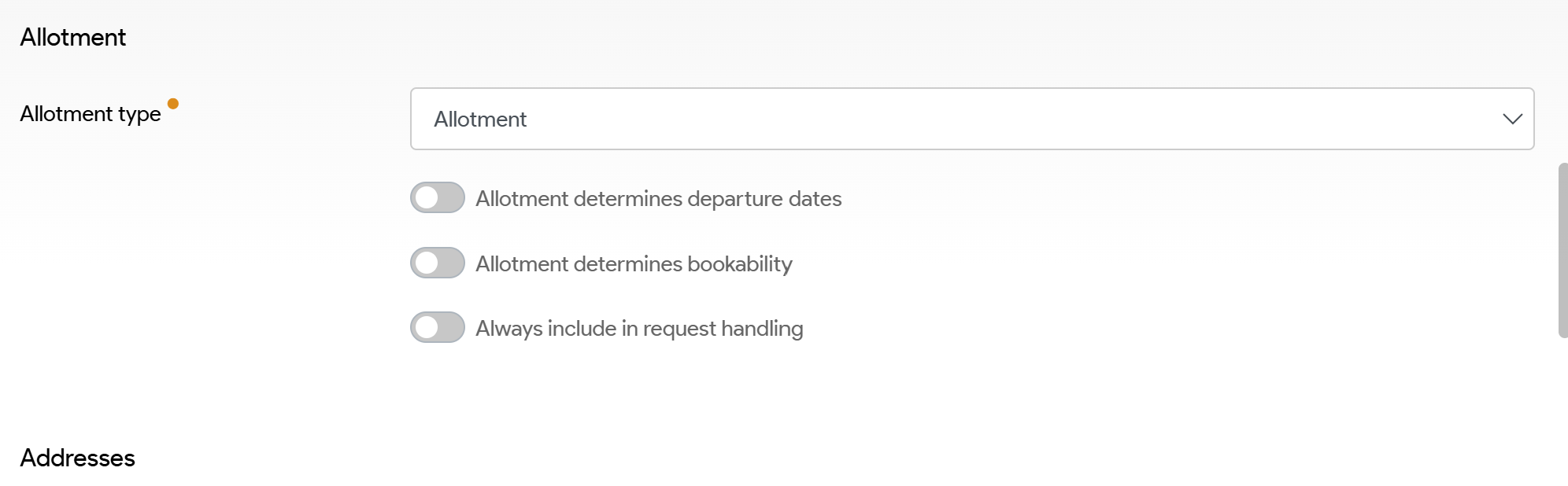
- Allotement determines departure dates: You will only be able to make a booking if there is availabiltiy for the whole travel duration
- Allotment determines bookability: Product will not be bookable if there is no availablity. If you leave this blanc, system will threat this as an On Request, if no availability
Minimum Duration : as per your contract stipulations
Service Address = Address of the hotel
Billing/ Invoicing Address= from whom you will receive the invoice for your service
Request Address = to whom request for the service needs to be requested, ie is that your hotel or maybe your DMC?
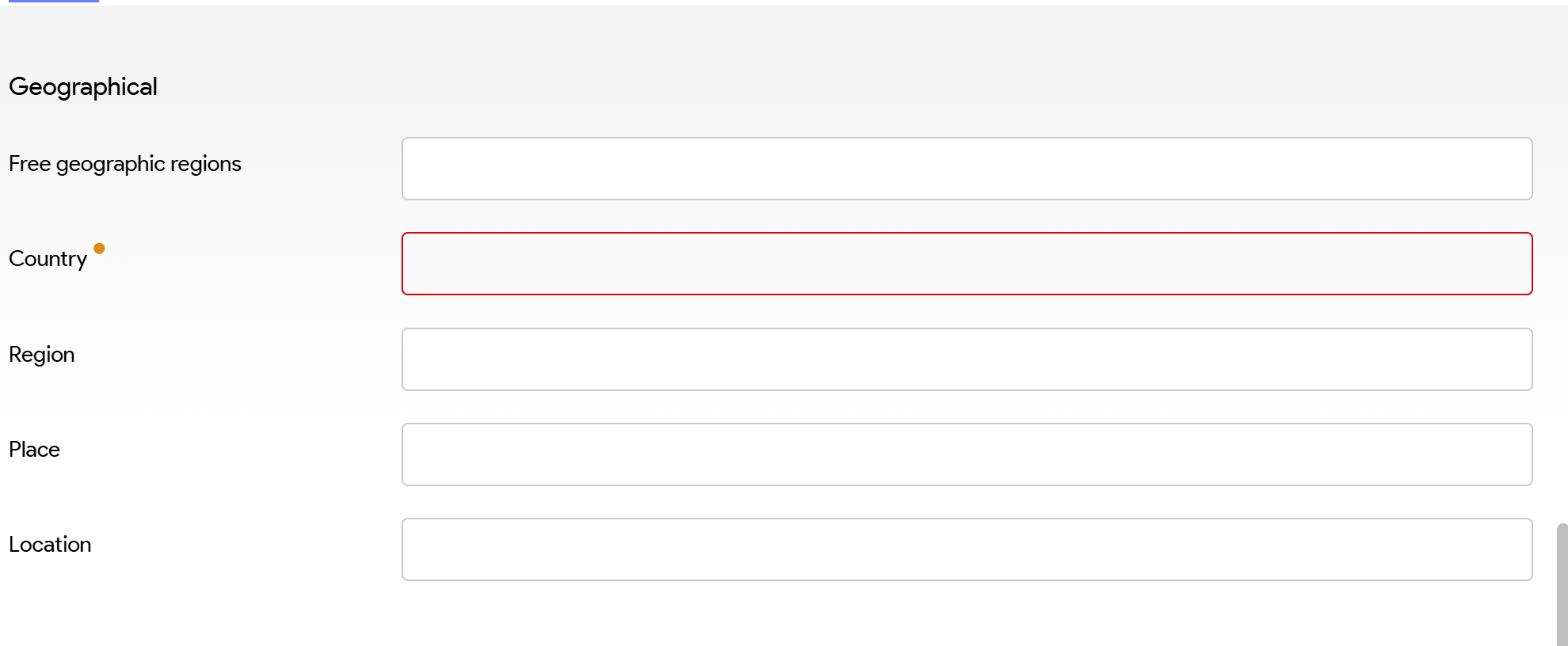
If you select Tags, they will be visible on your website (if this has been set up correctly on the website) and in your booking
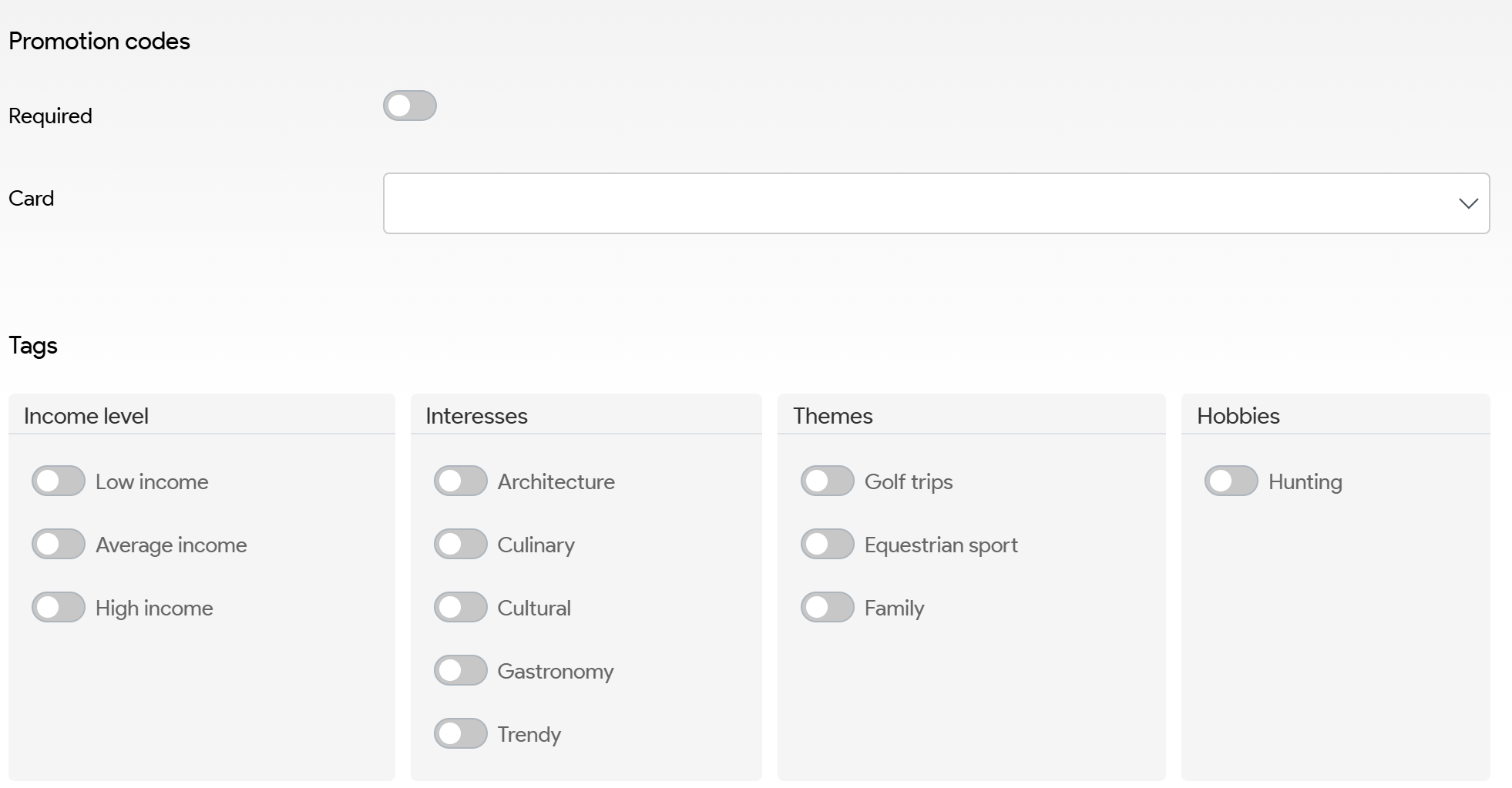
Once you've inputted all required fields, got to tab
- Catalogues and select the catalogues for which the product can be used
Then go to tab
- Sales channels and select via which channel product can be sold.
Once finished and saved, you will see the Season tab on top right corner.

Recommendation is to input 'Seasons' depending on your price validity provided in your contract.