
Views are create way to organise your data in Tide
In this tutorial, we will focus on the file management views; however, the same principles apply to all other views within Tide, including payments, addresses, and invoices.
Please note that specific fields and values may vary between these different views.
Adjust views
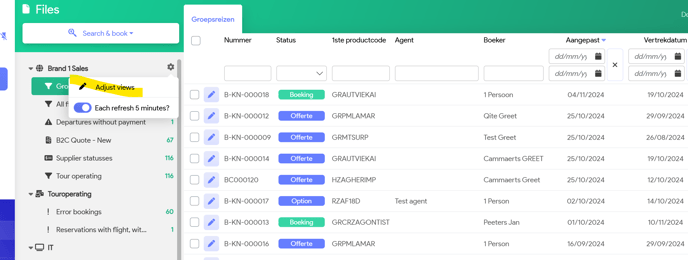
Go into your main menu and select the gear icon (you can find this in the top right corner of your list view).

Then click 'Adjust views'.
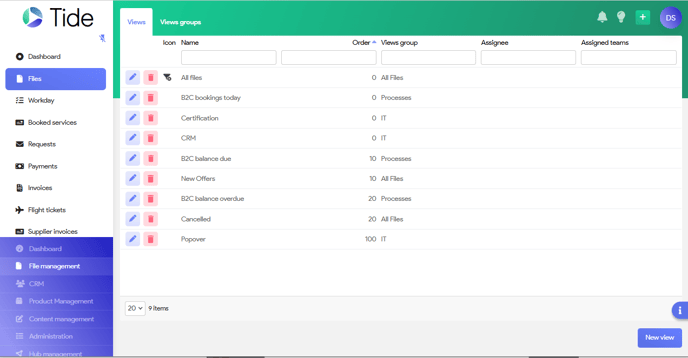
In the bottom right corner, click on the 'New View' button.
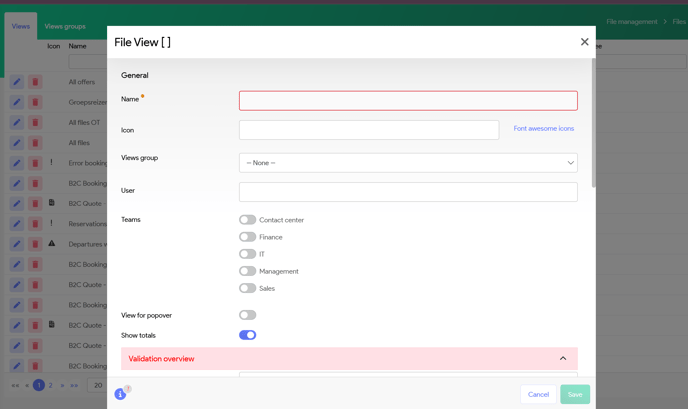
The system will display a blank screen from where you can start configuring your new view.
This is divided into 2 tabs:
- General: General description, user settings and authorizations
- Configuration: Data/criteria that should be included and exclude in your view.
General
| Field | Description |
| Name | A concise and descriptive name that will be displayed in the file management list view. |
| Icon | An icon that helps users quickly identify the view's purpose. |
| View group | If you wish to limit who can see this view |
| Users | Assign to specific user, so only the user can see the view |
| Teams | Restrict the view so only a specific team or teams can see the view. |
| View for popover | WIP |
| Show totals | WIP |
Configuration
Enclosed filter criteria
Here you will configure what data needs to be selected in your view. This will be done by setting up the specific criteria. Depending on the item your working in - whether it's an address view, file view,... these filters will be different.
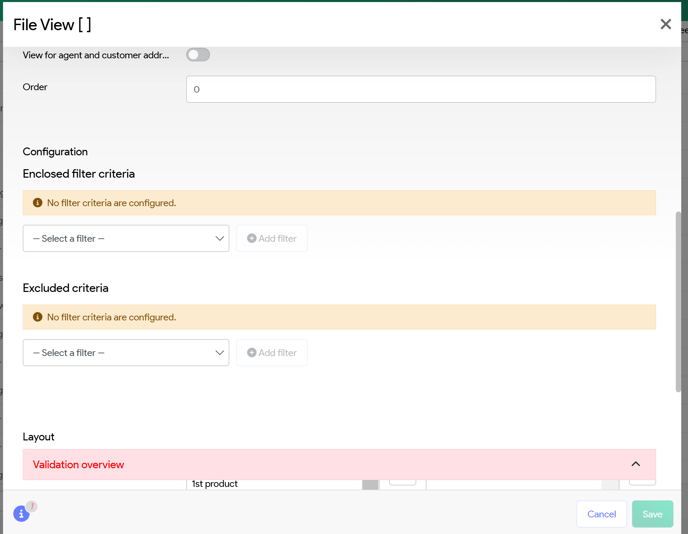
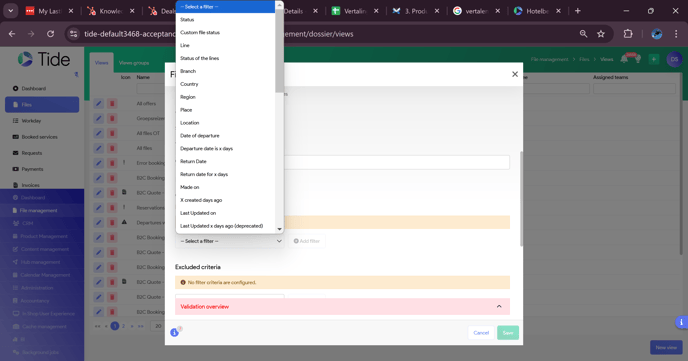
Click on the Filter you want, then Add Filter and input (in this case) the name of the responsible user.
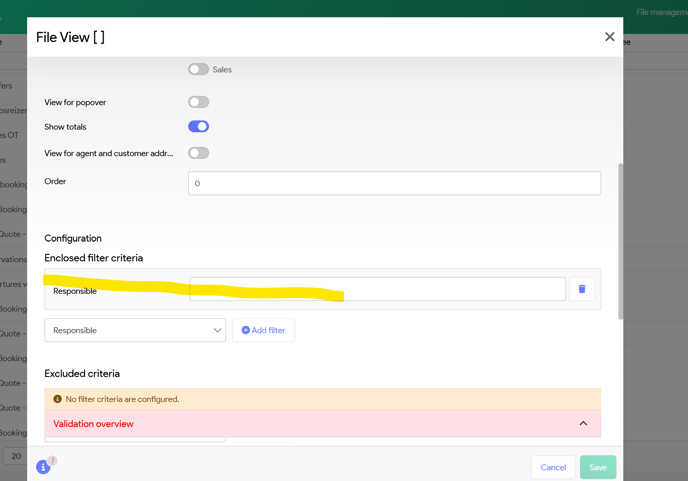
You can continue to add additional filters as needed.
Similarly, for Excluded criteria, if you wish to include all bookings but exclude Offers, you can specify this under the Excluded criteria section.
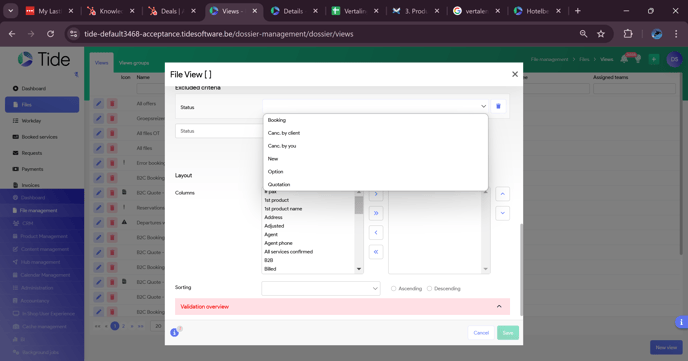
Once you're done configurating your view, you can click Save and you're all set!