
With this article you learn which html code you need to copy on your own website, to make your products bookable.
1. Default Product preferences Component
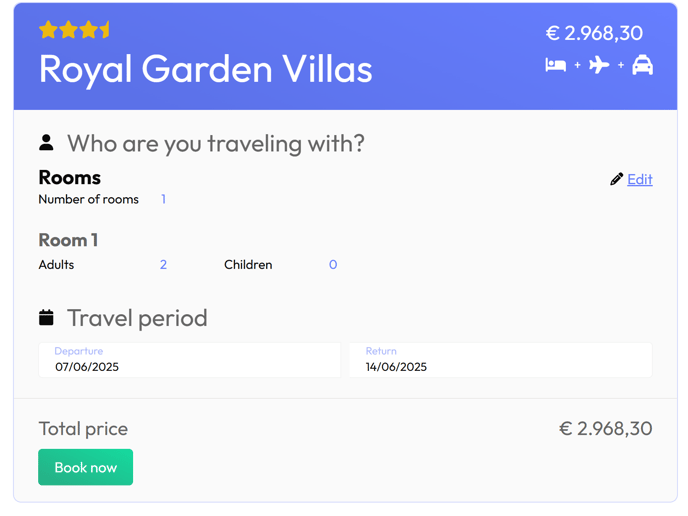
This component is generally integrated into your product page, allowing clients to specify the number of rooms and travelers while selecting their travel dates.
It's important to note that you can pre-fill previously selected preferences using URL parameters. This feature is particularly useful when users navigate from the homepage's "Quick Search Module" to the "product search results", where they may have already entered their travel preferences, including room details and travel dates.
To explore our standard booking components, please follow this link:
https://cdn.tidesoftware.be/product-component/playground
View source:
<!--THIS IS THE TEST HTML-->
<!DOCTYPE html>
<html lang="en">
<head>
    <meta charset="UTF-8">
    <meta name="viewport" content="width=device-width, initial-scale=1.0">
    <link href="https://cdn.tidesoftware.be/latest/variables.css" rel="stylesheet" type="text/css"></style>
    <link href="https://cdn.tidesoftware.be/latest/bundle.css" rel="stylesheet" type="text/css"></style>
    <title>Embedded Product</title>
    <style>
        @import url('https://fonts.googleapis.com/css2?family=Outfit:wght@100..900&display=swap');
    </style>
</head>
<body>
    <div id="tide-product">
        <div officeId="1"
            catalogueId="1"
            productCode="HOTTEN"
            rating="3.5"
            language="en-GB"
            includeFlights
            addProductToQuery
            apiUrl="https://tide-XXXXXXX.tidesoftware.be/"
            apiKey="XXXXXXX-XXXXXXX-XXXXXXX-XXXXXXX-XXXXXXX"
            bookingUrl="/booking-component/playground/"></div>
    </div>

    <!-- Compiled React component -->
    <script src="https://cdn.tidesoftware.be/latest/bundle.js"></script>
</body>
</html>
To successfully integrate the product preferences component, please follow these three essential steps:
1. Include the Required CSS Files:
First, link to the "bundle.css" file hosted on our CDN. This ensures you have access to the latest features and bug fixes.
Additionally, download the 'variables.css' file to your local server. This allows you to customize the colors and styles to align with your brand identity.
This `variables.css` file is utilized across all default components, allowing for consistent customization of colors and styles throughout your application.
2. Insert the Booking Component:
Next, place the following `<div>` element at the desired location on your product page where you want the booking component to appear. This will ensure that users can easily access the booking functionality.
<div id="tide-product">
   <div officeId="1"
        catalogueId="1"
        productCode="HOTTEN"
        rating="3.5"
        language="en-GB"
        includeFlights
        addProductToQuery
        apiUrl="https://tide-XXXXXXX.tidesoftware.be/"
        apiKey="XXXXXXX-XXXXXXX-XXXXXXX-XXXXXXX-XXXXXXX"
        bookingUrl="/booking-component/playground/">
    </div>
</div>
OfficeId: the officeId from Tide on which the booking will be made
CatalogueId: The catalog from Tide PIM which defines how the product is being sold
productCode: The productCode from Tide PIM
rating: the rating you want to show to endorse the client
language: the language that will be displayed to the user.
includeFlights: add this parameter is you want to show alternative flights to your clients
addProductToQuery: add this parameter if you want to pass the productCode via de url query parameters. If you use the react component itself, then you can pass the productCode directly to this component, no need to add it to the url query parameters then.
apiUrl: the url of your Tide environment
apiKey: Please obtain this key by contacting our support team.
3. Include our javascript file
<script src="https://cdn.tidesoftware.be/latest/bundle.js"></script>
Include this javascript from our cdn infrastructure to get the latest updates and bugfixes.
Set default preferences (comming from e.g. search results page)
You can set the default preferences with the url parameters like this:
Default Font
If you use the default font, then also include the google font.
<style>
        @import url('https://fonts.googleapis.com/css2family=Outfit:wght@100..900&display=swap');
</style>
2. Default Booking Engine
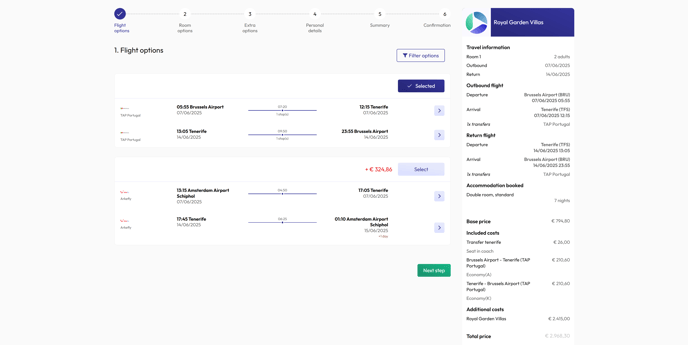
An example can been seen on our "playground":
When refering to the booking page, you need to include the right parameters to the url.
If you use the 'Default Product preferences Component', these parameters are being set automatically.
view source:
<!DOCTYPE html>
<html lang="en">
<head>
    <meta charset="UTF-8">
    <meta name="viewport" content="width=device-width, initial-scale=1.0">
    <link href="../latest/variables.css" rel="stylesheet" type="text/css"></style>
    <link href="../latest/bundle.css" rel="stylesheet" type="text/css"></style>
    <title>Embedded Booking</title>
    <style>
        @import url('https://fonts.googleapis.com/css2?family=Outfit:wght@100..900&display=swap');
    </style>
</head>
<body>
    <div id="tide-booking">
        <div officeId="1"
            thumbnailUrl="https://media-acceptance.tidesoftware.be/media/13/Common/Logos/tide_icon_whitespace.png?width=600"
            language="en-GB"
            hideTags
            includeFlights
            showRoomOptions
            showFlightOptions
            apiUrl="https://tide-XXXXXXX.tidesoftware.be/"
            apiKey="XXXXXXX-XXXXXXX-XXXXXXX-XXXXXXX-XXXXXXX"
            accommodationViewId="59"></div>
    </div>

    <!-- Compiled React component -->
    <script src="../latest/bundle.js"></script>
</body>
</html>
1. Include the Required CSS Files:
First, link to the "bundle.css" file hosted on our CDN. This ensures you have access to the latest features and bug fixes.
Additionally, download the 'variables.css' file to your local server. This allows you to customize the colors and styles to align with your brand identity.
This `variables.css` file is utilized across all default components, allowing for consistent customization of colors and styles throughout your application.
2. Insert the Booking Component:
Next, place the following `<div>` element at the desired location on your product page where you want the booking component to appear. This will ensure that users can easily access the booking functionality.
<div id="tide-booking">
        <div officeId="1"
            thumbnailUrl="https://media-acceptance.tidesoftware.be/media/13/Common/Logos/tide_icon_whitespace.png?width=600"
            language="en-GB"
            hideTags
            includeFlights
            showRoomOptions
            showFlightOptions
           apiUrl="https://tide-XXXXXXX.tidesoftware.be/"
           apiKey="XXXXXXX-XXXXXXX-XXXXXXX-XXXXXXX-XXXXXXX"
            accommodationViewId="59"></div>
    </div>
OfficeId: the officeId from Tide on which the booking will be made
thumbnailUrl: the url of the logo that will be displayed
language: the language that will be displayed to the user.
hideTags: if you don't want to show common preferences like "Honeymoon", "Repeater",..
includeFlights: if flights are included by default
showRoomOptions: if you want to show the "alternative-rooms" step
showFlightOptions: if you want to show the "alternative-flights" step
accommodationViewId: The Tide view you want to use to display the alternative rooms. In this way you can fully customize what you want to show. Views in Tide are being managed via 'Content management (CMS) > Content views'
apiUrl: the url of your Tide environment
apiKey: Please obtain this key by contacting our support team.
All these parameters can also being overruled with parameters from the url!
https://cdn.tidesoftware.be/product-component/playground/?productCode=HOTTEN&productName=Royal%20Garden%20Villas&rooms=((adults:2,childAges:()))&startDate=2025-06-09&endDate=2025-06-16&catalog=1
3. Include our javascript file
<script src="https://cdn.tidesoftware.be/latest/bundle.js"></script>
Include this javascript from our cdn infrastructure to get the latest updates and bugfixes.
Default Font
If you use the default font, then also include the google font.
<style>
        @import url('https://fonts.googleapis.com/css2family=Outfit:wght@100..900&display=swap');
</style>
3. Default departures list
For group tours, we offer a specialized component designed to display a list of departures for a single product directly on your product page. Currently, this component is not available in our playground. If you require immediate access to this feature, please reach out to us for assistance.