
What is product document management (Documents)
Tide allows you to centrally manage all documents related to a product throughout its lifecycle. This ensures that everyone in your team has access to the same, up-to-date information.
The module supports a wide variety of file types:
-
PDFs
-
Images (JPG, PNG, etc.)
-
Excel files (XLS/XLSX)
-
Word documents
-
PowerPoints
-
And more...
There is no limit to the number of files per product. However, large volumes of stored files may incur additional storage fees.
When to Use This
-
Centralize files related to contract negotiation, product calculation, photos, descriptions, etc.
-
Ensure everyone works with the same data
-
Avoid clutter in the media library or website until documents are approved
-
Simplify the onboarding of new products or site visits
Getting Started
Each product in Tide follows a customizable lifecycle, such as:
-
Pre-contract
-
Contract
-
Calculation
-
Content
-
Live
-
Archived
At each stage of this lifecycle, various documents will play crucial roles.
You can fully adapt this to your organization’s internal processes.
Example Scenarios
Preparation for On-Site Evaluation
When you’re planning to evaluate or visit a product on-site:
-
Create a basic product shell in Tide
-
Minimum info: name, address
-
Postpone the details regarding accommodations, pricing, and regulations to a later phase.
-
-
Assign a lifecycle status like “To Visit”
This allows you to attach documents right away and securely.
During a On-Site Evaluation
-
Product managers can use their mobile phone to take photos
-
Upload files directly to the product via the Document Management (DAM) module
-
Files remain internal until explicitly published (they will remain hidden from the website, brochures, or media library until you specifically choose to make them visible.)
File Management & Roles
-
Edit, replace, or delete files as needed
-
Tag or categorize images for later use
-
Control visibility via roles and permissions
-
Limit document access to specific roles (e.g., marketing, product, operations
-
Upload a document (via DAM)
The add a document to your product, take the following steps
- In your product, navigate to the Documents tab
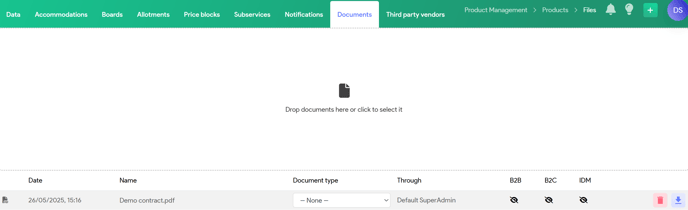
- Drag a document or click in the designated area to upload a document to the product.
- You can specify the document type to facilitate future processing and organization.