
What is the Quick View
Quick view is a section in Tide that is visible on all modules in Tide. It allows you to quickly navigate to the main menu, see notifications and quickly start an actions such as create a new file, new address, new task,...
It is consistently located in the top-right corner of the Tide interface.

User setting
Navigation
Displays the sitemap, were you are in Tide. This also allows you to navigate quickly to the dashboard (which is still in development).
Notifications
There are 2 types of notifications
 |
This will show the actions where confirmation needed |
 |
This will show the actions where no confirmation needed |
The basics of a confirmations can be configured under Notifications in Administration.You can configure the intended targets for notifications e.g. Teams or specific users. You also have the option to configure whether an email should be send.
In Administration, under Import/export, you can e.g. configure for which processes you will get a notification.
This can be configured under the Import/Export Log Notification Configurations tab. Here, you can specify the Import/Export log items (such as processes, invoice exports, code imports, etc.) for which you would like to receive notifications. Additionally, you have the option to choose whether you want to be alerted about logs that encountered errors, completed successfully or both.
Quick Actions
Quick Actions are shortcut buttons located in the top-right corner of the Tide interface, allowing you to instantly create new records - without interrupting your current workflow.
These actions open in a popup or new tab, so you can continue your work without losing progress.
 |
Click the green plus icon to access the quick ations |
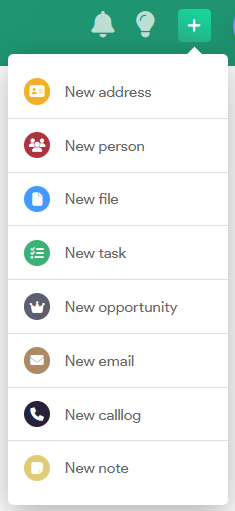
You can use Quick Actions to quickly create:
| Action | Description |
|---|---|
| New Address | Create a new address record in CRM. |
| New Person | Add a new individual (contact, traveller, guide, etc.) to the CRM. |
| New File | Start a new booking or dossier file. |
| New Task | Log a task for yourself or assign it to a colleague or team. |
| New Opportunity | Register a new sales opportunity or prospect file. |
| New Email | Compose and send a new email directly from Tide. |
| New Phone Log | Log a call with a customer, supplier, or team contact. |
| New Note | Add an internal note to document observations or actions taken. |
Usage Tips
-
These shortcuts are universally accessible, meaning you can use them regardless of your current location within the Tide interface, whether you're viewing a file, a contract or CRM.
-
Designed to support multitasking and efficient case handling.
-
Common use case
-
Log a note or follow-up task during a phone call while reviewing a customer file.
-
Permissions
-
Only users with the appropriate roles and permissions will see specific Quick Action links.
-
For example, a user without CRM edit rights will not see New Person or New Address.
To manage which Quick Actions are available per user, go to
Administration > Roles > Permissions > Quick Actions
User settings
 |
This icon - which displays the initials of the currently logged-in user - opens the settings menu. |
Settings menu
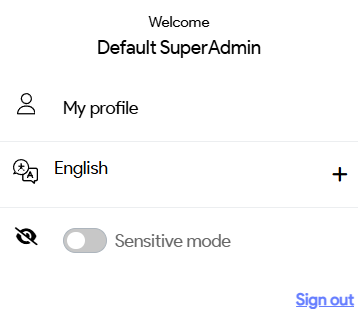
My profile
Users can manage their profile from this section, allowing them to update their username, select their preferred language, and change their password as needed.
Browser notifications can also be managed here.
Language
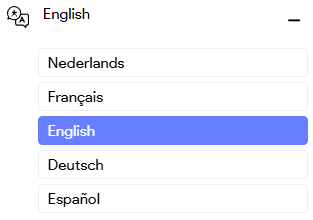
Define the system language. You can switch between languages.
Currently the following 5 languages are supported:
Sensitive mode
Sensitive mode will initiated a version of Tide with limited data displayed, were
Sign out
Sign out from Tide. The is generally only necessary when
- new permissions were assigned to a user (as they are only refreshed when the user log's into the system)
- a release was done (to make sure you are working on the latest version of tide)