What is a service type
A service type defines the kind of service the product really is e.g. hotel, transfer, round trip,...
-
Predefined in Administration.
-
Examples: Hotel, Transfer, Flight, Excursion, Round Trip.
-
Used to determine behavior, applicable logic, and integrations.
You can edit properties of service type, but you can't create or remove service types. However, you do have the option to hide certain service types, that you do not use.
View service types in Administration
- Navigate to Administration and scroll down to Service types
- Select Service types
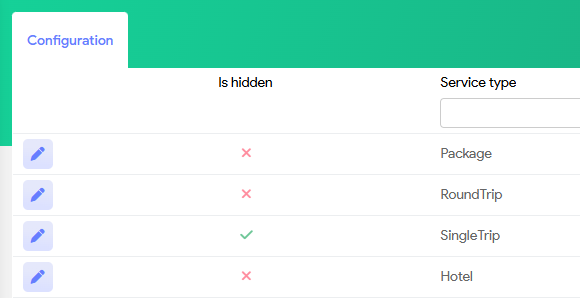
- You will now see a list of the predefined service types available.
| Field | Description | ||||
 |
Edit the service type properties | ||||
| Is hidden |
In the examples above, package, roundtrip and hotel are active. Single Trip is not active. |
||||
| Service type |
The name of the service type
|


Edit service type properties
To modify the properties of a service type, simply click on the pencil icon.
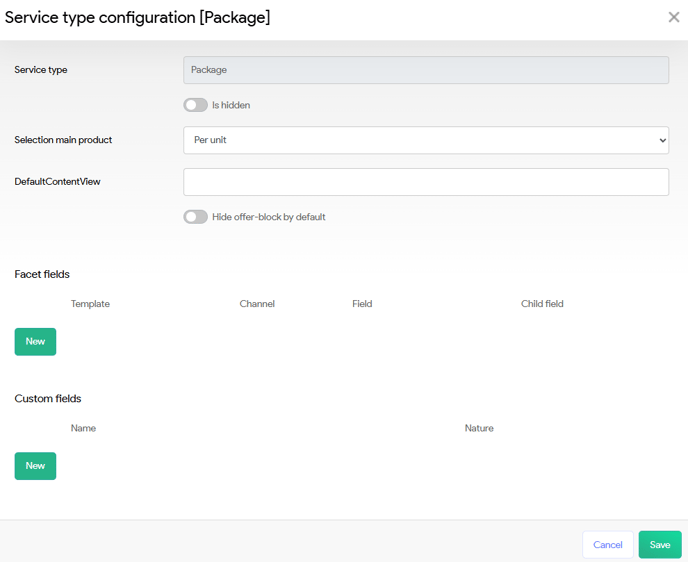
This action will open the Service Type Configuration panel, allowing you to make the necessary adjustments. Once again, the service types themselves are predefined, only the properties can be modified.
| Field | Description |
| Service type | The name of the service type, which is fixed and cannot be altered. |
| Selection main product |
The default behavior of when this standard product is loaded in the file.
|
| DefaultContentView | Here, you can select the default content view in the CMS module that will be associated with this service type. If you're new to the CMS module, we recommend beginning with this introductory article (WIP) to familiarize yourself with its features and functionalities. |
| Hide offer blocks by default | WIP |
| Facet fields | These fields will be managed by Tide employees. When features such as Elasticsearch are enabled, these fields will be appropriately mapped here. |
| Custom fields |
You can define custom fields that will be displayed on the service line associated with the relevant service type. In the field Name you can setup the name of the field that will be added to the service line. Additionally, in the field Nature, you can choose how these fields are populated: either to appear once per booking, for each unit of the service line, or for each participant involved in the service. Below you will find an example. |
Example custom field
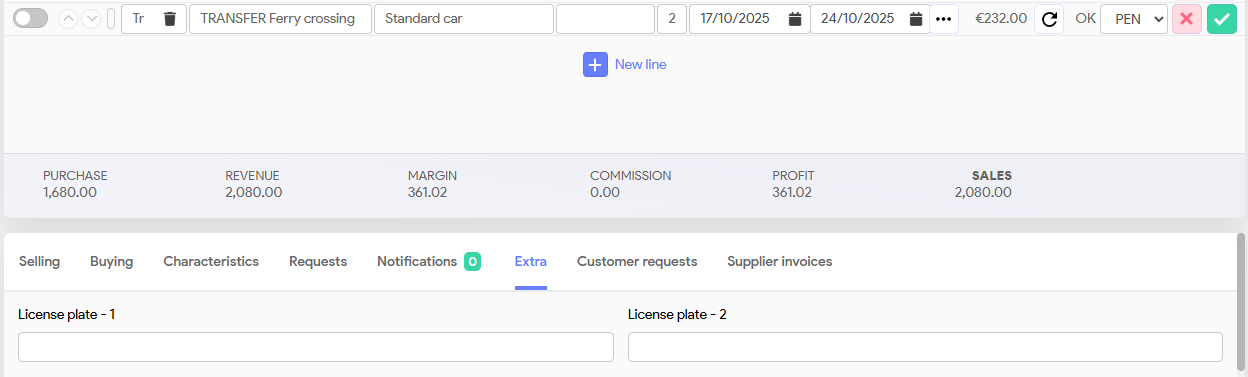
For instance, consider a round trip by car that includes a ferry crossing. For each vehicle utilizing the ferry service, you will need to record the license plate number. A booking may include multiple vehicles assigned to the ferry crossing.
- Will edit service type Transfer in this example.
- In the Service Type Configuration panel, click on the New button.
- A new field configuration line will be shown.
- In the field Name, you can configure the name of the field that will be shown on the service line. In our example will setup License plate.
- In the field Nature, you can determine how the field is populated. For our example, we will set it to "per unit" because it may be necessary to record the license plate numbers for multiple vehicles, meaning a license plate for each unit.
- Click Save.

If you load or add a service line of the Transfer, in the extra tab of the service line you will now see the newly created custom field.
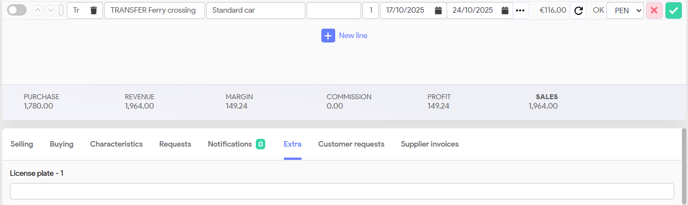
If two cars are registered, we will have set the quantity to 2, resulting in the custom field appearing twice on the service line.