
What Is It?
Each service line in a file has a supplier status and an optional invoicing status. These statuses reflect the real-time state of the booking process between Tide and the supplier, and they guide workflows such as request handling, cancellation, and billing.
Supplier Statuses
Supplier statuses track the service's lifecycle with the supplier. Tide sets these automatically based on user actions or API responses. Manual overrides should be avoided but can be done via Service Actions if necessary.
Default Status
| Code | Description |
|---|---|
| PEN | Pending (initial state) |
Request Availability Process
| Code | Description |
|---|---|
| RQ | On Request |
| RS | Request Availability Sent |
| RC | Request Availability Confirmed |
| RD | Request Availability Denied |
Booking Process
| Code | Description |
|---|---|
| BR | Booking Request |
| BS | Booking Request Sent |
| BC | Booking Confirmed (Final State) |
| BD | Booking Denied |
| OK | Booked in allotment or FreeSale (Final State) – no supplier reconfirmation needed |
Cancellation Process
| Code | Description |
|---|---|
| XL | Cancellation by You (no fee, internal only) |
| CL | Cancellation by Customer (fee may apply) |
| CS | Cancellation Request Sent |
| CC | Cancellation Confirmed (Final State) |
| CD | Cancellation Denied |
| CA | Cancelled from quote (no booking occurred) |
Quotation
| Code | Description |
|---|---|
| AN | Quotation. No availability checks or API booking. |
| Code | Description |
|---|---|
| NA | No Allotment, but still bookable (treated as RQ if Allotment determines bookability - configured on the General tab of your product is disabled, otherwise it will be set to NB) |
| NB | Not Bookable - e.g. due to stop sale or used-up allotment The system will display a temporary error message in the bottom left corner of the screen, providing the reason for the NB status. E.g.  In the errors & warnings section it well provide more details 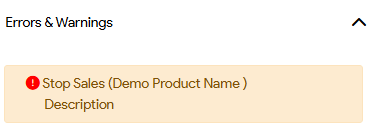 |
Other
| Code | Description |
|---|---|
| OP | Option |
| ER | Error - Booking process failed The system will display a temporary error message in the bottom left corner of the screen, providing the reason for the ER status. An more detail error message can be found in the error message. |
 |
If you want to re-validate your status, you need to 'open' your service line (pencil icon) and use the round arrow icon (shown here on the left) to re-validate price and availability. |