
What Are Allotments?
Allotments define the availability that Tide tracks for a product - either based on contractual commitments with suppliers or internal inventory management.
When you want to configure products, make sure that your product is set to Allotment type "Allotment". (see Product allotment type)
Key concepts
This article will help you:
-
Understand what the basic allotment concepts are
- Configure allotment cards manage allotment
Basic allotment concepts
Grasp the fundamental concepts of allotments in Tide
Basic Introduction: Daily
Guide to managing allotments in your product.
Basic Introduction: Periodic
Guide to managing allotment in allotments cards.
Flight info
Basic allotment concepts
Product: allotment settings
When you want to configure products to work with allotments, make sure your product has the right product allotment settings.
To edit this settings, go to the Data tab of your product, click on the Edit-button and on the General tab scroll to the Allotment section.
- Allotment type must be set to Allotment

- Allotment determines departure dates: bookings can only be made if there is availability for the entire travel duration. So you cannot book outside the available allotments.
-
Allotment determines bookability:
- If allotment determines bookability is off, the product is available on demand (NA) and can be booked. The availability must be confirmed by the supplier.
- If allotment determines bookability is on, then the product is not bookable and will not appear in the search results. (NB)

Make sure you minimum duration on the general tab do not conflict with the minimum duration you will setup in your season/allotment as this will overrule the general tab.
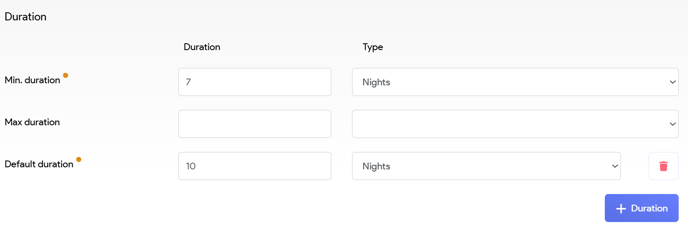
Allotment nature
As mentioned, Allotments define the availability that Tide tracks for a product. These allotments can be configured in 2 ways:
-
Per person (e.g. per seat)
-
Per unit (e.g. per room)
Allotment mechanisms
Tide supports two core allotment mechanisms:
-
Daily Allotments (used for hotels)
-
Periodic Allotments (used for tours, flights, etc.)
Further details on this topic will be provided in the subsequent sections of the article.
Allotments tracking: calendar view
-
Booked, On Option, and Free values are tracked per allotment
-
Upon cancellation, Tide automatically releases the space
Please note that quotes do not affect allotments
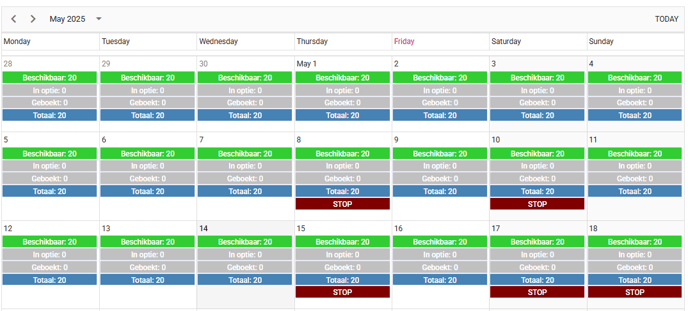
The calendar view serves as an invaluable tool for providing a quick and comprehensive overview of your allotment status.
Navigate to the Allotments tab of your product and choose the accommodation code for which you wish to see the statistics.
In the calendar view on the right, each day displays a stack of four colored blocks, providing a visual representation of the allotment status for that specific date:
- Available remaining allotment for this day
- Optional allotment for this day
- Booked allotment for this day
- Total allotment for this day
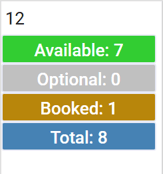
The calendar uses a color-coded system to provide a clear visual representation of allotment status for each day. Each color corresponds to a specific status, helping you quickly assess availability at a glance.
- Available remaining allotment for this day
- Light green: Allotment available > 0
- Grey:
- No allotment and not bookable (NB)
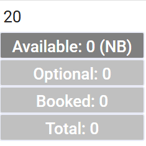
- No allotment and but bookable on request (NA)
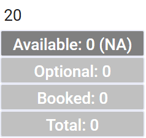
- No allotment and not bookable (NB)
- Optional allotment for this day
- Grey: Optional allotment = 0
- Booked allotment for this day
- Orange: number of booked allotment > 0
- Grey: number of booked allotment = 0
- Total allotment for this day
- Blue: Total allotment defined
Special colours:
- White: No season period has been configured
- Red bar labeled STOP: Active Stop Sales.
Allotment ticket/table
Allotments are always kept grouped in an allotment ticket. This has equal responsibility.
(e.g. BRU TFS/KL will track all allotments for the BRU TFS flights with KLM).
The allotment in an allotment ticket has different dates, times and/or flight/tour codes.
An accommodation of a product is then linked to an allotment ticket.
Allotment custom status
You can setup different allotment custom statuses. This enables you to create your own workflows based on these custom statuses and create the views you need for daily management.
You do this by going to the Administration menu and click on "Custom allotment stat..."
- In the bottom right corner you will find a button called New status.
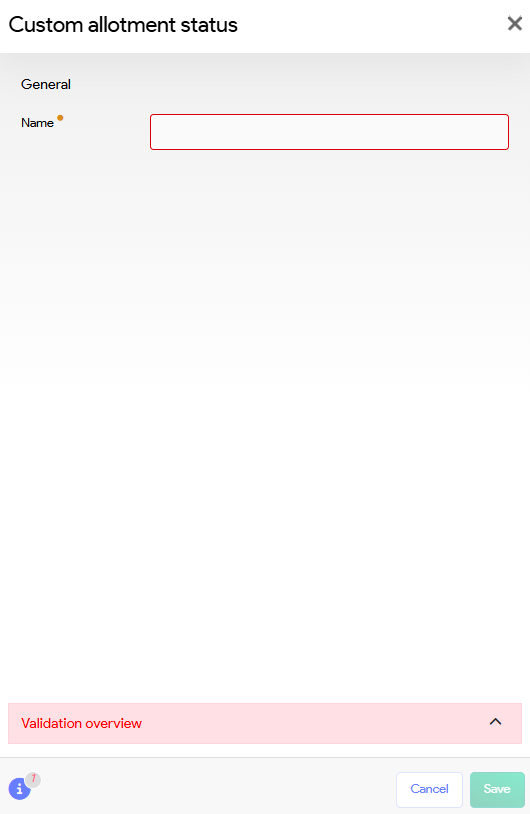
- Click this button to get the following panel, where you can configure the new Status.
Basic introduction: Daily
When to Use
This is used for services like hotels, where you agree with a supplier to have availability every night within a season.
Example: Hotel x offers 10 double rooms from April to October.
-
You only enter this once.
-
Tide tracks availability per night
Configuration
- Availability is displayed in the calendar view.
-
Room availability is managed per accommodation and season
Manage product allotment
- Navigate to the Product Contract and select the Allotments tab
- On the right bottom corner click the Edit button
- The Set allotments panel will be shown:
The values in the allotments panel will depend on the seasons you have configured.
-
- Release date: is taken over from the season setting, if you modify the value here, it will also be updated on the corresponding season
- Minimum stay: is taken over from the season setting, if you modify the value here, it will also be updated on the corresponding season
- Column 3 - #: these columns will be the accommodations you have defined on the accommodation tab. In these columns you can enter the number of allotments you received from the supplier for each corresponding season period.
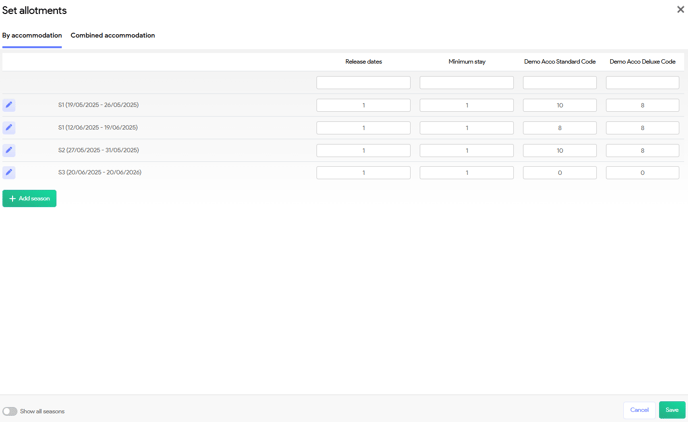
Click Save to make sure you update the configuration.
Add season
You can also add a season here directly, by clicking the "+ Add season" button. This button will open a new season panel. This is fully explained in Create seasons.
Use the Combined Accommodations tab, when availability applies across room types
- Define a allotment pool (e.g. 10 rooms across Standard room and Deluxe room)
Basic introduction: Periodic (Tours, flights)
When to Use
Used for scheduled services such as:
-
Group trips (e.g. 20-person tour on Jan 20)
-
Flights (e.g. AB123 at 15:30)
-
Land arrangements
Each allotment has a start and end date(time), and may be linked to a flight, guide, or event.
Centralized vs Per-Product Views
-
Allotments menu: Manage all allotments across products (with filters, automation, exports)
-
Allotment Cards menu: Manage allotments for a specific product
Note: If no future allotments are linked to an allotment card, it will be hidden by default. Disable “Show future only” to view it.
Views & Filters
Create custom views using combinations of filters:
- Navigate to Product management and select Allotments.
- Click on the gear icon and select the Adjust views option
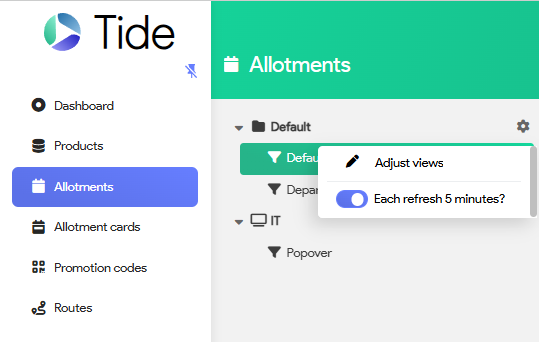
- On the right bottom corner click "New view" button

- In the Allotment view panel, you can start managing your allotments by setting up your new view. The basic view fields are discussed in detail in a separate article dedicated to views.
Below we will address the allotment view filters that can be used.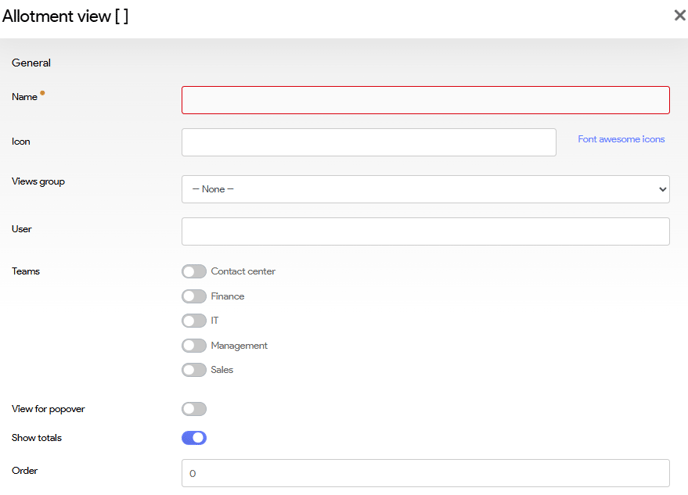
-
Status (open/closed)
-
Custom allotment status (defined in Administration)
-
Departure/return/release date up to x days
Filter allotments by date between x days in the past and x days in the future. - Number booked
- Number in option
-
Number booked + in option
-
Product code: Show allotments of a certain product
-
Supplier: Show allotments of a supplier
-
Tour guide: Show allotments accompanied by a particular tour guide
-
Tour code: Filter on Filter on part of tour code
-
Airport, flight, PNR status
-
Tags (e.g., “NL guided”, “Culinary trip”)
By combining these filters, you can keep allotment management well under control.
In addition to checking, you can also perform automatic production processes on the views, so that the operation is automated as much as possible.
If you need an additional filter or want to automate a certain operation, be sure to let us know!
Allotment Card
In the Product Management menu, navigate to Allotment cards.
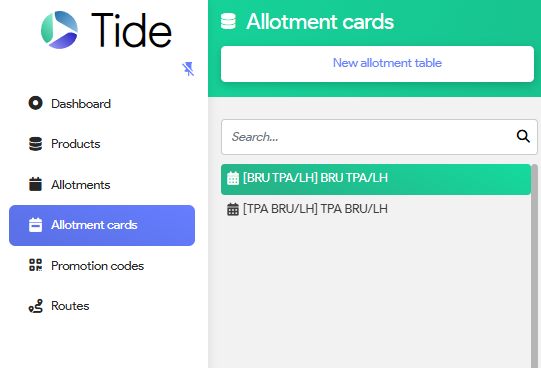
Here you will be able to manage allotment and allotment tables.
Let's look how to set up a flight allotment
Click New allotment table and setup the flight route code in the Code and Name field.
Example: A new allotment table for a double room in a tour 'RGRCTour'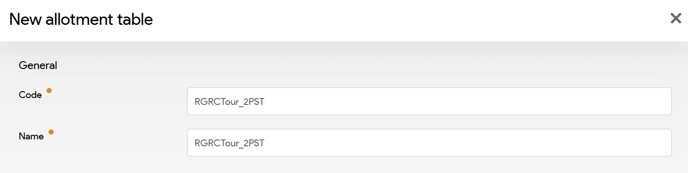
You can generate your allotments under this table (see next section).
Assign allotment table
Navigate to your product and go to the accommodations tab.
Here you can Edit the accommodation , to assign your allotment table to the corresponding accommodation code. In this example will assign the allotment table to 2PST.
Click the pencil icon next to 2PST to edit the accommodation.

Start typing in the Allotment table field en select the desired allotment table and click save.
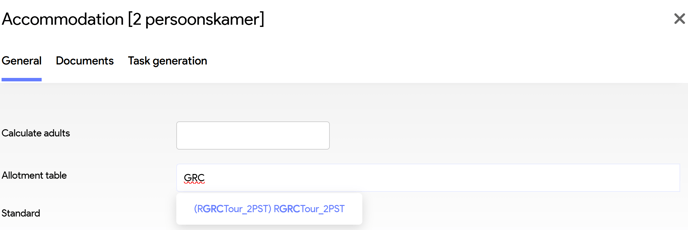
Now your allotment table has been linked to your product.
When defining new allotment you have 2 options:
- Generate allotments
- Create new allotment
Generate allotments
Create allotment
- Select a allotment card
- Click the New allotment button. You will see the following 3 tabs
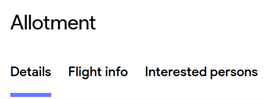
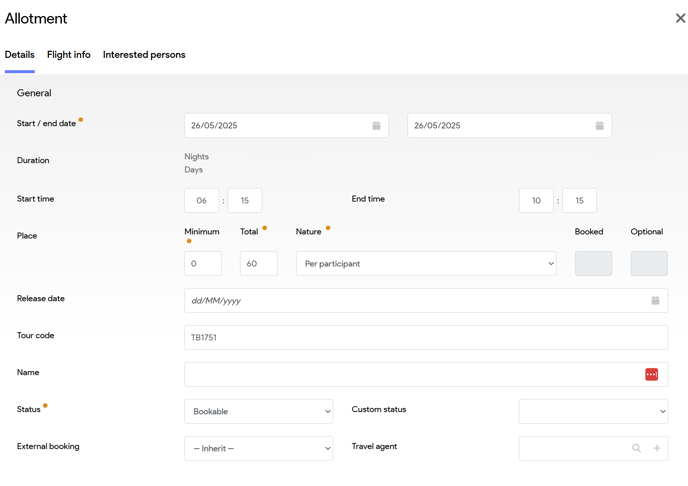
Allotment Details
| Field | Description |
|---|---|
| Start/End Date | Allotment duration |
| Start time | Start time of the allotment. In our example: this is the start time of the flight. |
| End time | End time of the allotment. In our example: this is the end time of the flight. |
| Min/Total Units | Minimum and total capacity |
| Nature | Per participant or per unit |
| Release Date | Booking closes after this date unless on request |
| Tour Code / Name | For tracking and reporting. In our example we'll use the flight number. |
| Status | Bookable, closed or hidden |
| Custom Status | These can be managed in the Administration module |
| External booking | Default set to inherit. Only applicable when using API connections. |
| Field | Description |
|---|---|
|
Ticketing Date |
Date by which airline tickets must be issued. |
|
Passenger List Deadline |
Final deadline to submit the full list of travelers (PAX). |
|
First Payment Deadline (Deposit) |
Deadline for the first (often non-refundable) payment to secure the booking. |
|
Second Payment Deadline |
Deadline for the second installment of the travel payment. |
|
Third Payment Deadline (Final Payment) |
Final deadline to pay the full travel amount. |
|
Issuance Date |
Date when travel documents (tickets, vouchers) are issued. |
|
Pre-departure Meeting Date |
Date of the meeting held before departure to brief travelers. |
|
Pre-departure Meeting Address |
Location where the pre-departure meeting takes place. |
| Travel agent | Optionally, you can assign the allotment to a specific agent code. |
| Guide(s) | Link up to 3, managed in CRM |
| Tags & Comments | For filtering and internal documentation |
Flight Info (Optional)
Each allotment can include a flight schedule, typically for:
-
Flight allotment: One-way or return legs
-
Group PNRs for tours
-
Restrictions on booking mixed flights
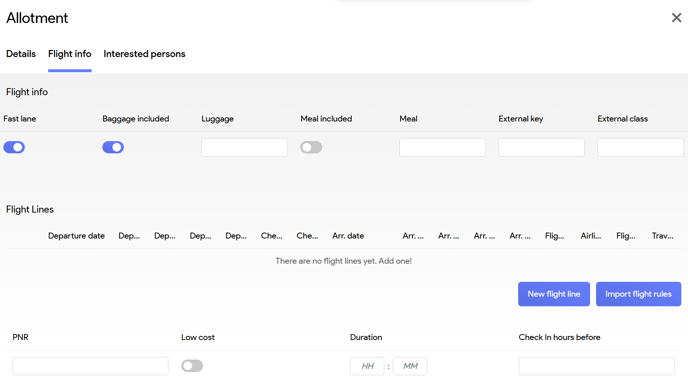
Flight info
| Field | Description |
| Fast lane | Specify if access to a priority security checkpoint at the airport is included. |
| Baggage included | Specify if the ticket price includes checked baggage. |
| Luggage | Description of the included baggage, such as the allowance of 23 kg. |
| Meal included | Set whether a meal is provided during the flight (usually on medium/long-haul flights). |
| Meal | Meal specifications and details |
| External key | Used in direct API bookings |
| External class | Used in direct API bookings |
Flight Line Fields
| Field | Description |
|---|---|
| Departure/Arrival Date & Time | Exact datetime of flight leg |
| Airport Codes | IATA codes for departure and arrival |
| Flight Number & Airline | e.g. KL123, TB1751 |
| Flight Class | Booking class or tariff class. Mostly indicated by a single letter. |
| Travel Class | Travel class or service class e.g. Economy, Business, First |
| Check-in Info | Custom fields |
| Meals, Baggage, Fast Lane | Included or custom-labelled options |
| PNR | For auto-booking via GDS |
| External Key/Class | Used in direct API bookings |
Use “Import flight rules” to parse GDS flat text into structured data.
Once the allotment has been created, you will the following see extra tabs
Linked Lists
-
Passenger List: See all individual travelers, including margin per booking
-
Rooming List: See all rooms and who is in them
-
Booking List: Overview of all bookings linked to the allotment
Documents
- Upload PDFs, documents—shareable on websites or B2B portal
Task generation
Here you can schedule a process or task that needs to be assigned. You can consult the article dedicated to task generation for more information.
Pax Reallocation
Rebook travelers to another allotment via the Booking List tab. Contact Tide for support with this operation.
Excel Import
Tide supports bulk allotment creation and updates via Excel. Contact support to get the correct import format.
Tour guides
The tour guide(s) you want to link to the allotment must first be created in the CRM.
- Primary
- Secondary
- Tertiary
In the CRM > persons you can create views. One of the filters is "Used as tour guide". All persons linked to allotments via one of these three fields become manageable in the CRM in 1 view.
You can link 3 "tour guides". It is an internal agreement to link, for example, the guide as primary and the driver as secondary.
This information can then be used to display in travel documents. Or you can make it possible for a tour guide to log into a B2B portal through which they see their trips, etc ...