
This article provides an overview of what a season is and guide you trough setting it up
What is a season
A season represents one or more price periods. One season can therefor apply to different periods throughout the year.
Why creating a seasons
Defining seasons will effectively help you organize your pricing periods. It is advisable to define 'Seasons' based on the price validity specified in your contract.
Setting up a season
Maintain a season (edit or remove)
Add a season
You can start by clicking the Add season button, and the season panel will appear:
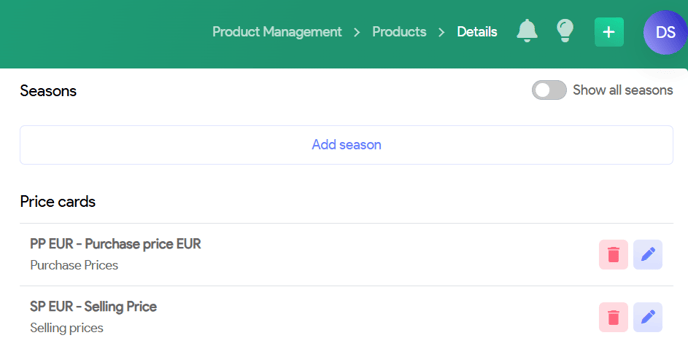
You will see a Toggle "Show all seasons". By default, this is off and seasons from the past are archived. If you still want to see old data (e.g. to add new periods), click "Show all seasons".
More information about price cards can be found in this article Price calculation
Fields
Here you will be able configure all the fields, to setup your new season.
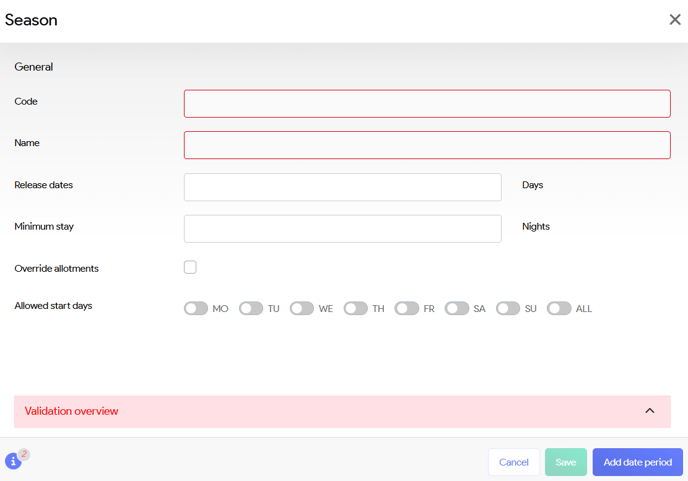
The following table provides a description of the fields and how to use them.
|
Field |
Description |
|
Code |
This is the Season code and is for internal use only. You have the flexibility to create your own naming convention for the season code. For enhanced organization and clarity, it is recommended to use a prefix of "S" followed by sequential numbers (e.g., S1, S2, S3, S4, etc.). When working with several seasons per year (These codes usually also come back hotel contract from supplier). |
|
Name |
The season name is for internal reference only. While it is common to include the code in this field, you have the option to add more descriptive information as needed. |
|
Release dates |
Here you can configure the release according to the specifications outlined in the contract.
|
|
Minimum stay |
This field allows you to set up the minimum duration as specified in the contract. If entered at season, this overrides the general minimum stay entered at general contract details.
|
|
Override allotments |
This is only applicable for overlapping seasons. By default the allotment will be added. When you check this setting, the allotment numbers will not be added together, but the value entered for the new 'override allotments' season will be taken. Default |
|
Allowed start days |
If your seasons has specific valid departure days, you can configure this here. In case nothing is selected, all departure days are valid. |
Add date period

By selecting the "Add date period" option, you can specify the various periods for the season. This feature allows you to create multiple distinct periods as needed.
- Enter the start date and end date of the season.

 |
You can remove a period by selecting the trash can icon. |
Maintaining seasons
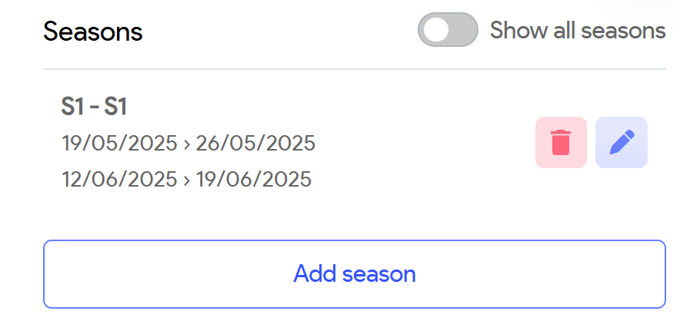
You can edit a season or delete a season.
Note: deleting a season also deletes all price details.
 |
To edit a season, click on the blue pencil icon. |
 |
To delete a season, click on the trash can icon. |
| Previous: Create a product - General | Next: Create a product - Seasons |