
In this article, you will find information about setting up the General tab
The General panel is the first section you will see in your product window. This panel contains all essential properties about your product, whether it is a hotel, flight, transfer, excursion,...

In this tutorial, we will explore the various fields that are essential for your product setup on the General panel. You can click on the items listed below to access detailed explanations for each specific field directly.
Basic fields
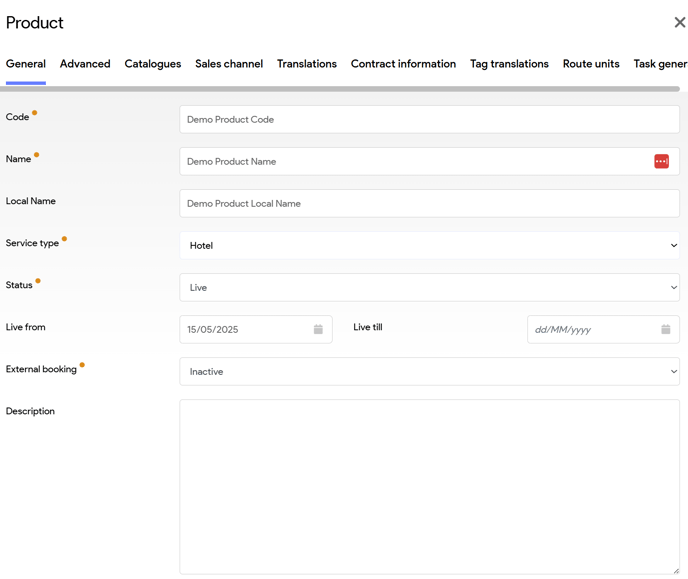
Code
It is advisable to bring structure to your code. This ensures that internal staff can look up products quickly.
IIt is recommended to adopt a consistent naming convention for your product codes. The example provided below serves as a guideline, but you are welcome to develop a system that best suits your organization's needs. Ensure that your codes are short, while still being easily understandable.
- Start with the first letter of the product type, ie H for Hotel, T for transfer...
- Then the IATA of your destination, ie TFS for Tenerife, MLE for Male, Maldives...
- Then Name or abbreviation of your hotel name
You can choose to work with sequence numbers: e.g: HTFS001, HTFS002, ... but we recommend making code 'readable': e.g: HTFSHILTON
Some examples
- HHKTSIXSEN : Hotel six senses in Phuket
- HTFSHILTON: Hilton hotel in Tenerifce
- EBCNDINNER: Dinner excursion in Barcelona
- TBKKHKT: Transfer between Bangkok and Phuket
BRU TFS/SN :
- BRU: Departure airport IATA code (character 1-3)
- Space (character 4)
- TFS: Arrival airport IATA code (character 5-7)
- /SN: Backslash and the airline's IATA code (characters 8-10)
Name
Name of the product.
Please keep names as short and commercial as possible, as these will be visible on travel documents, client portals, etc ...
Local Name
The local name of the product. In many cases it is identical to the name used for the customer. In this case, the field may be left blank, and the regular 'name' of the product is always used.
This name,will be visible on booking, vouchers, supplier portals, emails to suppliers,etc ...
Product code and Product name are the fields that are displayed when adding service line.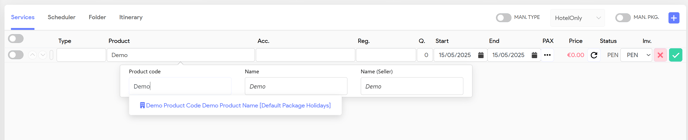
When you're not working in the service line, only the Product name will be shown.

When you move your cursor in the Product field, you will see - and in this order - the Code, Name and Local Name (seller) of your product

Service Type
With a service type, you can assign a category to your Product.
These service types are fixed and can't be created. If you do want to add a service type, you should ask the Tide team. They will first assess whether there is a genuine need for a new service type and determine if any existing service types could sufficiently meet that need.
You can manage the visibility of these available service types
Navigate to Administration > Service types.
If you check the 'Is hidden' checkbox there, they will no longer be visible in Tide.
If your organization does not utilize the 'camper' service type, it is advisable to deactivate it. This action will streamline the autocomplete lists, making them shorter and more user-friendly for employees.
The term "service type" may also be referred to as "product type," and both terms convey the same concept.
Status
A product also has a lifecycle a lifecylce is a workflow of different statuses. You can write out this workflow yourself and set up the various sub-states at admin > custom product statuses.
Only when a product has the status Live, will it be visible in a file. Otherwise it will be hidden. So if your contract set up is not completed, the status should not be Live.
If this is not the case, users may inadvertently book a product at incorrect prices.
- Deleted: Your product will be moved to the delete section. After 30 days it will be removed from your product portfolio.
- Live: Your product will be populated in the file and made available for booking when all necessary criteria are met.
- Not Live: The product is not visible in file. Essentially, the outcomes of the statuses listed below are similar; however, it is advisable to use them appropriately. This practice enhances the management of your products and helps prevent potential confusing.
- Out of sales: Choose this status if you want to - temporarily - make a product unavailable for booking.
- Setup in progress: Choose this status if you are configurating your product and are not yet finished.
Live from - Live to
Here you can setup the lifespan of the product. These dates indicate the period when the hotel becomes searchable, so not the actual date of stay.
-
Live from
The "Live from" field allows you to specify the starting date when your product will be available for booking. It is crucial to set this date accurately, as it determines when customers can begin to make reservations for your service. If the "Live from" date is set in the future, the product will remain hidden from all booking channels until that date arrives.
When configuring the "Live from" date, consider factors such as your contractual agreements with suppliers.
-
Live to
The "Live to" field allows you to specify the end date for when your product will be available for booking.
External booking
Should always be set to Inactive.
If this needs to be different for your specific product, you will be informed by a Tide support employee. This field is only used when you want to setup an internal product with full capabilities (allotment, price-blocks,...), but still needs to be booked with the external vendor.
Thus, this field does not mean:
- Automatically booked with the supplier
- Should be set to always in case of shell contract for booking with external vendor.
Description
This field is purely for internal use and so will not be seen on vouchers, websites, etc.
You can use it to keep track of individual comments centrally, without having to upload a document to do so.
Start date determines price
The "Start date determines price" option should only be enabled if your supplier agrees to apply the pricing from the start date for the entire duration of the stay.
By default this is disabled and thus Tide calculates the nightly rate for each night and will sum the different nightly rates. So if you have some nights in low season and then some nights in high season, you will get the sum of a mix of different prices.
In most cases, if the travel dates span two different seasons, the hotel will charge according to the respective seasonal rates. For example, if a guest stays for two nights in the first season and three nights in the second season, they will be billed according to the seasonal rates applicable to each night.
Start date is decisive:
Sometimes a hotel works with a nightly rate and this nightly rate will be taken from the first night and then multiplied by the number of nights. If you have a number of nights in the low season and then a number of nights in the high season, the night rate of the low season will still be used.
This is also used on group tours, where the price of the group tour for the entire group tour is determined by the start date.
Duration
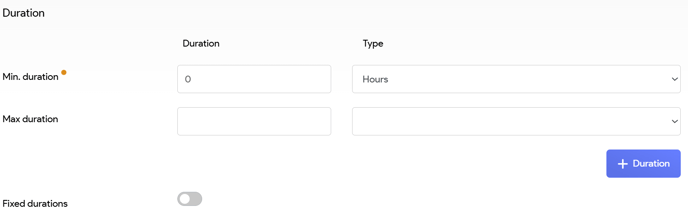
Min. Duration
According to the terms outlined in your contract. This is a mandatory setting and must be configured.
Duration: the value of the minimum duration
Type: 3 possible duration types
- Days
- Hours
- Nights

Max. Duration
Set this field according to the terms outlined in your contract. This setting is optional and may be left blank.
Add duration
This field will enable you to enable setup the default duration(s.)
 |
You can remove a default duration by selecting the trash bin icon. |
Fixed duration
When this toggle is enabled, users will be limited to choosing only the predefined durations set for the product, preventing the selection of any alternative duration options.
For instance, consider the following configuration:
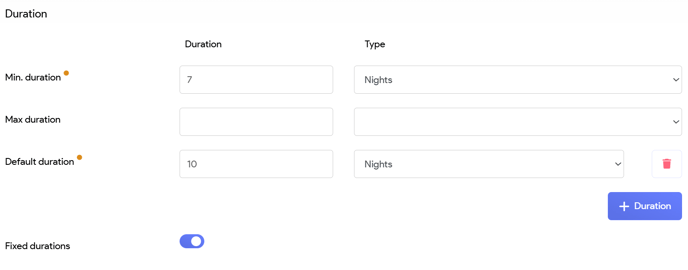
With this setup, when the product is loaded into the booking or date selector is used, the default selected duration will be 10 nights. The end date will calculated automatically.
The user is able to change the duration to 7 nights.
If you use package price caching, it is these durations that are cached.
Allotment
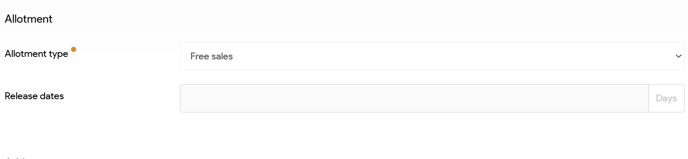
Allotment type
This field is crucial for defining the availability of your product. It also specifies how supplier communication should take place. You can select one of the following three types of allotment settings:
- Allotment
- Free sales
- On request
Allotment
This option is applicable if you have received specific allotments as part of your contract.
When the this type is designated as selected, extra settings will appear for more detailed configurations.
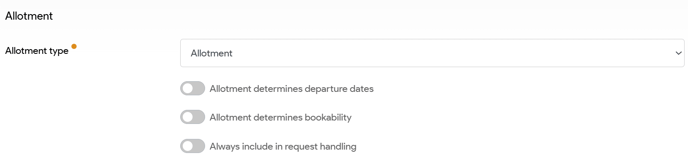
This setup will govern two key aspects:
-
Allotment determines departure dates: Bookings can only be made if there is availability for the entire travel duration. So you cannot book outside the available allotments.
-
Allotment determines bookability:
-
When enabled, the product cannot be booked if there is no availability, when allotment is equal to zero.
-
When disabled, the system will treat the product as "On Request" when the allotment equals zero, meaning that bookings can only be made upon confirmation of availability.
-
- Always include in request handling:
- 'Always include in request handling': by default this is unchecked. It is usually sufficient to communicate with the supplier only at release date. If the supplier asks to be notified already at each booking anyway (for preparation/estimation), you can tick this.
Free sales
In this case the system will not check the allotments and assume it's available. When setting up products that are connected via API, use this option.
You can simply confirm this product to the customer. That the supplier only requires notification a specified number of days prior to the departure date, which can be done via email and/or passenger lists.
On Request
If you leave this field blank, the system will treat the product as "On Request," meaning bookings can only be made if availability is confirmed. To learn more about the on request process, please consult following tutorial.
Release date
The date by which a one must return (or "release") unsold rooms - or seats - back to the supplier.
Concrete example: A hotel gives a tour operator 10 rooms for the week of August 1–7, with a 14-day release date.
-
If today is July 18, and some rooms are unsold, the operator must release those rooms today, or they risk being charged for them.
Address
Before proceeding, ensure that all necessary addresses are established within the CRM system.
- Service address: the supplier address where the hotel is located. This is the address from where the service will continue:
- For a hotel, this is the address of the hotel
- For a football match e.g., this is the stadium
- For excursions, transfers, flights, taxi's,... this is the location where the service takes place, if this is not unambiguous, you can enter the address of the supplier.
- Billing address: from whom you will receive the invoice for the services rendered, where the suppliers invoice comes from. (mandatory)
-
This can be forwarded directly from the hotel, or from the headquarters of a chain of hotels, or from a 3rd party.
-
- Request Address: to whom service requests should be directed, the responsible executor. Depending on the product, this may be your Destination Management Company (DMC) or the hotel itself. (mandatory)
- For a group tour, this is the DMC or local guide
- Representative address: WIP (optional)
- In many cases, the same address is entered here 2 or 3 times **.For a hotel, this is the hotel.
Geographical
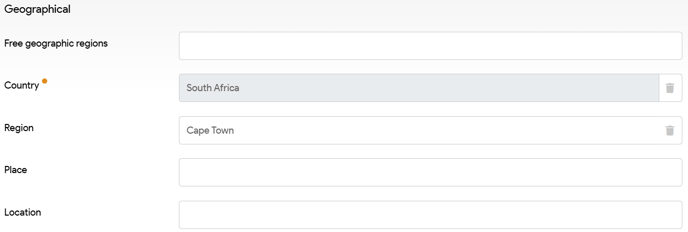
Free Geographical Regions
You may optionally choose a free geographic region to associate with your product, such as Lapland.
Country
Here you need to select the country in which the service is located, starts or leaves.
This field is mandatory as it plays a crucial role in various calculations, including VAT.
Region
Here you can select the region in which the service is located or starts/leaves.
This field is optional.
Place
Here you can select the resort in which the service is located or starts/departs.
This field is optional.
Location
Select the location where the service is located or starts/departs.
This field is optional.
These Geographical fields are manageable via Administration > Locations
If you enter location, Tide will automatically try to populate place, region, country.
If you enter place, Tide will automatically try populate region, country
If you enter region, Tide will automatically populate the country.
For this autocomplete to work properly, the links must be set up properly via Administration management.
Promotion codes
WIP
Tags
If tags have been set up, via Administration > Tags and they are available for products, these tags will show up here.
If they are visible, you can select them here. e.g:
- 'Dutch-speaking guide'
- Golf trip'
- Adults only
If you select Tags, they might be made visible on your website - if this has been set up correctly - and in your booking.
Specific view, processes may be initiated based on specific tags.
More information about setting up tags can be found here (WIP)
| Previous: Create a product | Next: Create a product - Catalogue |