
What are boards?
A board - which often is also referred to as a meal option, meal plan or regime - defines the meal plan associated with a product. These terms are used interchangeably in Tide. The types of regimes can differ based on the specific type product being offered.
Below we'll explore some examples:
Hotels:
- All Inclusive
- Half Board
- Breakfast only
Group trips:
- Meals according to program
Flights:
- Vegetarian meal, Kosher meal, etc.
Regimes can be included in the base price or carry an additional surcharge.
Pricing structures can range from simple to highly complex.
Key Concepts
This article will help you:
-
Understand what regimes are and how they relate to products
-
Use regime templates to streamline setup
-
Configure regime pricing logic (from basic to complex)
-
Set translations and external supplier mappings
When to Use This
Use regimes when:
-
Meal options affect customer pricing or preferences
-
Different regimes apply to the same product or accommodation
-
External systems require mapping of board type
Basic Introduction
You can define boards either:
Using a predefined accommodation template helps reduce input errors and setup time. You simply type the code, hit TAB, and Tide fills in all linked settings.
Set one regime as the default (and it will be automatically selected during booking)
Detailed Explanation
Directly on a product (manual input)
In your product, go to your Boards tab

In the right bottom corner, click on "+ New boards" and the board panel will appear
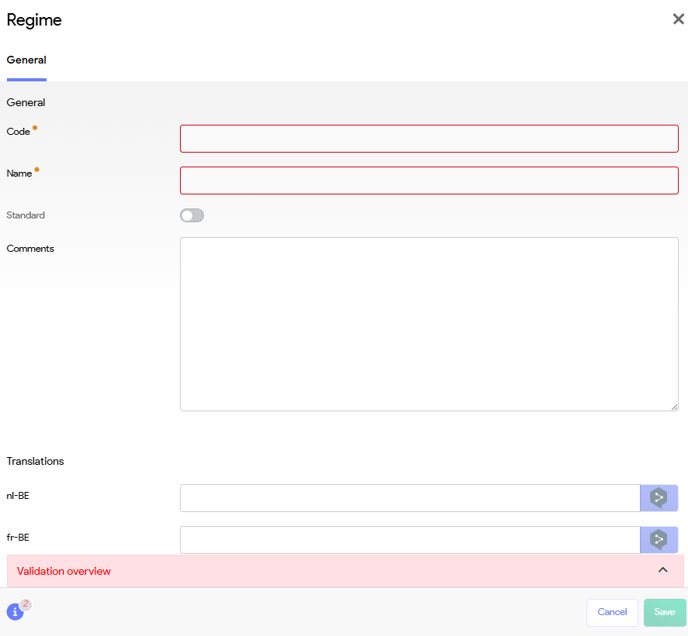
General fields
| Field | Description |
|---|---|
| Code | Abbreviated regime code, typically consisting of two letters e.g., "AI" represents "All Inclusive" |
| Name | Full name of the regime. Used internally and externally if translations are not filled. |
| Standard | If checked, this regime is selected by default when the product is booked. |
| Notes | Optional internal notes. Not shown to customers or suppliers. |
Only one board can be designated as the standard option at a time. If you choose a standard board for a different regime, the previously selected standard board will automatically be deselected.
Translations
Define multilingual names for each regime:
| Language Code | Use Case |
|---|---|
nl-BE |
Dutch (Belgium) - typically internal or supplier-facing |
fr-FR |
French (France) - for customer-facing scenarios |
en-GB |
English (UK) - for external supplier integrations |
If a translation is not filled, the value from Name is used.
Regime Templates
To save time, you can create reusable boards templates under Admin > Boards. For frequently used types (like standard rooms or seat-based excursions), it's advised to define a template.
Define a template
Navigate to Administration Manager and select Boards:

Here, you will get a slightly different boards panel, compared to the one for products.
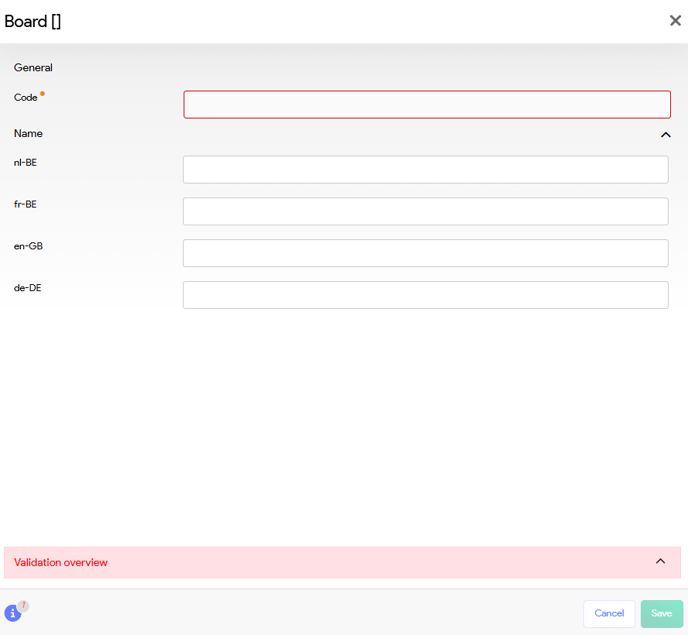
Example templates:
-
AI– All Inclusive -
HB– Half Board -
BB– Bed and Breakfast - ...
Complex Pricing Rules
We'll address this in a more details in the following article Create product - Price Blocks (WIP), but it's worth mentioning already that regime pricing can vary based on:
-
Per person, per night surcharges
-
Inclusive vs. surcharge-based regimes
-
Age-based pricing, e.g. discounts for children or 3rd adult
-
Booking lead time, e.g. early bird meal discounts
-
Accommodation-dependent pricing, where the same regime costs more for premium rooms
-
Date-based logic, e.g. weekend surcharges
💡 For detailed setup of complex logic, refer to the Pricing Rules documentation.
External Configuration
If the product is mapped to an external supplier (e.g. via API), you can map the regime code to the supplier’s system using the External configuration section.
This ensures seamless communication of meal plans during booking synchronization.