
What Are Accommodations?
An accommodation (also referred to as an amenity) describes how a service is sold, rented, and performed.
-
For a hotel, this is the room type
-
For a transfer, this could be “per minibus”
-
For a bus, it might be “Seat in Coach”
-
For a flight, it's typically the booking class (e.g., Y for Economy Class)
-
For an excursion, it could be “per person”
Each type of service operates in its own unique manner, and accommodations play a crucial role in effectively conveying these specifics to both suppliers and customers.
In this article, we'll discuss
-
Define an accommodation and assign it to a product
-
Configure occupancy and validation rules
-
Link allotments and standard options
-
Use admin templates and autocomplete
Accommodations control how a product is offered and how booking rules are applied. They’re essential for:
-
Ensuring customers only see valid options
-
Applying correct pricing logic
-
Communicating service formats with suppliers
-
Managing seat or room capacity
Basic Introduction
You can define accommodations either:
Using a predefined accommodation template helps reduce input errors and setup time. You simply type the code, hit TAB, and Tide fills in all linked settings.
Detailed Explanation
Directly on a product
In your product, go to your accommodation tab

In the right bottom corner, click on "+ New accommodation" and the accommodation panel will appear
General Fields
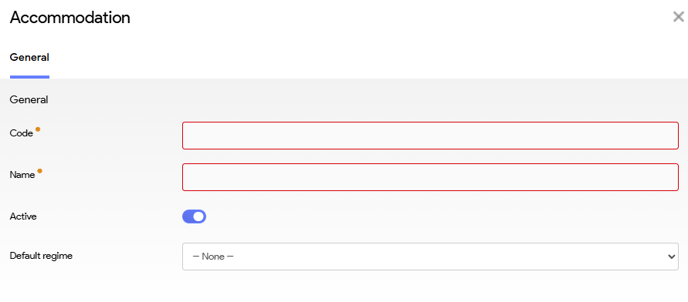
| Field | Description |
| Code | Short internal reference. Preferably 4 characters (e.g., PPER, 2PKST, TAXI,... ) |
| Name | Clear name for internal and external use. If no translations are added, this is shown to both customers and suppliers. |
| Active | Enabled by default, this option can be disabled if you wish to retain your accommodation setup while temporarily making it unavailable. |
| Default regime |
This field is optional and allows you to associate specific meal plans or service packages with particular accommodations. The regime code must already have been created before you can assign it. |
Some good examples:
-
PPER: Per person -
SICO: Seat in Coach -
Y: Economy Class -
2PKST: 2-person room in standard -
2DLXSV: Double Deluxe Seaview-
Start the general room occupancy: 1 for single room, 2 for a double room,...
-
3 characters to define the room type Standard, Deluxe "DLX"...
-
Additional suffix for a USP of the room e.g. "SV" for seaview
-
Examples of codes to avoid:
-
2 PERSON ROOM STANDARD-
Reason: excessively lengthy
-
-
A2Aor1-
Reason: ambiguous and lacks clarity
-
-
123456798-
Reason: difficult to interpret and lacks clarity
-
Occupancy Rules
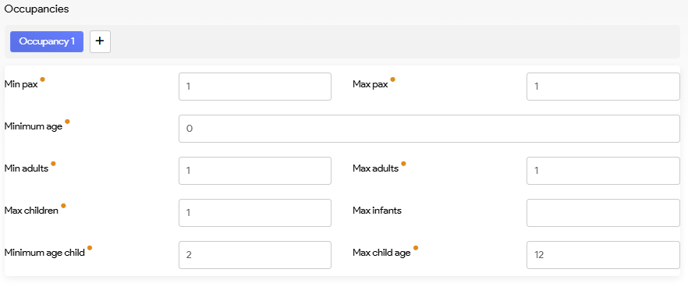
Each accommodation includes 1 or more occupancy options
Occupancy defines how many people can be assigned to an accommodation and under what conditions.
| Field | Description |
|---|---|
| Min pax | Minimum total persons (this includes adults and children) |
| Max pax | Maximum total persons |
| Min age | Minimum age required (e.g., Adults Only = 18) |
| Min adults | Minimum number of adults |
| Max adults | Maximum number of adults |
| Max children | Maximum number of children |
| Minimum child age: | Indicates the age below which a child is categorized as an infant. |
| Max child age | Indicates the age above which a child is considered an adult. |
Examples
1) Per Person
| Field | Value |
|---|---|
| Min pax | 1 |
| Max pax | 1 |
| Min adults | 0 |
| Max adults | 1 |
| Max children | 1 |
2) 2-Person Room, Standard
| Field | Value |
|---|---|
| Min pax | 2 |
| Max pax | 3 |
| Min adults | 1 |
| Max adults | 2 |
| Max children | 1 |
3) Minibus (7 seats)
| Field | Value |
| Min pax | 1 |
| Max pax | 7 |
| Min adults | 1 |
| Max adults | 7 |
| Max children | 6 |
4) 2-Person Room, Adults Only
| Field | Value |
| Min pax | 2 |
| Max pax | 2 |
| Min age | 18 |
| Min adults | 2 |
| Max adults | 2 |
| Max children | 0 |
Additional Fields
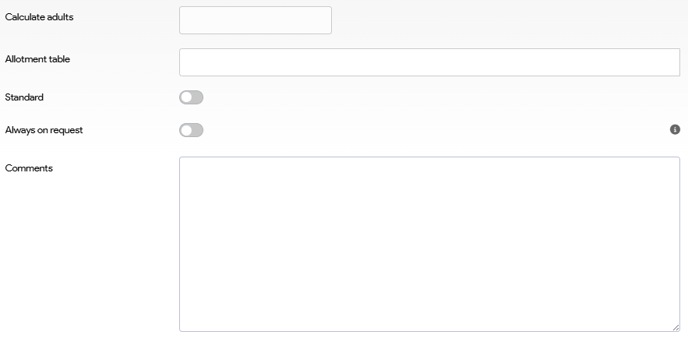
| Field | Description |
|---|---|
| Calculate Adults | Optional.If the pricing needs to be calculated based on a different number of adults (for example, dividing by 3 instead of the standard 2), you can specify that value here (WIP). |
| Allotment Table | Link to predefined allotment table (autocomplete enabled). |
| Standard | Marks this accommodation as the default for front-end display. Has an impact on caching and search results. |
| Notes | Internal-only setup notes. |
| Translations | Add language-specific names (e.g. nl-BE, fr-BE, en-GB). If left blank, fallback is the default name. |
Allotments at Accommodation Level
Allotments are tracked per accommodation:
-
50 rooms of type
2PKST -
200 seats in Economy (
Y) -
20 seats for a group trip
This ensures capacity is managed per service unit. This is explained in dept in Allotments(WIP).
Admin Templates and Autocomplete
To save time, you can create reusable accommodations under Admin > Accommodations. For frequently used types (like standard rooms or seat-based excursions), it's advised to define a template.
Define a template
Navigate to Administration Manager and select Accommodations:

Here, you will get a slightly different accommodation panel compared to the one for products.
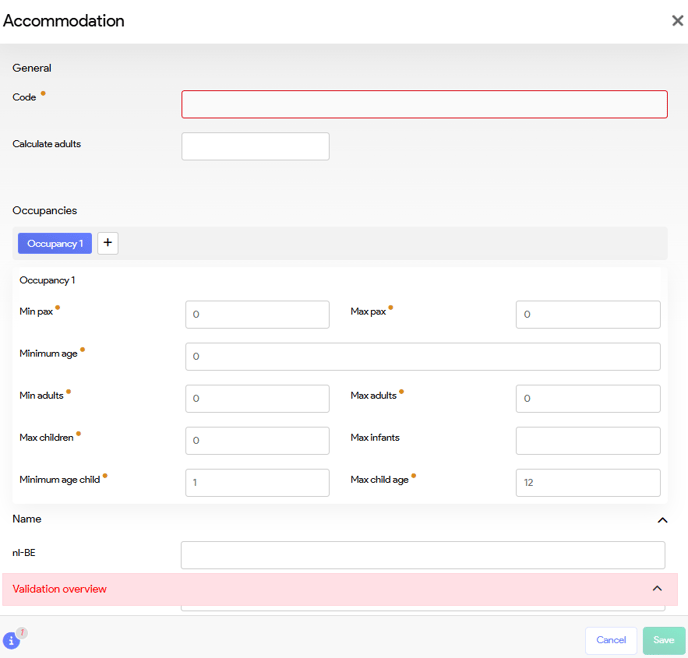
Fields
In this section, you will find the standard accommodation fields you can setup, to serve as a template to quickly add accommodations. While they may not include all the options available on the product accommodation panel, the fields provided here function in the same way as previously described.
How to use
Once a template has been created, this is how you are able to use it when creating accommodations in your product:
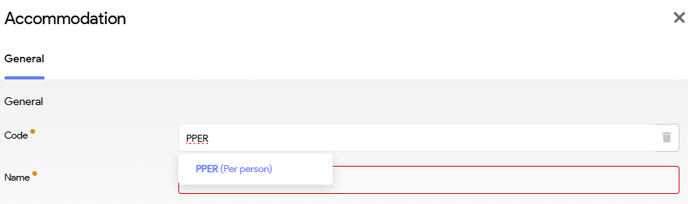
-
Type the known code in the field 'code' of the accommodation panel (e.g.,
2PKST) -
Press TAB or select it from the autocomplete list
-
All parameters will be imported
You can edit details for the product, but the base template stays unchanged.
When should I create an accommodation templates?
Create accommodation templates when you anticipate their reuse, particularly from an occupancy perspective.
For example:
-
2PKST: 2-person room, standard -
3PKSV: 3-person room, sea view -
PPER: Per person
Avoid unique/one-off cases like:
-
2PDAV: Da Vinci room-
In this case it's more advisable to load the
2PKSTand modify the desired accommodation fields
-
| Previous: Create a product - Seasons | Next: Create a product - Price blocks |