
This article will guide you through setting up subservices to create pre-packaged products
Before we begin
To fully understand this article, you should be familiar with setting up products. If you have not yet learned how to create products, we recommend starting with this article How to Create a Product.
Key concepts
This article will help you:
-
Understand what subservices are
- Set up subservices in a product
- Manage subservices in a product
Subservices overview and sorting
What is a subservice
It's essential to understand the concept of a subservice. Subservices are the building blocks of your pre-packaged product. These components collectively form the basis of your Roundtrip, guided tour, or any other type of pre-packaged product.
A subservice component can be any type of product e.g. flight, hotel, transfer, excursion, extra service, ... This article will guide you through the process of adding and customizing your subservices effectively.
Setting up Subservices
- On your product, navigate to the Subservices tab.
- Click on the New-product button, which is located in the right bottom corner.
- A new panel Subservice will appear where you
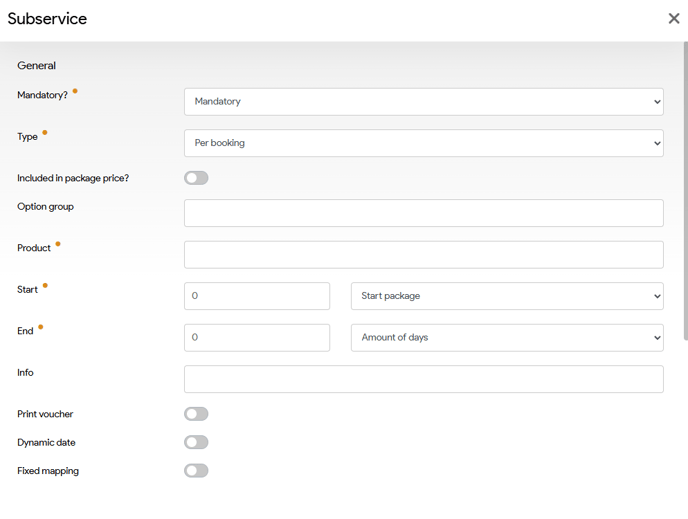
Mandatory
Type
Included in package price
Option group
Product
Start
End
Info
Print voucher
Dynamic date
Accommodation mapping
Regime mapping
Mandatory
This field indicates whether the service is a mandatory service or optional. When it's mandatory, the user can't remove the service from the file/booking.
There are four options to chose from
- Mandatory: product can't be omitted
- Mandatory in group: product is part of a group that can't be omitted
-
Optional: product can be omitted.
-
Optional in group: product is part of a group of products where at least one product must be chosen.
Type
You can choose from three different options.:
- Per booking
- This means - for the given service - a service line will be loaded once.
-
- The quantity of this service line will be determined based on the service's accommodation criteria. The system will assess the optimal occupancy and calculate the quantity accordingly.
- Per unit
- This means - for the given service - a service line will be loaded for each room/unit defined in the booking.
- This setting is mostly applied when you offer different room types in your package.
E.g. you offer a single and double rooms and you have a travel party of 3 adults, that want to book this single and double rooms. For this specific case you will need to have set the type to 'Per unit'. If you will have it set to 'Per booking', you will only have the option to select one room type. 'Per unit' will result in two service lines, one for the single room and one for the double room.
- Per participant
- This means - for the given service - a service line will be loaded for each participant.
- This settings is used to allow individual travelers the option to participate in a specific service.
E.g. you provide an Airport Lounge service. Some members of your travel group may choose to enjoy duty-free shopping, while others might prefer to relax in the lounge as they wait for their flight.
The following example illustrates the differences you will experience in the booking, for each type setting. For example: given a package that consists of 5 services:
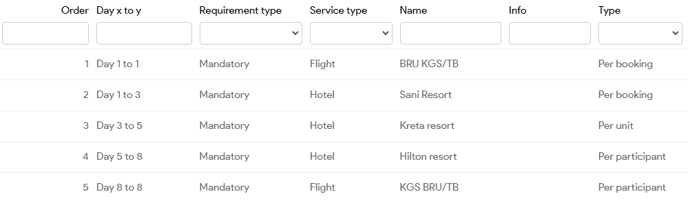
Our travel group includes 4 adults, who will be accommodated in 2 separate rooms (so each accommodating 2 adults).
The first service - the outbound flight - is set to Per booking, therefore, we expect:
- one single service line
- with a quantity of 4 (since each flight seat is assigned to an individual traveler)

The second service - our first hotel - is also set to Per booking, therefore, we expect:
- one single service line
- with a quantity of 2 (as we have two double rooms, each capable of accommodating a maximum of two adults.)

The third service - our second hotel - is set to Per unit, therefore, we expect:
- two service lines, a line for each unit
- each with a quantity of 1
- The first line will accommodate traveler 1 and traveler 2 (first room).
- The second line will accommodate traveler 3 and traveler 4 (second room).

The fourth and fifth service - our third hotel and our inbound flight - are set to Per participant, therefore, we expect:
- 4 service lines for the third hotel, a line for each participant
- 4 service lines for the inbound flight, a line for each participant
- each line with a quantity of 1
Tide will group the servicelines set per participant, per participant
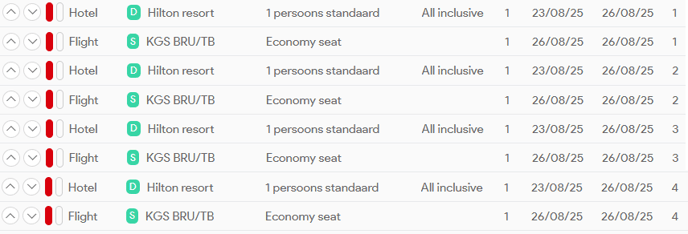
As a result, the booking will include the following service lines.
 Included in package price
When this option is selected, the subservice price will not be applied, effectively indicating that the pricing will be managed within the main product.
You have complete flexibility in how to configure the pricing for your package.
Calculate subservice prices with markup
You can utilize the pricing from the subservices and incorporate a markup amount into the main product's pricing structure.
Package price with specific subservice prices
Alternatively you can also set a fixed package price in the package and only add prices of specific subservices.
Option group
Designate the product as a member of a product group.
Product
Set up the product code of the service
Start and End
Set the offset and specify the type to determine the start date.
Example:
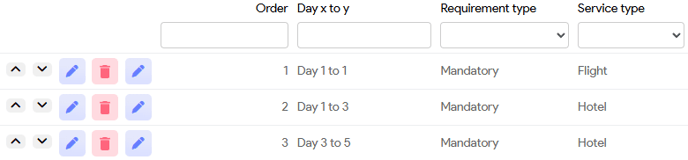
You want to start your package with an outbound flight followed by 3 nights in hotel A and 2 nights in hotel B
The flight will be set up as follows:
- Start: You will set the offset to 1 and type to Start package (Default)
- End: Set offset to 1 and type to Amount of days (Default)

Hotel A will be set up as follows:
- Start: You will set the offset to 1 and type to Start package (Default)
- End: Set offset to 3 and type to Amount of days (Default)

Hotel B will be set up as follows:
- Start: You will set the offset to 3 and type to Start package (Default)
- End: Set offset to 2 and type to Amount of days (Default)

This will result in the following trip overview
Subservice duration
It is important to ensure that the duration of the subservice is not shorter than the minimum duration specified for the product.
E.g. hotel product with a minimum duration of 3 nights. You can't configure this product as a subservice for a 2 nights stay.
This might be one of the checks when a package doesn't load correctly.
Fixed duration
If fixed duration is used in the setup of the product you configured in the subservice, then you will only be able to use the durations that are configured.
This might be one of the checks when a package doesn't load correctly.
Info
A field where you can put some additional information.
Print voucher
WIP
Dynamic date
WIP
Fixed mapping
In this scenario, the user will be restricted from modifying the accommodation settings of the service in the file/booking.
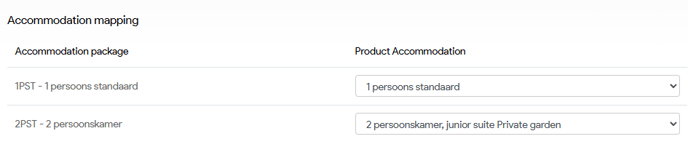
Accommodation mapping
Tide provides the functionality to individually map the accommodation codes of your sub product to the corresponding accommodation code of your main product, assuring a seamless accommodation selection throughout the whole package.
Regime mapping
Tide provides the functionality to individually map the regime codes of your sub product to the corresponding regime code of your main product.
An example scenario could be when the subproduct lacks the specified regime; in such cases, you can assign a predetermined regime to ensure consistency within the package.

Subproducts: Managing and Overview
Overview
Once you have successfully created your subservices, you can view and manage them in a clear and organized overview. This section will guide you through the various functionalities available for efficient management of your subservices.
Reorder subservices
Each button associated with the subservices has a specific function designed to enhance your management and navigation experience. Here, we provide a detailed explanation of what each button does, allowing you to effectively utilize the tools available to you.
| Icon |
Description |
 |
Move a subservice entry higher in the list, simply click to move it one position up.
Please note that this action will not alter the designated start and end dates of the subservice entry, regardless of how many positions you shift it. |
 |
Move the subservice entry down in the list. This will not have any effect on the day from and day to. |
 |
Edit the subservice entry, to update the subservice criteria as described above |
 |
Remove the subservice configuration from the list of subservice entries. |
 |
Edit the corresponding product as configured in the the subservice configuration. This will automatically open in an new tab in your browser, so you can keep your subservices management screen. |