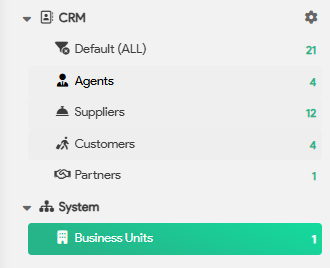
Select from your main menu CRM and select Addresses
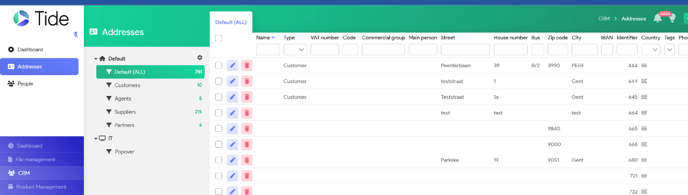
Addresses are maintained for
- Suppliers
- Customers
- Agents
- Business Unit
- ... (Anything which contains an address)
To create a supplier or agency address:
Click on the right bottom corner ‘New Address’

System will populate a blanc Address screen

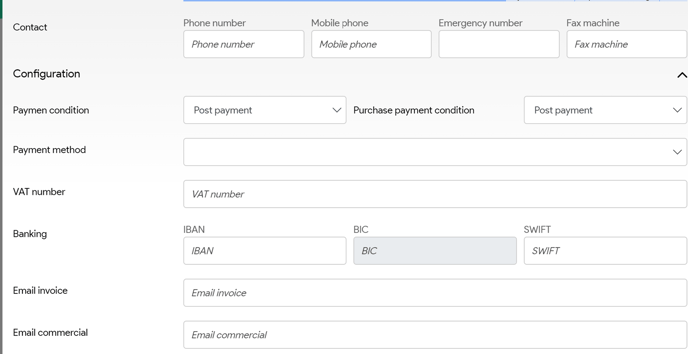

Address type Agent, Supplier or Partner
Name Full name of your supplier (will populate on your travel documents)
Invoicing name If different from the name
Street, number and city
Country Select from the drop down list
Other fields to be inputted as needed (phone numbers will be used on your travel documents)
Commercial email Will be used to sent Request to the supplier
Language Communication language with your supplier
When all fields are inputted correct, you can Save, if incomplete, system will show which fields are incomplete

To create a customer address in CRM
Same as above, type = customer
To create a Business Unit address in CRM
Same as above, but type can be left blank.
- When the Sales Channel is created, this can be linked in the field Sales Channel.

It is good practice to set up a tag with the name system. This will allow you to make clear distinctions between the system addresses and other addresses.
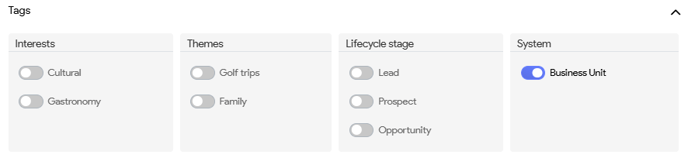
By using Tags (tags in Tide), you can configure the address views (How to create a view)