
What Are Commission Conditions?
A Commission Conditions Contract defines the commission rules a travel agent earns on each part of a booking.
Key Concepts
This article will help you:
-
Understand what commission conditions are
- Understanding the role of Price Types
- How to setup commission conditions
Basic concept
Commission conditions
As mentioned commission conditions defines the commission rules which are bundled in a commission contract, what a travel agent earns on each part of a booking. These rules are tightly linked to price types, allowing granular control over:
-
What commission percentage applies to which service (hotel, flight, insurance, tax, etc.)
-
How commissions vary by destination, product type, business unit, or partner type
Price types
As you may now, each file in Tide consists of service lines (e.g., hotel, flight), which contain one or more price lines (e.g., base price, meals, tax). Each price line has a price type. (learn more about price types)
You define commission rules per price type, and optionally adjust them for different scopes (e.g., by country or partner).
For good practice, start with a fallback commission rule (e.g. 10%) that applies globally within your contract and override it as needed.
Commission contract
A commission contract organizes the various commission rules into a single group.
You might start with 1 basic contract, but will soon want to draw up other commission conditions contract for certain chains of travel agents or for premium partners, for example:
- Default Commission terms.
- Base 10% Commission terms
- Travel agency 'chain xyz'
Multiple Contracts
You can define multiple contracts for different agent profiles:
-
Standard agents: 10% fallback
-
Premium partners: 12% fallback
-
Agent Chain XYZ: customized percentages
Assign a specific contract at:
-
The head office address of a travel agency group
-
The individual travel agency address
Commission rule
Create a actual rule to determine the percentage that will be applied based on defined criteria.
You have two options for setting up commission rules. The first method is straightforward and ideal for beginners, while the second method involves more configuration but can offer greater flexibility in managing rules. Regardless of the method you choose, it is recommended to start by adding a fallback line to ensure that all scenarios are covered.
First option
After you set up the fallback/default (e.g. 10%), think about the other percentages you want to use. For each percentage you define what the different scopes are (e.g. 0% for scope airport tax and scope pricing visa).
Second option
After setting up the fallback/default (e.g. 10%), you can also choose to add a separate commission condition for each price type that you have available.
Basic introduction
Set up a commission condition contract
Set up a commission condition contract
-
Go to Administration and click Commission Conditions

-
Click + New Contract
-
Name your contract clearly (e.g. Base 10%, Premium Agents, Chain 'XYZ')

Now you can start adding one or more commission rules with relevant scopes and percentages
Set up commission rules
Here we can start defining the actual percentages that will apply.
- Navigate to a commission contract.
- Click the New button on the right bottom corner to set up a new commission rule.
| Field | Description |
|---|---|
| Name | A clear description e.g. Fallback 10%, Hotels 13%, Tax 0% |
| Percentage | Commission percentage to be applied |
| Business Unit | Criteria to limit to a specific unit |
| Address | Criteria to limit to a specific supplier |
| Continent / Country / Region | Criteria to limit a location: Option to chose continent, country and/or region |
| Price Type | Target specific price types |

Example configurations
-
Fallback: It's advised to create a fallback. 10% applies to all price types unless overridden. Example below, set a default Commission of 10% for service types Hotel, Excursion and Flight. You can also just a Commission rule for 10% without applicable criteria. This approach ensures that all price types are accounted for during the commission setup process.

-
Overrides examples
-
Tax → 0%
- if you set up a default commission of 10% on all price types, you need to explicitly set a commission rule for TAX of 0%, otherwise it will be the default 10%
- If you have established a default commission of 10% for your select price types as mentioned earlier, you may not need to specify this setting for specific price types. In this case, all price types will automatically default to 0% commission, except for the selected basic types you have defined.
-
Insurance → 12%
-
Hotels in US → 5%
-
Airport Tax in EU → 0%
-
To illustrate, a concrete example: a commission contract set at 13% that e.g. can be assigned to the majority of travel agents. This contract will apply a 13% commission for hotels, while for flights, we will specify a lower commission rate of 8%.
We'll first create a commission contract we'll just call 13%.
- Set up a new contract and select it.
- Click New to create new commission rule
- We'll name this e.g. base and assign 13% to it.
- Scroll down to the Applicable section.
- In the price type field, start typing 'Hotel' and select the HOTEL price type.
-

Once you've entered the valid applicable criteria, click the plus sign. 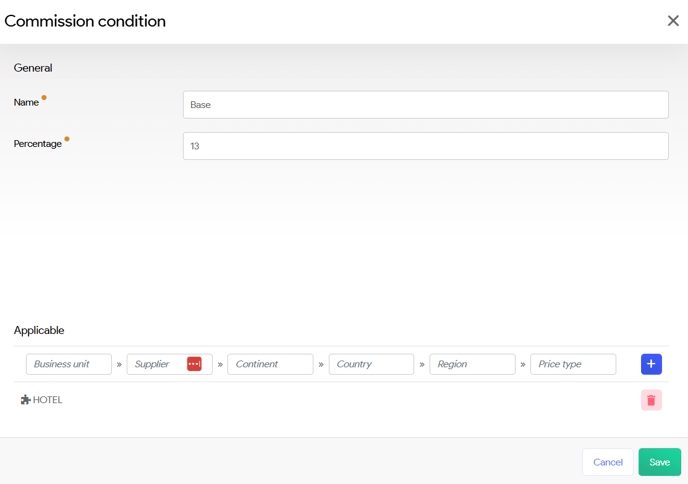
- Click Save
- Repeat step 2-7, but set it to 8% and this for Price type FLIGHT.

In the overview, you will now see your newly created commission rules for your contract. Note that we also created a Default for TRANSFER and EXCURSION set to 10% in this contract.
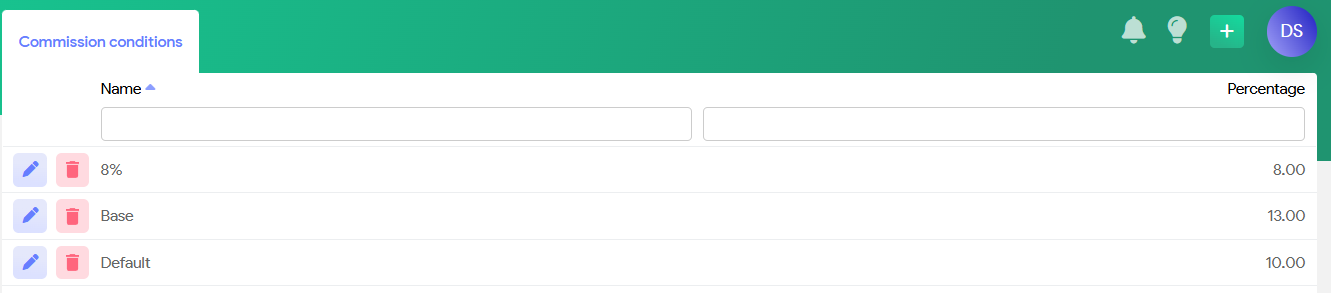
Travel Agency with default commission terms
This will result in 10% for all HOTEL, FLIGHT EXCURSION and TRANSFER price types. Other price types in the booking will get 0%.

Travel Agency with 13% commission terms
This will result in 13% for all HOTEL price types, 8% for FLIGHT price types and 10% for TRANSFER price types. Other price types in the booking will get 0%.
As you can see in the screenshot below, for HOTEL price the travel agent gets 13%.
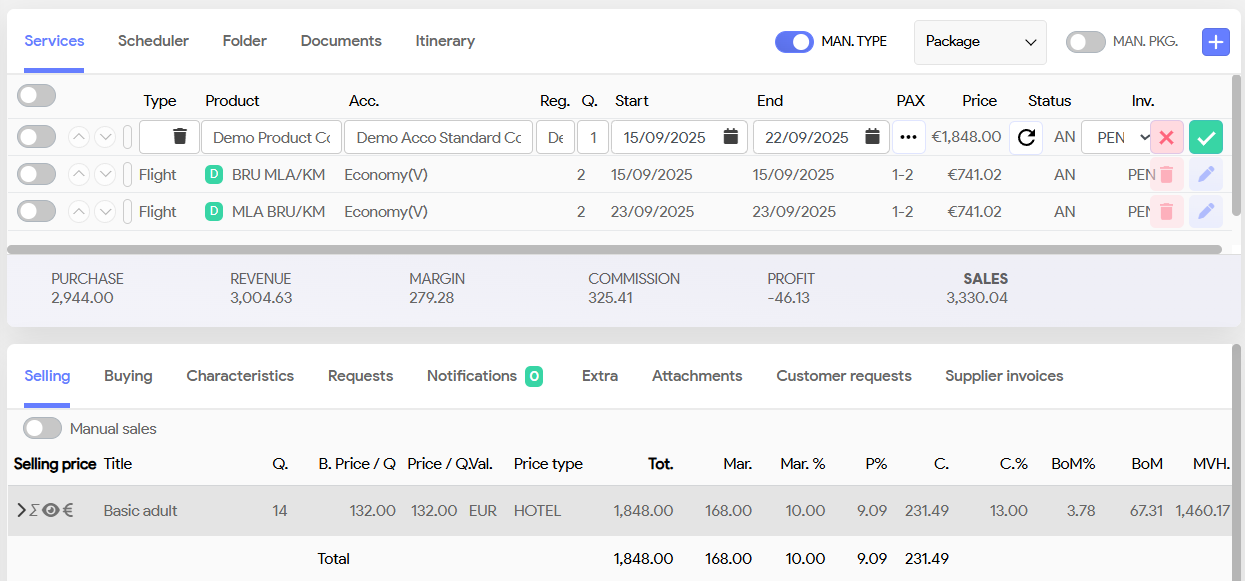
For FLIGHT 8% will be assigned and for TAX 0%. 
For TRANSFER - as defined in Default - the system will take 10% commission.
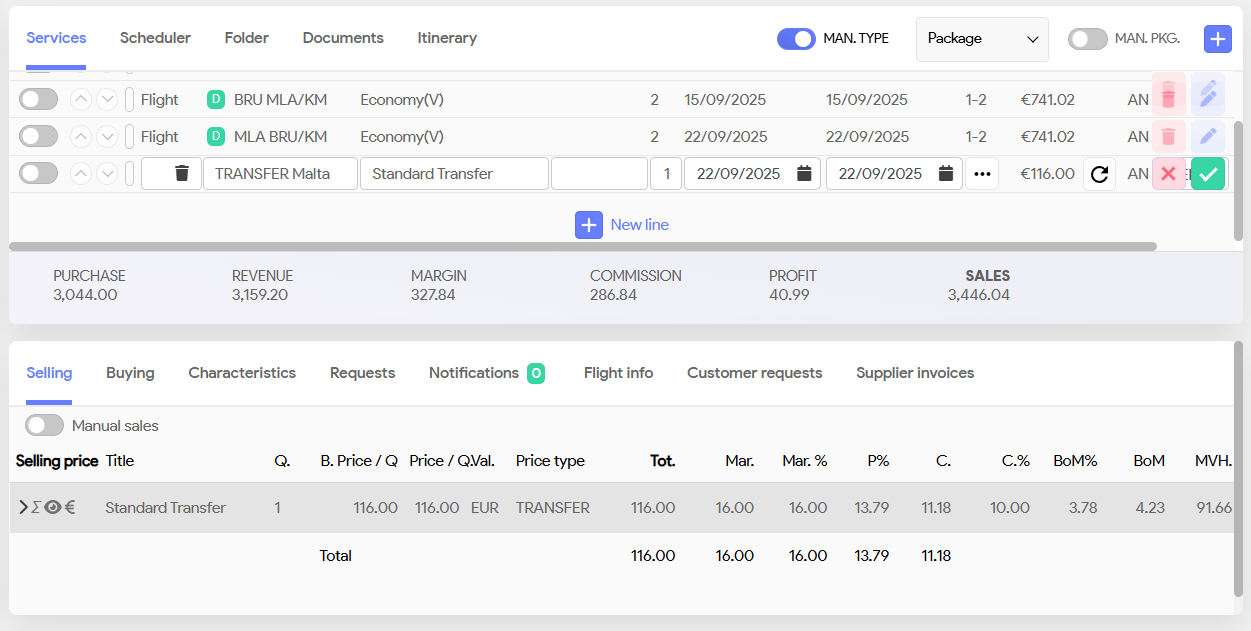
You can add multiple rules with overlapping price types but different scopes (e.g., Hotel = 12% in Business Unit 1, 10% in Business Unit 2)
Best Practices
-
Always start with a fallback rule to ensure coverage
-
Use clear and consistent naming (e.g., Fallback 10%, Insurance 12%)
-
Keep rules short and scoped to avoid unintended overlap
-
Teach users how price types drive commission outcomes in each service line