
What are service line details
When editing a service line in a booking, you will be able to view the properties of the booked service. Depending on the type of service an hotel, flight, package, transfer,... different tabs with information will be displayed. Here you also can add additional or change existing data.
| Tab | Description |
|---|---|
| Selling | Displays all sales-related price lines. |
| Buying | Displays all purchase-related price lines. |
| Characteristics | Displays the location and address (CRM) information associated with the product. |
| Requests | Tracks availability or booking requests made to the supplier (e.g. for On Request services). |
| Notifications | Centralized place for viewing the notifications specific for the given product. |
| Extra | Stores additional information such as specific departure times, pick-up and drop-off times, and comments. Any custom fields that you have created for this particular service type will also be displayed in this tab. |
| Flight Info | When the flight is selected - via external flights or search package - the flight data will be shown here. It's also possible to manually setup the flight info in this tab. |
| Customer Requests | Include any specific requests or questions from the traveler, such as dietary preferences or early check-in requirements, in the booking. This information will facilitate effective communication with both the supplier and the customer. |
| Supplier Invoices | Upload or link invoice documents from suppliers for reconciliation or approval. |
Selling tab
This tab provides a detailed financial overview per price line within a service. It’s primarily used to monitor the profitability and composition of selling prices — including discounts, base rates, commissions, margins, and VAT.
Manual sales toggle
Manual sales toggle (top-left) allows switching between calculated and manually entered sales prices.
-
OFF: Prices are derived from contracts or pricing logic.
-
ON: Enables manual input of sales prices
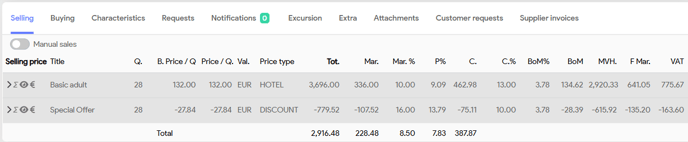
| Column | Description |
|---|---|
 |
Click the arrow icon to view the breakdown of how the quantity is distributed. |
Price type settings |
The icon bar features three icons that manage the price type settings. A comprehensive description of each icon is provided below this table. By default, these settings are inherited based on the configurations you have setup for the price types. |
| Title | Description of the price line (e.g. Basic Adult, Special Offer). |
| Q. | Quantity of units for this price line. |
| B. Price / Q | Base price per unit (before margin or VAT). |
| Val. | Sales price currency |
| Price Type | Price type (e.g. HOTEL, INSURANCE, FLIGHT, TAX,...). See price types for more information. |
| Tot. | Total price for this line = quantity × unit price |
| Mar. | Calculated margin for this price line. |
| Mar. % | Calculated margin for this price line, expressed as a percentage. |
| P% | Profit percentage. |
| C. | Calculated commission. |
| C.% | Commission % used to calculate the commission amount. |
| BoM% | VAT (on financial margin) percentage applied. |
| BoM | Calculated VAT on Margin amount. |
| MVH. | Taxable amount. |
| F. Mar. | Calculated financial margin |
| VAT | VAT amount calculated per line. |
Price Setting Icons
| Icon | Setting | Description |
|---|---|---|
| ∑ | Included in Package Price | Indicates if the price line is included in the total price. |
| 👁 | Show Separately | Whether the price line is displayed separately (e.g. visible on documents, website price details). |
| € | Show Price Detail | Whether the specific price value is shown or hidden in the separate listing. |
Each icon has a color that reflects its activation and source:
You can manually override these inherited values by clicking the icons, which is especially useful when making file-specific pricing adjustments.
Clicking an icon toggles through three stages:
-
Default (Inherited)
-
Manually Active (Override)
-
Manually Inactive (Override)
| Default |  |
Inherited from price type settings (dark for active, light inactive) |
| Manually Active |  |
Overwrite default setting, for each individual icon activate the setting:
|
| Manually Inactive |  |
Overwrite default setting, for each individual icon deactivate the setting:
|
Buying Tab
The Buying tab shows the breakdown of the purchase prices for the selected service line. This is where you track what the supplier charges you for the booked services.
Manual purchase toggle
Manual purchase toggle (top-left) allows switching between calculated and manually entered purchase prices.
-
OFF: Prices are derived from contracts or pricing logic.
-
ON: Enables manual input of purchase prices
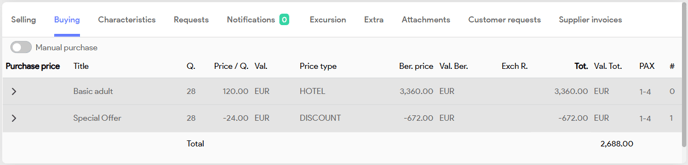
| Column | Description |
|---|---|
|
Click the arrow icon to view the breakdown of how the quantity is distributed. |
| Title | Description of the price component (e.g. Basic adult, Special Offer). |
| Q. | Quantity of units for this price line. (e.g. 28 = 7 nights * 4 adults) |
| Price / Q. | Unit price per quantity (e.g. €120 or -€24). |
| Val. | Currency (e.g. EUR). |
| Price type | Financial price category like HOTEL or DISCOUNT. |
| Ber. price | Base amount before calculations. |
| Val. Ber. | Validated base price (after possible adjustments). |
| Exch. R. | Exchange rate applied if foreign currency is used. |
| Tot. | Total purchase cost (per row). |
| Val. Tot. | Currency again, confirming total in base currency. |
| PAX | Pax range to which this line applies (e.g. 1-4). |
| # | Internal sequence or index of the price line. |
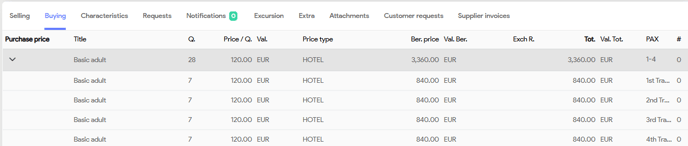
Example: The pricing structure is based on a per participant, per night basis. For instance, if a booking includes 4 adults (participants) staying for 7 nights in 2 accommodations (units), this will result in a quantity of 28 and in the following breakdown:
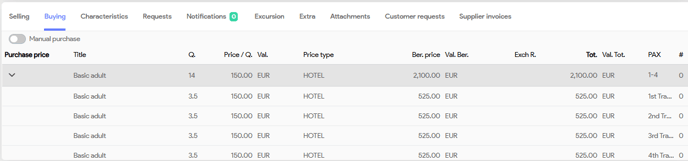
Example: The pricing structure is based on a per unit, per night basis. For instance, if a booking includes 4 adults (participants) staying for 7 nights in 2 accommodations (units), this will result in a quantity of 14 and in the following breakdown:
Characteristics tab
The Characteristics tab in Tide is used to define key metadata related to a service. This includes address data, location breakdowns, booking number tracking, and internal/external remarks relevant to customers or suppliers.
This tab supports data structuring and improves communication, billing, and supplier coordination.
| Field | Description |
|---|---|
| Booking number | Free-text field to register a reference or booking number. The external booking reference from connected suppliers via the API interface will be automatically recorded in this field. |
| Address | The main supplier address for the service (auto-filled when selecting a product). |
| Billing address | Address to which the invoice for this service will be sent. Often the same as the main address. (auto-filled when selecting a product). |
| Request address | Address used when sending a request for availability or price. (auto-filled when selecting a product). |
| Representative address | Optional. The local representation for this service. |
| Country | The country in which the service takes place. (Auto-filled if known from the product) |
| Region | A specific region within the country that can enhance search functionality and reporting capabilities. This field will be automatically populated if the relevant information is available from the product. |
| Place |
A specific location within the region that can enhance search filters and reporting capabilities. This field is automatically populated if the information is available from the product. |
| Location | Optional, location of the Service. |
| Customer requests |
This field will be deprecated in the near future. Please use the Customer Requests tab for all relevant entries moving forward. |
| Considerations |
A separate field to enter remarks regarding the service, typically not shared externally. The external cancellations policies from via API connected systems will be automatically recorded in this field. |
Request tab
The Requests tab displays all outgoing request actions sent to the supplier for the selected service line. It tracks communication moments (for availability, confirmation, etc.) and helps manage the operational follow-up.
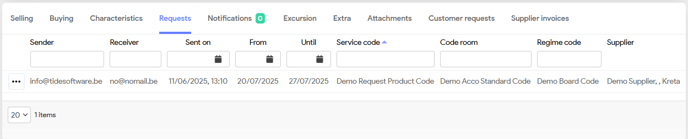
| Field | Description |
|---|---|
| Sender | The e-mail address of the sender of the request. |
| Receiver | The e-mail address of the supplier or external partner. |
| Sent on | The timestamp when the request was sent. |
| From / Until | Date range of the requested period. |
| Service code | The product code of the requested service. |
| Code room | Internal code for the requested accommodation/room within the product. |
| Regime code |
Internal code for the requested board within the product. |
| Supplier | Supplier name along with location details. This information facilitates future filtering. |
Notification tab
The Notifications tab provides a centralized view of remarks, notes that were made selected.
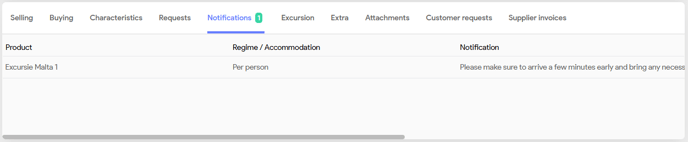
These messages are set in the accommodation of the product, more specifically in the Remarks field
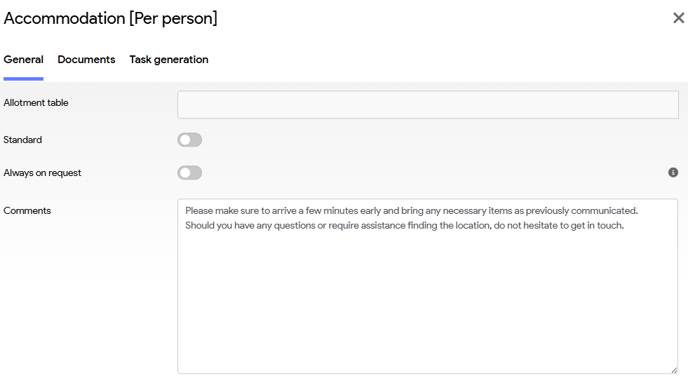
These are not to be confused with product notifications. They will be shown on the errors and warning section.
| Column | Description |
|---|---|
| Product | The name the product which applies |
| Regime / Accommodation | The corresponding accommodation or regime of the product. |
| Notification | The message or warning configured in the comments section. |
Extra tab
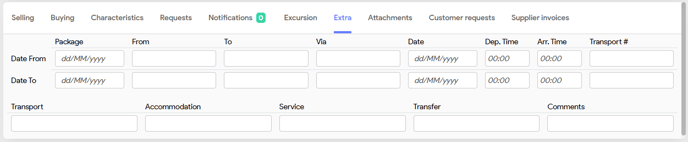
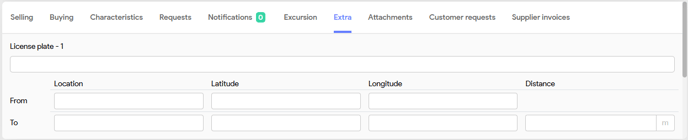
The Extra tab in a service line allows you to record logistical and contextual details that go beyond pricing, availability, and financials. These are especially useful for services involving transfers or excursions where timing and routing are important.
The Extra tab is intended to capture specific details relevant to the specific service. As a result, the available fields may differ depending on the service type, and in some instances, the tab may not be accessible for certain categories, such as flights or costs.
Custom fields - as configured on Service Types in Administration - will also be shown here.
By default, this tab will include essential routing information relevant to the service.
Example: hotel service, excursion
Example: transfer service with custom field License plate
Attachments Tab
The Attachments tab allows you to upload and manage documents related to a specific service or file. These documents can include PDFs, images, itineraries, contracts, or any other files that are relevant to the booking or operational handling.
| Column | Description | ||||
|---|---|---|---|---|---|
| Date | Timestamp of when the document was uploaded. | ||||
| Name | Filename as uploaded, typically descriptive (e.g., “Creating a product – Seasons.pdf”). | ||||
| PAX | Specifies if the document is tied to specific travellers (not shown in this example). | ||||
| Document Type | The type of document. Can be configured in Admin settings (e.g., contract, voucher, guide). | ||||
| Through | Indicates which user or system uploaded the document | ||||
| B2B / B2C / IDM |
Visibility toggles
|


-png.png?width=51&height=53&name=icon_visible%20(1)-png.png)
Uploading Files
You can add new documents by either:
-
Dragging and dropping them into the upload zone on the right (
Drop documents here) -
Clicking the upload icon (not shown in this screenshot)
Customer Requests tab
The Customer Requests tab allows you to capture and communicate specific preferences or requests from the traveller to the supplier. These requests are tied to a specific service line and are sent along with booking or request communications.
Common use cases include:
-
Room location preferences (e.g. top floor, quiet side, away from elevator)
-
Dietary needs
-
Accessibility accommodations
-
Baggage handling notes
Interface Overview
| Field | Description |
|---|---|
| Title | A short label or heading summarizing the request. Example: Top floor, Away from elevator, Severe peanut allergy. |
| Message | A full sentence or detailed note that will be shared with the supplier. Example: Please reserve a room at the top floor. |
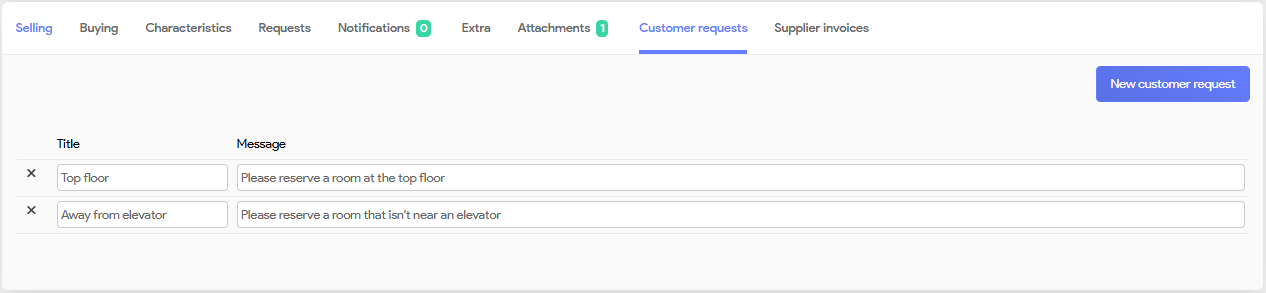
| X | To remove a customer request entry, simply click the icon located next to the request. |
 |
Click this button to add a new request line. A new row with Title and Message will appear. |
Supplier Invoices Tab
What Is It?
The Supplier Invoices tab provides an overview of purchase costs associated with each service line in the file, their payment status, and whether they are included in invoice processing. This is essential for managing accounts payable to suppliers.
Tab Overview
| Column | Description |
|---|---|
| Service Type | The type of service (e.g. Hotel, Transfer, Flight) connected to the supplier cost. |
| Product | The name of the product from which the cost originates. |
| Status | Payment status of the cost. Options include: Not paid, Paid, Partially paid, etc. Status can be changed via dropdown. |
| Purchase Price | The total cost to be paid to the supplier for this service. |
| Billed | Indicates the amount that has been billed by the supplier (expected invoice value). |
| Invoices | Indicates the amount that has already been officially invoiced within the system. |
| Checkbox | Used to create the supplier invoice. This will be handled in a separate article. |