
What is a price block?
Tide's pricing engine is built around price blocks, which allow you to organize and manage both purchase and sales prices with high flexibility. Pricing is constructed hierarchically using price tags, blocks and lines.
Key concepts
This article will help you:
-
Understand what the basic price concepts are
- Configure price cards, price blocks and price lines
- Help you grasp pricing logic (from basic to complex)
Basic price concepts
Grasp the fundamental concepts of pricing in Tide
Basic Introduction
Guide to setting up pricing in Tide. A detailed description how to
configure price blocks and price lines.
Configuring Purchase and sales prices
Varied approaches for setting up Purchase and Sales Prices
Actions menu
Guide to maximizing the benefits of the Actions menu
Calculation engine and the order of price blocks
Understanding the calculation engine and the significance of organizing price blocks.
Basic price concepts
Price card
A product usually has 2 or more price cards and. All your purchase prices are bundled in a purchase price card and your sales prices are bundled in a sales price card. If you have multiple sales price strategies (for different brands or sales channels), the purchase can remain common, but Tide will create multiple sales price tags (each with a separate margin etc.). This is managed on the product Data tab.
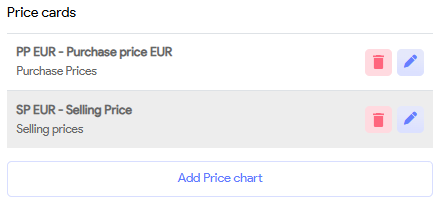
Price block
Managing prices (buying and selling) is grouped into "price blocks" in Tide. A price tag contains 1 or more price blocks. A price block has a certain responsibility within the price calculation It is recommended to establish a separate price block for each responsibility associated with the automatic price escalation process.
- You always attach a price block to one or more accommodation and regimes to which it applies. (e.g.: All Inclusive: a surcharge of €50 applicable to all accommodations).
So it is wise to group these price lines by responsibility. This helps maintain transparency and understanding, even when there are numerous price lines.
Examples of responsibilities include:
- Base prices for room types
- Base prices for meal plans
- Child discount
- Special offers and early bookings
- Honeymoon discounts
- Long stay offers
- Single supplements
- Dinner supplement
- Discount 3rd person
- Christmas gala
- ...
Although it is theoretically possible to include many price lines within a single price block, it is best practice to group them according to their respective responsibilities.
Base price
For a price block, you can indicate that it is a "base price". In that case, Tide will check whether a price is calculated for each night, day or one-off at the time of booking. If a price is not available for a single night, the product will be deemed not bookable (NB).
Show all price blocks
Price blocks that no longer contain price lines in the future will no longer be shown. This keeps the number of price blocks uncluttered over time. If you still want to see these old price blocks, click the toggle "Show all price blocks".
Then you can add new price lines and these old blocks will become visible again.
Price line
A price block consists of several price lines. Price lines are the smallest unit in Tide’s pricing engine. Each price line specifies an amount or percentage, and may include a set of conditions (price rules) that determine whether the line applies during booking.
Basic price line examples:
| Name | Amount/Percentage | Mulitiplier | Price rule |
|---|---|---|---|
| Basic price | € 100 | Per participant, per night | |
| Child discount First child | -50 % | Per participant, per night | First child |
Price rules
For complex pricing logic, price rules allow you to define reusable conditional logic.
-
Simple rules can be defined directly on the price line.
- e.g. only applicable for children with age between 2 - 11
-
Complex rules must be set up as a named price rule in Administration management.
-
e.g. child discount applies only if accompanied by 2 adults
-
e.g. a promotion where a customer receives 8 nights for the price of 6, but the offer must be booked at least 14 days in advance. Here you set up multiple criteria: minimum stay, booking date and free nights.
-
Basic price
The basic price of an accommodation or regime in a product, without any discount or supplement.
Seasons
Products are usually offered in different price periods/seasons(high season, low season, or multiple season periods,...). You can add new information to these year after year. Old season are archived. For more information about seasons, refer to Seasons.
Contracts
Some hotel(chains) (e.g.: Iberostar) have several (purchasing) contracts. These have different pricing. Tide makes it easy to switch between these contracts at their indication.
Travel Sum
A travel sum is the price of a package, with all basic elements included (to be determined by yourself)
Total price
Is the travel price plus all extras (such as excursions, insurances, file costs, ... ) that the customer books optionally or compulsorily.
Calculation flow
In Tide, you can use different calculation flows for different brands or components within the organisation.
More in-depth information can be found in this article Calculation flow
Basic Introduction
Understanding Price Blocks in Detail
Understanding Price Lines in Detail
Set up price blocks
When you first begin working with pricing, it can feel quite daunting. To ease this process, start by establishing a basic pricing structure. This initial setup will help you grasp the simplicity of pricing management, while also demonstrating how it can become more intricate as your needs evolve.
There are 2 possible options to create price blocks
- Generate price blocks based on accommodations and regimes
- Manually create a price block
We'll start by looking at generating price blocks, as this is the best way to initiate the price block setup.
Let's assume that you want to set up prices for a product (hotel, group travel, ...) with
- 2 room types (Demo Acco Standard, Demo Acco Deluxe)
- 1 regime (Demo Board)
- 1 or more seasons (S1)
In your product, navigate to your Price blocks tab

In the bottom left corner, you'll find the Actions button. Clicking this button will open the manage priceblock menu, allowing you to proceed with the necessary pricing configurations.
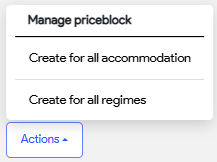
Generate price blocks
- Click Actions, and then Create for all accommodations
You will see that this generates new blocks in the list for all accommodations you have created. - Click Actions, and then Create for all Regimes.
Now a block for each board will be generated. You should see your first price blocks.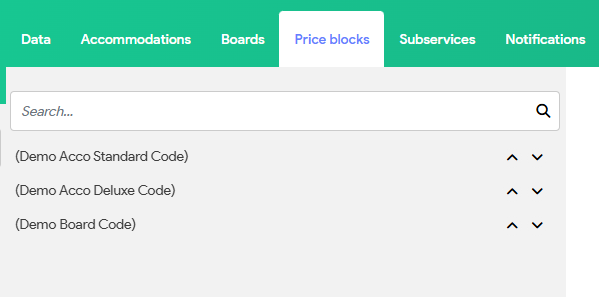
Customizing or manually creating a price block will be addressed in the following section below : create or change a price block.
Next step is to set up an actual price by creating a price line in the price block.
Set up price lines
- Select the price block of first accommodation.
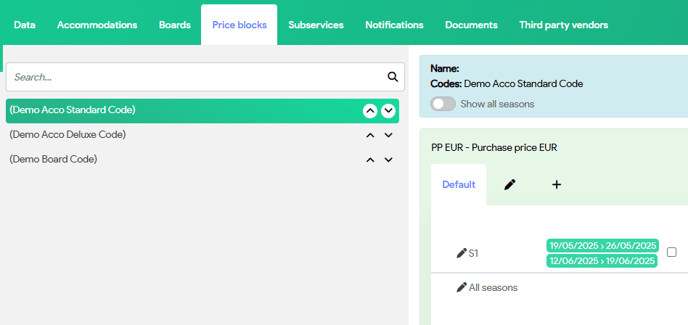
On the right, a new panel will appear, featuring
- the purchase price at the top and
- the sales price just below them.
Here you can also chose to set up
- a price for a specific season or
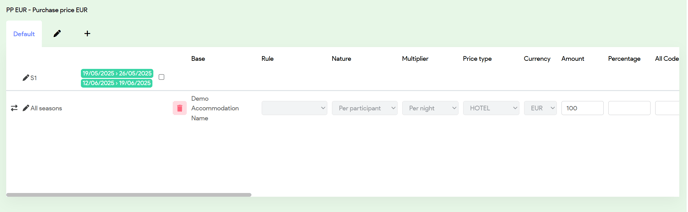
- a price applicable for all seasons. - Select the pencil icon
 next to 'All seasons' to set up a price line, and a new panel Price lines will appear.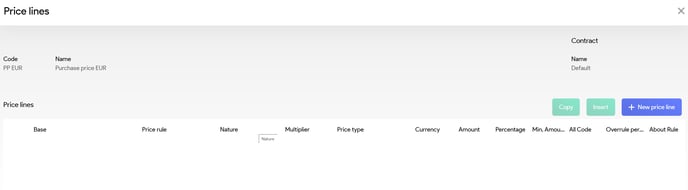
On the right side of the panel, click on the button "+ New price line" to start configuring the new price line:
- You can now proceed to configure your price line. Once you have completed the setup, the price line will be displayed in the panel.
Price block in depth
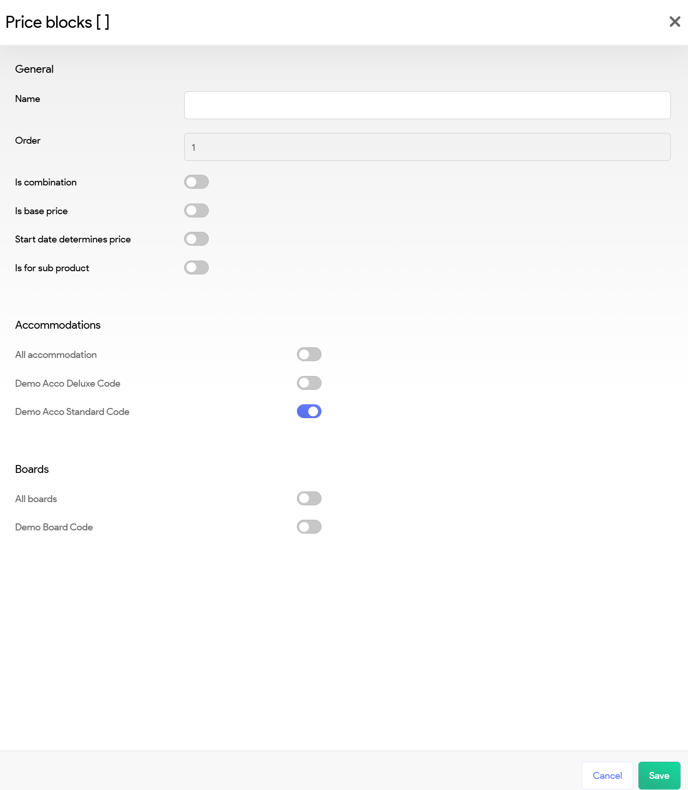
Name
The name of the price block. Matches the terms outlined in the contract or for example the name of the Special Offer.
Order
Order is not editable. The order can be changed by using the arrows next to price block in the price block list.
Is combination
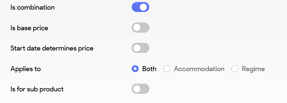
If your price block is only applicable to a specific room type or regime, this option should not be selected. However, if your price block applies to a combination of room type and regime, then it should be checked. When ticked you will get some extra configuration options
|
Both |
The price block is applicable to both the room type and the regime (for example, early booking applies based on the base price and the regime). |
|
Accommodation |
The price block is applicable to the room type but only if booked with the selected regime. |
|
Regime |
The price block is applicable to the regime but only when used when booked with the selected room types. |
For example, a discount only applies on
- Full board and Standard room : - 25%
- Full board and Deluxe room : - 50%
Is base price
For a price block, you can indicate that it is a "base price". In that case, Tide will check whether a price is calculated for each night, day or one-off at the time of booking. If a price is not available for a single night, the product will be deemed not bookable.
Start date determines price
The "Start date determines price" option should only be enabled if your supplier agrees to apply the pricing from the start date for the entire duration of the stay.
By default this is disabled and thus Tide calculates the nightly rate for each night and will sum the different nightly rates. So if you have some nights in low season and then some nights in high season, you will get the sum of a mix of different prices.
Is for sub product
This option is relevant only when you are setting up a primary product (e.g. tour package) that includes subproducts. When selected, it allows you to configure the accommodations associated with those subproducts linked to the main product.
Accommodations
In this section, you can specify which accommodations the price block will be applicable to.
It often happens that a certain amount or discount does not apply to only 1 accommodation or regime. In that case, you can configure several accommodations and regimes
Boards
In this section, you can specify which regimes the price block will be applicable to.
Price line in depth
In this section, we will explore the various fields available for configuration within a price line. Due to the complexity of some of these fields, we will provide a brief overview here, with references to separate articles for a more detailed explanation.
Name
By default the name of the corresponding accommodation will be taken - as we are generating prices for an accommodation - but you have the flexibility to modify this. When generating a regime this would of course be the name of the regime.
Price rule
Here you can set up a price rules. Price rules provide the flexibility to refine the price line criteria in more depth, so you can meet the necessary requirements as stipulated in the contract.
For more information about managing price rules, please refer to this article 'Price rules WIP'
Nature (Quantity Multiplier)
The nature of the price line indicates how the price should be calculated.
- Per booking: the price applies to the entire booking
- Per participant: the price will be calculated for each participant assigned
- Per Unit: the price will be calculated for the unit, regardless of the number of participants
Multiplier (Time Multiplier)
The field Multiplier indicates how the price should be multiplied. There are four options:
- Once: the price will not be multiplied.
- Per kilometer: the price will be multiplied by the number of kilometers
- Per day: the price will be multiplied by the number of days of the travel duration.
- Per night: the price will be multiplied by the number of nights of the travel duration.
Total = Quantity Multiplier × Time Multiplier
-
€50 per person per night × 2 people × 5 nights = €500
-
€100 per room (unit) per night × 3 rooms × 5 nights = €1500
-
€30 per file = always €30 (e.g. administration costs)
Price type
This field plays a crucial role in calculating the margin, VAT, commission and the presentation on documents, as well as its management within the accounting module.
For more information about managing price types, please refer to this article 'Price types WIP'
Currency
In this field, you can specify the currency for the purchase price line.
Amount
This is the actual amount on which the calculation can be based. When applying a discount, enter the value as a negative percentage.
Percentage
If the contract indicates a percentage, this can be configured here. When applying a discount, enter the value as a negative percentage.
E.g. a -15% early booking
Min. Amount
A minimum price threshold that you can set up. If the calculated amount is below this min. amount, this amount will then be used.
All Code
Use when multiple prices apply on the same date (e.g., different flight or group tour codes)
- Group travels: if multiple identical tours are departing on the same day, but have different pricing, you can enter the tour code for one tour in this field and the tour code for another tour in the next line. You can find these tour codes listed under allotments.
- Flights: Flights always have a flight number, which is also defined under allotments. To apply separate pricing for each flight, you can enter the flight code here.
Overrule percentage
Override the default margin with custom values
About Rule
WIP
Minimum age
The minimum age of participants eligible for this price. By default, this is set to 2.
Max age
The maximum age of participants eligible for this price. By default, this is set to 99.
Minus
From which night the price rule becomes applicable.
Max
Until which night to which the price rule will apply.
E.g. you have a stay of 7, but this price line only applies to first 3 nights, so minus will be 1 and the max will be 3.
Minimum stay
The minimum number of nights required for the price rule to be applicable. By default, this field is left empty.
Max stay
The maximum number of nights allowed where the price rule is applicable. By default, this field is left empty.
E.g. you have a discount that is only applicable for a duration from 10 nights.
Created from (Booking Date Range)
Start date of the booking window. The price will be valid for any files or bookings that are created starting from this date..
Created up and including (Booking Date Range)
End date of the booking window. The price will be valid for any files or bookings that are created on or before this date.
Stay from (Travel Date Range
Begin date of the stay window for when the price rule is applicable (this can be different than the start date of the actual stay). This field should only be filled out if you are entering a price rule that applies to all seasons.
Stay up to and including (Travel Date Range)
End date (including this date) of the stay period during which the price rule is valid. (This can be different than the end date of the actual stay). This field should only be filled out if you are entering a price rule that applies across all seasons.
Start from
Actual start date of stay window for when the price rule is applicable.
Start up to and including
Actual end date of the stay window for when the price rule is applicable.
Code combination
Apply discount only if another specific product is booked. You may enter a specific product code for which a discount is applicable in this field.
For instance, when booking a transfer that typically costs €100, a 50% discount will be applied if in the booking the product code "HTFSIBERO" is used for the Iberostar hotel in Tenerife.
NCRG
Non Combinable Rule Group. See details below
BCRG
Best of Non Combinable Rule Group. See details below
Promotion code
For example, you can use a code like 'SUMMER30' if you want customers to be able to enter a discount code in the booking dialogue.
Days of Week (Mo Tu We Th Fr Sa Su)
Select the days of the week when the price line will be valid.
Shared Divider
Spread cost over expected group size. See details below
Min sum
See BCRG details below.
Max sum
See BCRG details below.
Min distance
When calculating distance, you can set a minimum number of kilometers for which the price is valid.
Max distance
When calculating distance, you can set a maxim number of kilometers for which the price is valid if it's less than this value.
Distance interval
You have the option to utilize a distance interval for calculations.
Commission
Specify the commission percentage that you want to be applied on top of the purchase amount. For example, if the hotel cost is €100 and the local guide requires a commission of $5, the total purchase will be considered as €105.
Commission %
Same functionality as commission, but here you can configure a specific percentage.
NCRG & BCRG: Controlling Combinability
NCRG - Non Combinable Rule Group
Used for mutually exclusive discounts.
-
Assign the same code prefix (e.g.,
KG) to multiple lines. -
Only the first valid rule in sequence applies; others are ignored.
-
Combinability is tested using startsWith, not strict match.
You can enter different discounts in various price lines. These discounts may exist in separate price blocks or within the same block. The first valid discount to apply, based on the order of precedence, will be calculated, and any subsequent discounts will be disregarded.
In this field, you can specify a group name, for example, "KG1". Any prices that include the term "KG1" cannot be combined with each other. Therefore, you should assign the term "KG1" to all relevant price lines.
There may be instances where a discount cannot be combined with another discount but can still be combined with a third one. Therefore, we do not compare the entire string strictly; instead, we utilize a StartsWith approach for evaluation.
Example:
| Price Line | Discount | NCRG |
|---|---|---|
| Line 1 | -€100 | KG |
| Line 2 | -€50 | KG1 |
| Line 3 | -€25 | KG2 |
| Line 4 | -€5 | KG12 |
- If Line 1 is valid, all others starting with "KG" are excluded. So Line 2, 3 and 4 are ignored.
- If Line 2 is valid so KG1 is compared. Line 3 can still apply as KG2 ≠ KG1. Line 4 is excluded because KG12 starts with KG1.
- If neither Line 1 nor Line 2 is valid, Lines 3 and 4 can still be combined since KG12 does not start with KG2.
BCRG – Best of Combinable Rule Group
Used for selecting the most favorable discount.
-
Tide automatically chooses the maximum or minimum value within a BCRG group.
-
Set this rule to
MAXIMUM(best discount) orMINIMUM(least cost).
For price lines that are not combinable, Tide can automatically calculate which option provides the greatest benefit for the customer (or for yourself). Select MAXIMUM if you want Tide to automatically calculate and suggest the discount (or surcharge) with the highest value. Choose MINIMUM if you prefer Tide to calculate and propose the discount (or surcharge) with the lowest value.
Shared divider
Used in group tours to spread fixed costs (e.g., guide fee) across participants. It's this estimated number of participants value, you enter in the Shared divider.
Example:
-
Total guide cost: €1500
-
Estimated group size: 15
-
Result: €100 per person
As bookings increase, shared cost is recalculated, automatically adjusting purchase prices and margins across all dossiers.
The use of the Shared Divider has several implications:
So if the group sells exceptionally well or not as well, you can adjust the Shared Divider at any time. The purchase prices in the various files for a group tour will be updated based on the actual booked number of participants.
Consequently, in the case of the initial booking, the margin may appear significantly negative; however, as new bookings come in, the margins for previous files will be automatically optimized.
Delete a price line Empty the price line in order to have clean slate to start over


Create or change a price block
When creating or editing a price block, you will get the following panel to configure the various price block settings
Create
In the bottom right corner, you will see a button labled "+ New price block". By clicking a the blank Price block panel is shown, where you can start setting up your price block.
Edit
Select Actions and click Edit to show the Price block panel and modify the price block settings.
A detailed explanation about the Actions-menu can be found here
Configuring Purchase and sales prices
In Tide, you have the flexibility to manage both purchase prices and sales prices in various ways.
Here are four distinct approaches you can take to configure prices:
Single purchase prices (Most commonly used)
Purchase prices and sales prices
Single purchase prices
This is the most commonly used option of configuring prices. In this case, you only configure the purchase prices and Tide will automatically calculate all sales prices at the time it is needed (file creation, caching, ... ).
No prices
- This may be applicable, if you intend to create and utilize a template product.
- This might also applicable when your product is linked to an external product. For external products (e.g. connected with Bedbank API), Tide will automatically fetch the necessary purchase and sales prices when required.
Single selling prices
If you choose to calculate sales prices manually, you can deploy them right away. However, this means that the purchase prices will remain 0, which is not ideal as it can lead to inaccurate margin calculations.
Purchase prices and sales prices
It is usually chosen to have sales prices calculated automatically. However, if you want to use certain fixed commercial sales prices, you can set them by entering them manually.
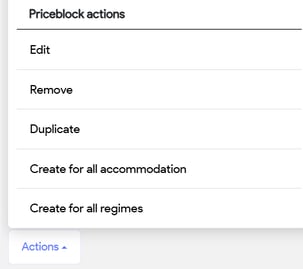
Actions menu
The actions menu divided into 2 sections.
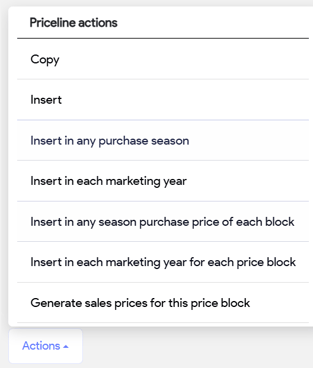
Manage price lines
Duplicate price lines (copy and insert)
Insert in each marketing year (WIP)
Insert in any season purchase price of each block
Insert in each marketing year for each price block (WIP)
Generate sales prices for this price block
Sales prices for all price blocks
Duplicate price line(s)
Let's say we want to copy the price lines of season S1 into season S2.
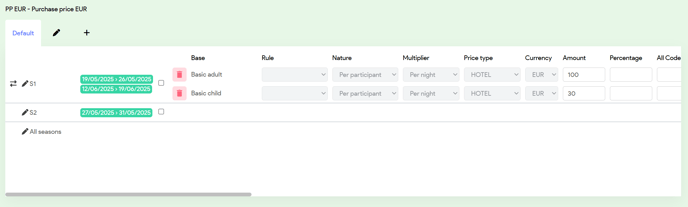
- Begin by selecting the price line you wish to copy by ticking the checkbox located next to it.
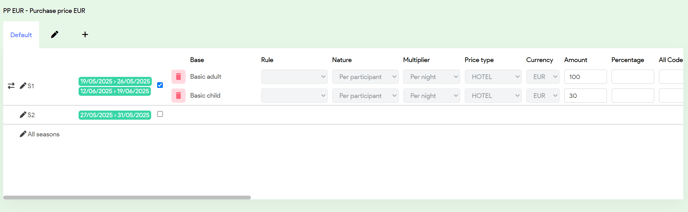
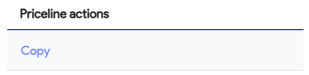
- Chose Actions and click Copy in the priceline actions section, the checkbox will be automatically deselected.
- Select the desired location where you want to insert the prices, in this case season S2
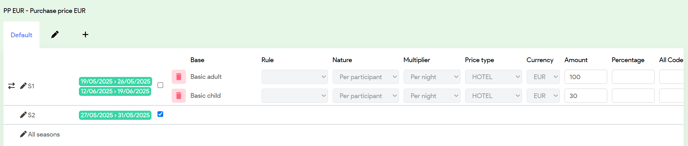
- Chose Insert from the price line actions section. The price lines will now be placed into the second season, allowing you to begin making any necessary adjustments.
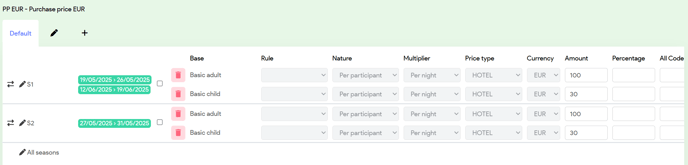
In case you want to duplicate price lines to a different price block, the process is more or less the same. Before you insert, you first go to your price block and tick the checkbox of the desired season.
Be aware that when you copy a selection that includes multiple seasons, the entire selection will be duplicated for each individual season.
Insert in any purchase season
If you want your selection to be copied to the purchase section of all seasons, you can use the option "insert in any purchase season" of the selected price.
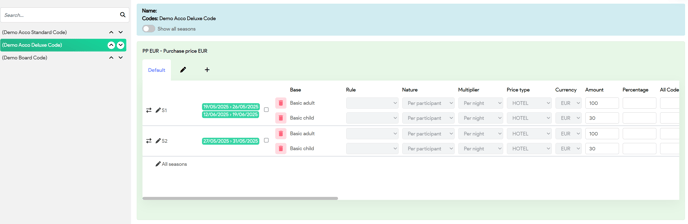
For example let's say you want to copy season S1 to the season S1 and S2 of a different price block.
- Select S1 in price block of the first accommodation and copy the selection
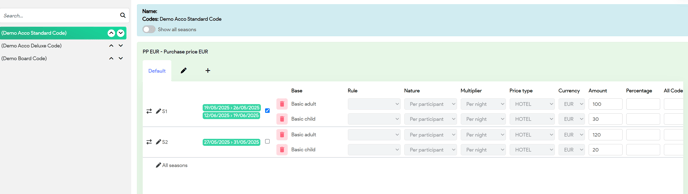
- Select the price block of the second accommodation and under actions chose insert in any purchase season. You will see that the prices will be copied to all seasons in the selected price block.
Insert in any season purchase price of each block
If you want your selection to be copied to the purchase section of all seasons of all price blocks, you can use the option "Insert in any season purchase price of each block" of the selected price.
For example let's say you want to copy season S1 to the season S1 and S2 of all seasons in the purchase blocks of all price blocks.
So S1 will be inserted to S1 and S2 in the purchase prices section of both Demo Acco Deluxe and Demo Board.
Generate sales prices
Typically, the following functions are not necessary unless you intend to establish a fixed price or designate it as a commercial price.
- Generate sales prices for this price block: generates the sales prices for a specific price block
- Sales prices for all price blocks: generates the sales prices for all price blocks
Manage price blocks
Edit
Click Edit to show the Price block panel and modify the price block settings.
Remove
Click Remove to delete the selected price block completely, with all its configured price lines
Click Duplicate to duplicate the selected price block.
Create for all accommodations & Create for all Regimes
These 2 functions are explained in the section Generate price blocks
You generally use the when creating new products, but of course they can also be used if you have subsequently added new accommodation or regimes to the product.
Calculation Engine
When the Calculation Engine processes prices in real-time, it evaluates the price blocks from top to bottom. It retrieves only the price blocks that are relevant to the selected accommodation and/or regime. Following this, the engine consolidates all applicable price lines into a single set.
Consequently, it's crucial to position the accommodation pricing at the top, with subsequent discounts, such as early booking offers, listed below. This arrangement ensures that the Calculation Engine can accurately apply the discount to the foundational price.
There are various options available to control whether certain price lines can be combined. For more information on this functionality, please refer to the sections on price lines and price rules.
Order of price blocks
While there isn't a one-size-fits-all approach to the order of price blocks, you may choose to adapt it to better suit your business needs. However, the following arrangement is generally considered best practice.
- First base prices for each accommodation: Using 'generate for each accommodation' will generate a price block for each accommodation. The basic price block is identifiable by the absence of a name, and it is displayed solely with the accommodation it is associated with.
Example: (2PKST) - Then basic prices of each regime : These price blocks are unnamed; their identification is solely based on their association with a specific regime.
Example: (HB) - Then all the remaining price blocks: These are given a clear name. For example 'Child discount' and are assigned to 1 or more accommodations and regimes (see: complex allocation)
You can change the order of price blocks at any time by clicking on the arrows (up/down) to the right of the price block name. The first icon will move it up in the list, the second icon will move it down in the list.
The order field on the corresponding price blocks will be updated automatically.
