
A guide to creating, modifying and canceling files.
Before we begin
This guide will assume you are familiar with the different components in Tide.
If you haven't been able to get familiar with them, we advise to first read the following articles
We also encourage you to explore the following topics, either at this time or whenever you seek additional guidance in the course of this article:
File interface - Status and custom status
File interface - Travelers and rooms
File interface - Service line properties
File interface - Service status
File interface - Service types
As we are going to use predefined products, it's also important to understand the product concepts in Tide. In case you haven't done this yet, you can read all about it in the following tutorial:
A hitchhiker's guide to the Tide Product
Creating, modifying and canceling files
Creating a reservation
- Step 1: New reservation
- Step 2: Select Branch
- Step 3: Select Travel Agent or Traveler
- Step 4:
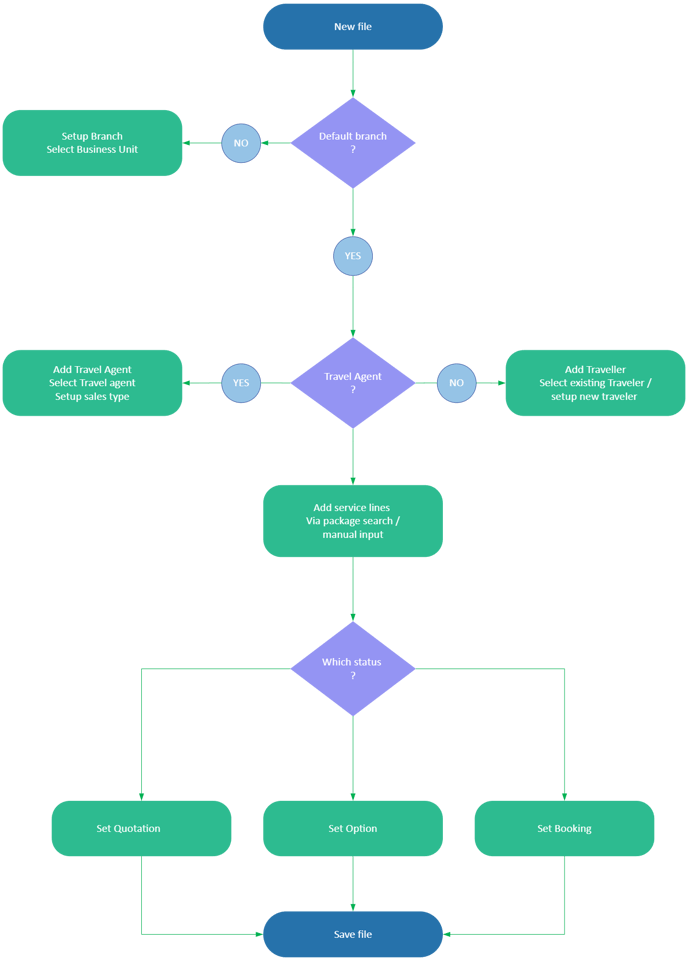
Step 1: New reservation
-
Go to File management > Files > New File
You can use quick actions to directly create a new file.
Read more about: Quick actions.
In you are working in an existing file, you can click File > New
Step 2: Select Branch (optional)
-
The system will automatically select the business unit associated with your user account.
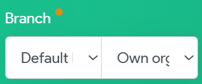
You can select a different business unit in the field Branch.
Step 3: Add travel agent or traveler
Select Travel agent
In case you have a booking for a Travel Agent, you can select - or create - a travel agent that will be assigned to the file. The travel agent can chose the role of Organizer or Resale.
You can either chose to
- Filter directly in the Travel agent field to get a filtered list
- Use the Search function by clicking on the looking glass icon.
- Enter identifier directly in the Travel agent field to select the Travel Agent
Filter in field
Enter a partial name or identifier to display a filtered list of matching options.
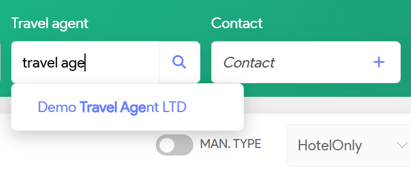
When filtering by name, always select the travel agent, even if only one result is displayed.
Search Travel Agent
-

Click on the looking glass icon in the Travel Agent field to show the Search panel. - You can apply filters based on the various criteria, such as Name.
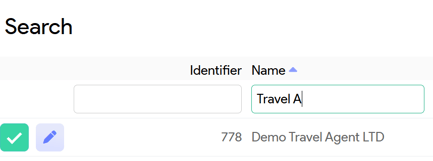
-

Click this icon the select the address 
Click this icon to make changes to the corresponding address
Enter identifier
Type the identifier directly into the Travel Agent field to select the desired Travel Agent. If there is only one matching entry, the system will automatically select that Travel Agent for you.
This method is the fastest way to configure your travel agent, but it does require you to remember the identifier accurately.
Select Traveler
Just like the Travel agent field you can select the Traveler by using one of the following 3 options
- Filter directly in the Traveler field to get a filtered list
- Use the Search function by clicking on the looking glass icon.
- Enter identifier directly in the Travel agent field to select the Travel Agent
Step 2: Add travelers (booking participants)
-
Use the Add traveler icon (little person with a plus sign) at the top right
-
Click once per traveller (e.g. twice for 2 pax)
-
Add names and/or dates of birth if known
-
Room distribution will be automatically generated, but can be adjusted manually
Booking a Hotel
Option 1 – Using Autocomplete (Internal Contracts)
Use this when your hotel contracts are managed in Tide via the PIM module.
-
In the first open service line, type the hotel name or code in the Product field
-
Select a match from the dropdown
-
Tide auto-fills Accommodation and Regime based on internal setup
-
Modify fields as needed
-
Click the green checkmark to confirm the service line
-
Set File status to Booking
-
Click File actions > Save
🟢 Availability is checked only at the time of booking.
Option 2 – Using Search (Contracts or Bedbank)
Use this when you want real-time availability results from contracts or connected APIs.
-
Click the magnifying glass icon on the service line
-
Use the General Search tab
-
Enter:
-
Location
-
Start and end dates
-
-
(If using bedbank): turn off Preferred products only
-
Click Search
-
Choose a hotel and adjust accommodation/regime if needed
-
Click Add to insert it into the file
-
Set File status to Booking
-
Click File actions > Save
You will not be able to save due to the following situations
- Service line is still open
- No agents or customers have been configured.
- An error message has been displayed, such as indicating that there are active sales restrictions for your offer.