
A guide to the File interface and files.
The file interface allows users to manage bookings or individual services. In this tutorial, we will explore the various sections of the interface along with their corresponding functionality and fields.
What is a File
A file contains all the data around a customer's trip. It goes along from the quotation phase, during the trip to the post-trip processing upon return.
A file goes through a complete workflow. This workflow is tracked using a status, a sub-status and version numbers.
A follow-up article will provide detailed instructions on the actual processes for creating, modifying, and canceling files. You can find that article here.
File interface sections
This article will give you a thorough understanding of the file properties by outlining the different fields present in the file interface.
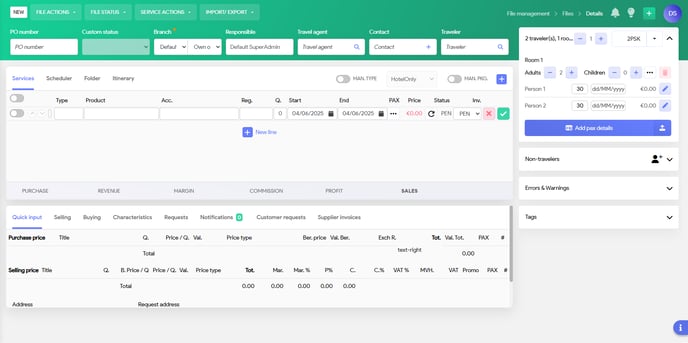
Totals line (Sales summary metrics)
Ribbon
The ribbon can be divided into two parts. A section to actions related to your booking and a section that allows you to generate documents and browse versions. The latter will only be visible when the booking has been made.


Booking status
The current booking status will be displayed, showing New for bookings that have not yet been saved.
File actions
Displays the menu of actions related to file management, as outlined in the table below.
| Menu-item | Description |
| Open file | Opens the file based the number in the PO number field. |
| New | Start a new booking, clear the interface. |
| Save |
Save the current changes. |
| New variant | If a file is in the status quotation, you can create various variants of this quote (e.g., a trip with flights and a trip without flights). New variant, will create a new variant, but you must still save it. Otherwise the changes will be lost. More information about variants can be found here. New variant, will create a new variant, but you must still save it. Otherwise the changes will be lost. More information about variants can be found here. |
| Invoices & Credit Notes |
Opens the invoices & credit notes pop up, which enables you to manage invoices, credit notes and payments related to this booking. |
| Redeem vouchers | Opens the redeem vouchers pop-up |
| Watch texts | Opens a new interface to manage the booking documents |
File status
Select the desired file status when creating or updating the file. A File has 7 different main statuses and these are fixed:
- New
- Quotation:
- Option
- Booking
- Canc. by you
- Canc. by client
For more detailed information on file statuses and custom statuses, please refer to the dedicated article available here.
Service actions
This menu enables you to manually adjust the status of service line(s). A detailed explanation of the service line status concept will be provided in the following chapter (WIP).
To modify a service line, you must first select the specific service by checking the corresponding box next to the service line. Then, you can choose an item from the menu.
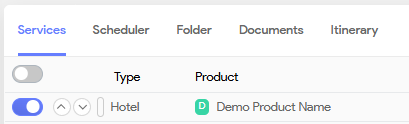
You can select a new status from the following available service line statuses:
| Menu-item | Description |
| Set as Request Confirmed (RC) | If a service line is currently on request (RQ) and there is no automated process in place for request confirmations, or if manual intervention is required, you can manually confirm the request by changing the status to Request Confirmed (RC) once the supplier has communicated the confirmation of the request. |
| Set as Request Denied (RD) | If a service line is currently on request (RQ) and there is no automated process in place for request confirmations, or if manual intervention is required, you can manually deny the request by changing the status to Request Denied (RD) once the supplier has communicated the denial. |
| Set as Booking Confirmed (BC) | When a service line isn't bookable, but you have confirmation from the supplier you may continue with the booking, you can set the booking |
| Set as Cancellation Confirmed (CC) | This action is applicable when you need to cancel only a single service line. |
| Force booking confirmed (BC) |
This action is applicable when you need to confirm the service line without checking allotment, stop sales, ... |
Import/export
This feature allows you to download all booking data in a technical format (JSON). This option is useful for troubleshooting any issues related to the booking or to create a back up.
More information about import and export can be found here.
Users
The section displays the users currently managing the file. If only one user is in the booking, a single user icon will be shown. If multiple users are accessing the file simultaneously, a multi-user icon will appear.
Hovering over this icon will change its color and reveal the username of each user.
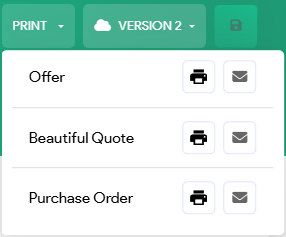
This menu will list the different print actions that are managed in Administration. Here you will be able to print and mail documents related to this file e.g. Quote, Purchase order, Travel Documents,... This will be discussed in a separate article.
Versions
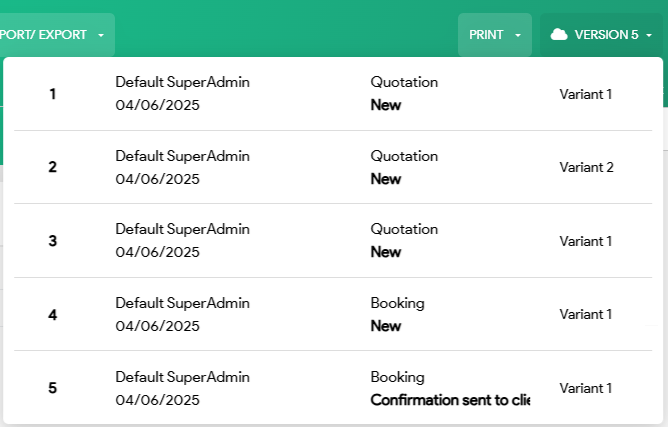
This button will list the versions that have been created for the given file, including the variants you might have created.
|
Version |
User |
File status |
Variant |
| Version number | User name Creation date of the version |
The status of the file | Variant number |
Save
 |
Save the changes you've made to the file. |
The save icon - as the save item in file actions, will only be visible on an existing booking, so not when creating a booking. It will also be disabled if no changes have been made. (identical functionality as the save icon).
File header

PO Number
You can view the automatically generated file number in this field. The structure of this file number is determined by the configuration settings of your business unit. If you have not yet configured these settings, further information can be found here. Additionally, this field allows you to access and open previously created bookings.
Custom Status
Here you will be able to view the custom status of the booking. This status can either be changed manually, or be changed an automatic process flow.
Read more about the file and custom file status in this article.
Branch
A file is always assigned to a business unit (which may represent a brand, a branch, a department, a website, or similar entities).
Here you can also indicated whether you operate as organizer or resale. By default this will be Own organization
Responsible
A file is Optionally also assigned to an internal responsible colleague within the company. Throughout the workflow, files can be handled by several colleagues, but the person responsible can remain the same (or be changed)
Travel agent
In case you have a booking for a Travel Agent, you can select - or create - a travel agent that will be assigned to the file. The travel agent can chose the role of Organizer or Resale.
Select a Travel Agent
-

Click on the looking glass icon in the Travel Agent field to show the Search panel. - You can filter on one of these criteria e.g. Name

-

Click this icon the select the address 
Click this icon to make changes to the corresponding address - Once you have selected a travel agent, the corresponding address identifier will appear in the Travel Agent field, along with the name of the travel agent displayed above it.
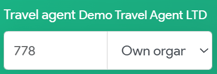
You can also enter the name of the travel agent in the designated field, and a list of potential matches will be displayed for your selection.
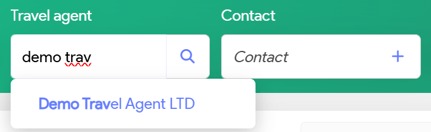
Alternatively, if you know the address identifier, you can simply input it directly in the Travel agent field and the address will populate automatically.
Contact
You can also optionally link a dossier to a 'contact' which is, for example, an employee of the travel agent.
Traveler
In case you have a booking directly for a customer or made directly by the customer (e.g. Website booking), you can create the customer or select an existing customer via this field.
Rooms, messages and tags pane
Travelers and rooms
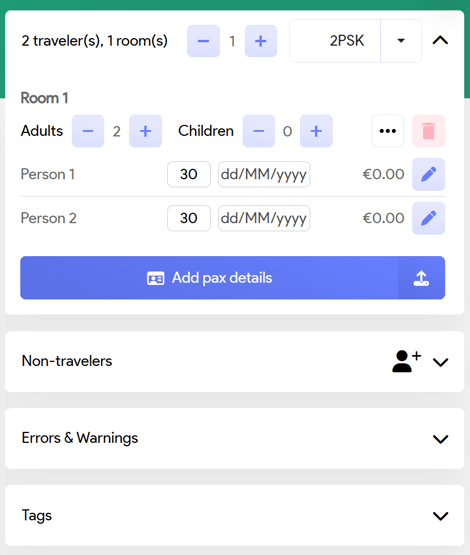
In this panel, you can allocate rooms and designate travelers who will be part of the booking.
Adding rooms
By default 1 room, with 2 adults is selected, but you can add more rooms by specifing the quantity and clicking in the room field (2PSK).
 |
In the first field you can select the quantity. In the second field you can select for which occupancy you want to select the room. A single room, double room, triple,... |
More information about managing rooms and travelers can be found in this article
Not travelers
Travelers who are not assigned to any rooms will be listed here.
This feature allows for the inclusion of non-travelers in the booking, such as e.g. a parent who pays for and manages the booking on behalf of their child and a friend. Although the parent will not be traveling, they will still receive all relevant documents and payment information.
Errors and warnings
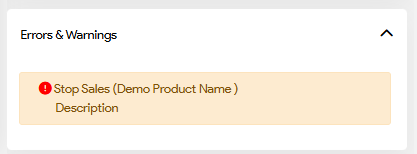
The Errors & Warnings section appears in dossier or booking screens to alert users to potential issues or restrictions that may block or impact booking operations. Common examples are the Stop Sales warning, an entered occupancy isn't allowed for a specific service, minimum duration constraint isn't met, ...
System errors will also be shown here. E.g. when a booking with an external partner failed.
Tags
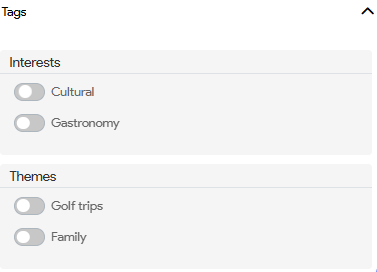
Tags allows you to categorize a file, product, or service based on predefined interests and themes. Tags help personalize offers, enable filtered searches (package search) and reporting segmentation (views).
This tag panel will list all the tags which are configured for files. You have the ability to organize them into logical categories.
Tags are managed in Administration.
Entry header
Entry header consist of two sections: File tabs, file properties and actions group.
File tabs
 Initially, there are four file tabs available; however, a fifth tab can also be accessed when you saved your file.

- Services: the default tab where you manage your service lines
- Scheduler: a graphic calendar view of all booked services
- Map: map view that highlights the locations of all booked services
- Documents: Here you will find your generated document
- Itinerary: when creating an itinerary booking, this tab serves as your starting point.
Itinerary will be a separate article, which you can find WIP.
File properties

Man. type: This indicator is switch on, you can overwrite the file type as determined by the system.
File type: The system will automatically determine the file type. E.g. if a package is loaded in the booking, the file type will be set to type Package. If only a single hotel is loaded in the file, the type will be set to hotel only.
Man. pkg.: WIP
 |
Actions group: this icon will open the file service menu. This menu will always include the following basis items: |
 |
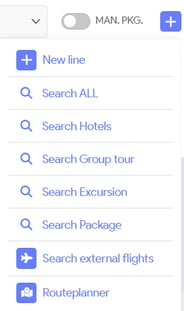
New Line: To add a new service line to your file, simply click this icon. This option is also available within your already configured services, providing the same functionality for ease of use. |
 |
Search configuration: This item will open the Search Service. The Search Service function in Tide allows you to find bookable services in real-time, factoring in both availability and pricing. It supports both internal product configurations and external supplier integrations. This is the primary tool for users to build trips or file components dynamically, ensuring what you see is bookable. This will be addressed in a separate article, which you can find WIP. |
 |
Search external flights: This option will open the external flights search panel. Once you have established a contract with Amadeus, you will be able to search for external flights and seamlessly integrate the complete flight details into the file. |
Depending on the number of configurations you have, this list may vary in length.
Entry lines
In this section you will manage your services. In Tide, a service (or service line/entry line) represents a single bookable unit within a travel file. It can be a hotel, flight, transfer, excursion, or any other service type. Each service line follows a fixed structure for consistent data handling, pricing, and integration with suppliers.You can load services to create a service line or create them manually. Here you will also be able to modify existing services and remove unwanted services.
Service line

Each service line includes the following key components:
| Component | Description |
|---|---|
| Service Type | Defines the kind of service (e.g. hotel, transfer, round trip). Configurable in Administration. More information about service types can be found here. |
| Product | The actual product being booked (e.g. Hilton Hotel Tenerife). |
| Accommodation | The way the product is sold (e.g. "Double Room", "Economy Class Y"). |
| Regime | The meal/board option (e.g. Half Board, Full Board). |
| Quantity | Number of identical accommodations to book (e.g. 3x double room). |
| Start/End Date | Service dates, always in local time. |
| Pax Allocation | Assignment of travelers to this service line. |
| Price | Total sales price of the service line. Can include manual edits. |
| Status | Indicates the supplier-side booking status (e.g. Confirmed, On Request). |
In the following section, we will explore each field in more detail:
1. Service Type
-
Predefined in Admin.
-
Examples: Hotel, Transfer, Flight, Excursion, Round Trip.
-
Used to determine behavior, applicable logic, and integrations.
- Detailed information in this article.
2. Product

| Field | Description |
|---|---|
| Product (Code) |
Smart search field: supports free text, product names, or product codes. Autocomplete enabled when using internal contracts. When you load a predefined product, this will be the Product code you've defined in your product. |
| Name |
A readable product name. In manual entry, defaults to the product code input. When you load a predefined product, this will be the Name you've defined in your product. |
| Supplier Name | Alternate label used by the supplier if different from internal name. When you load a predefined product, this will be the Local Name you've defined in your product. |
Searching for a product

3. Accommodation
Describes how the service is delivered (room type, vehicle type, flight class, etc.).

| Field | Description |
|---|---|
| Accommodation (Code) | Smart search/autocomplete or free entry. When you load a predefined product where you've configured the accommodations, this will be the Code of your accommodation you've defined in your product. |
| Name |
Internal label for the selected accommodation. |
| Supplier Name |
Supplier’s label (if different). When you load a predefined product where you've configured the accommodations, this will be the Name of your accommodation you've defined in your product. |
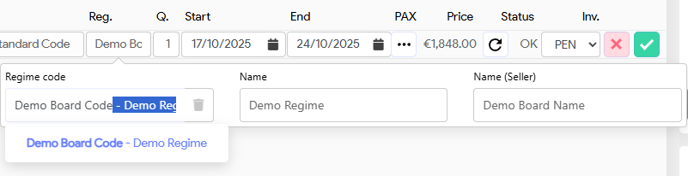
4. Regime
Defines the meal or board basis.
| Field | Description |
|---|---|
| Regime (Code) | Smart search/autocomplete or free entry. When you load a predefined product where you've configured the boards, this will be the Code of your board you've defined in your product. |
| Name | Visible regime label in the system. When you load a predefined product with configured boards, the system will show the label you have set in the translations section for that specific board within your product. If no translations are setup, this value be will taken from the Name of your board. |
| Supplier Name | External version if different from the internal label. When you load a predefined product where you've configured the boards, this will be the Name of your board you've defined in your product. |
5. Quantity
Indicates how many units of the same accommodation are booked.
Examples:
-
3 x double room → Quantity = 3
-
2 x economy flight seats → Quantity = 2
 Different accommodations require separate service lines.

6. Start / End Date
-
Entered as local time.
-
For services on a single day, start date = end date.
-
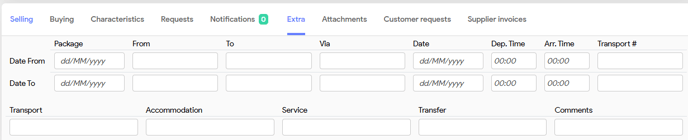
Time-specific data (e.g., departure time) is stored under Service Properties > Extra.
- Flight service lines will feature a dedicated tab specifically for detailed flight information.
7. Pax (Passenger Assignment)
-
Pax are auto-assigned to the service based on room logic.
-
Click the three-dot button to view or edit distribution.
-
Manual overrides are possible if different rooming is needed for specific services.
Examples
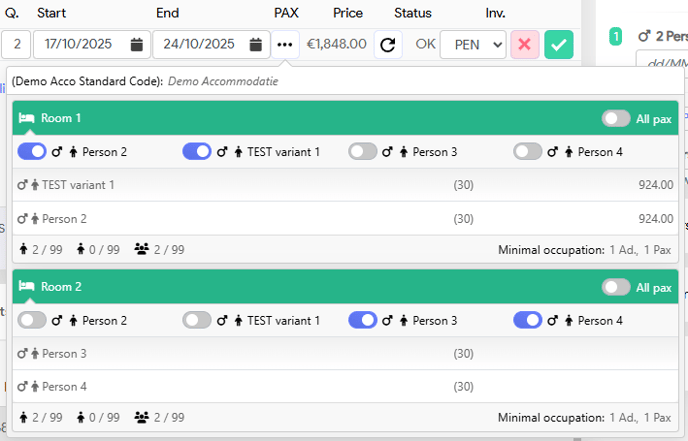
In the first example, the first hotel service line is assigned to passengers 1 and 2, while passengers 3 and 4 are allocated to the second service line..

In a second example, we have one service line with 4 travelers and two rooms where:
- traveler 1 and 2 are assigned to the first room and
- traveler 3 and 4 are assigned to the second room.
By clicking the three-dot icon, you can access the passenger view, which allows you to easily review and adjust the configuration of traveler assignments. In this example:
8. Price
-
Total sales price for this service line.
-
Employees see internal pricing.
-
What customers see depends on visibility settings (via price types).
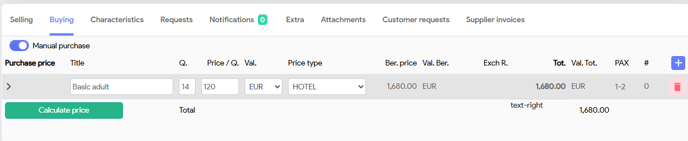
Pricing logic can be manually overridden per line for both purchase prices as sales prices.
You can do ticking the Manual sales for Selling prices

or Manual purchase for editing Purchase price.
For more information, please read the following article
9. Status
-
Indicates booking status on supplier side (e.g. Confirmed, On Request, Cancelled).
-
Cannot be edited directly from the line.
-
Must be changed using Service Actions.
- For a comprehensive understanding of the various service statuses, please refer to this article.
Best Practices
-
Use contracted products and template accommodations for consistency and speed.
-
For real-time pricing and availability, always use the Search Service tool.
-
Always double-check Pax assignments, especially if child discounts or room-dependent
logic is in play.
Totals line (Sales summary metrics)
Tide will calculate and display the following totals:

-
Purchase: The total cost price that needs to be paid to the supplier(s).
-
Revenue: The total amount minus commission.
-
Margin: The difference between sales (excl. VAT) and purchase.
-
Commission: Any commission earned by an agent or sales intermediary.
-
Profit: The final amount retained after costs and commissions.
-
Sales: The total final price the customer pays (typically revenue plus any surcharges or extras).
Example Breakdown
Note that or VAT for this example is 50,89.
| Field | Value | Description |
|---|---|---|
| Purchase | 2,520.00 | Sum of all purchase prices. |
| Revenue | 2,686.22 | Calculated as Sales - Commission. |
| Margin | 509.11 | Calculated as (Sales - VAT) - Purchase |
| Commission | 393.78 | Sum of the commission amount on each service line. |
| Profit | 115.33 | Calculated as Margin - Commission |
| Sales | 3,080.00 | Final selling price to the customer |
Entry line detail
In this section, you will have the ability to oversee and modify the general booking data, aswel as all aspects of a service line.
Booking data

| Field | Description |
 |
Tasks overview |
 |
Emails overview Here you can the emails that were send for this booking. If you have automated your document communication via processes in Tide, you will find these emails here. |
 |
Call logs: add call logs in the booking. |
 |
Booking notes |
| Activity overview | All the activities related to this booking will be grouped here. |
| Notification | All comments/remarks that were set for the products/accommodation this booking can be found here. |
| Communication | Here you will find a basic structured overview of the communication that was made for this booking. |
| Standard products | Here you will find all standard products that were loaded based on your base product e.g. transfers & flights linked to your hotel, administration cost linked to your sales channel,... |
| Loading data | Coming soon |
| Supplier invoices | In this section, you can efficiently manage supplier invoices. This includes adding new invoices, splitting costs as needed, and setting up payment arrangements. |

Each type of service may feature distinct tabs that provide relevant data for management.
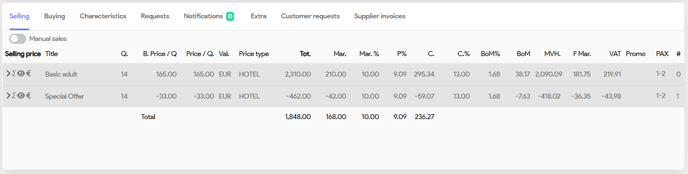
For an in depth view of all aspects of the service line, we refer you to the following article.